Installing Ubuntu 10.4 LTS on Windows Virtual PC on Windows 7
There's lots of info spread around on how to install various older versions of Ubuntu under various older versions of Virtual PC, but I didn't find any referring to the newish Ubuntu 10.4 and VPC on Win 7.
I did now find some useful command-line parameters in this blog post from Mark Wilson. I'm trying to make this post as complete as possible. If you have new or update or better info that is specific to the new changes in Ubuntu 10.4, let me know.
Here's what I did.
- Download Ubuntu.
- Download Windows Virtual PC.
- (You don't need to get Windows XP Mode, but if you want, it's nice.)
- (When you have VPC, you can also some of the various free IE browser testing VMs as well)
- Go into the Virtual Machines folder, and click Create Virtual Machine. Give you VM at least a gig of RAM. I have 8 gigs on my machine, so I give it probably more than was needed and allocated 3gigs.
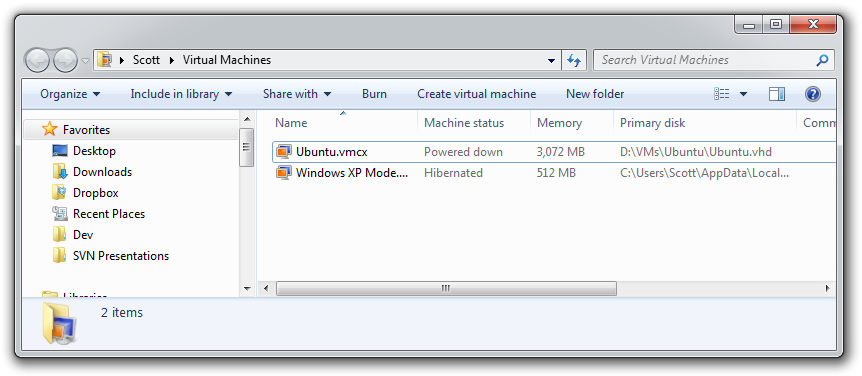
When you create a Hard Drive, create a Fixed one rather than a dynamic one. I find this is faster and can avoid some strange disk errors with Ubuntu and the VM. I saw some strangeness with dynamically expanding disks.
In the Settings for your VM, tell it that the DVD drive actually be the Ubuntu ISO that you downloaded.
_2.png "Ubuntu - Windows Virtual PC Settings (2)")
Hit OK and start your VM.
IMPORTANT: When it starts booting, hit ESC when you see a blinking cursor, then you'll find yourself here. If you let it just boot without hitting ESC it'll start a bit, then give up.

Hit F6, then ESC. Then add vga=791 noreplace-paravirt at the end of the white command line so it looks like:
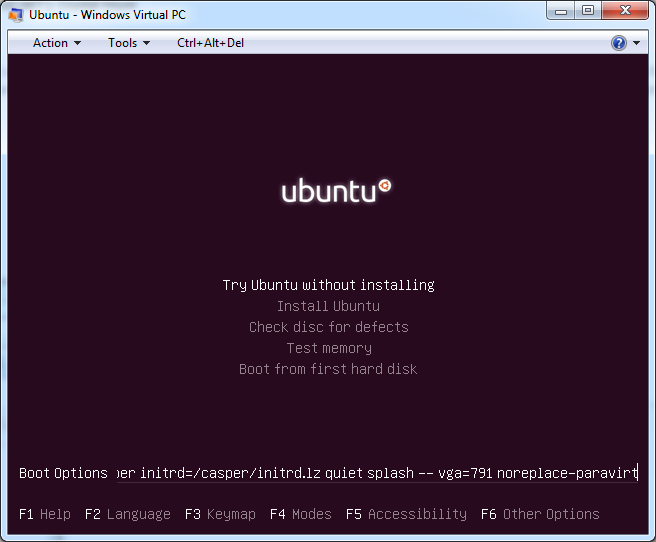
Hit Enter
You find yourself at a desktop...make sure that from Tools|Settings that your Network Card in the VM is attached to a REAL physical network card.
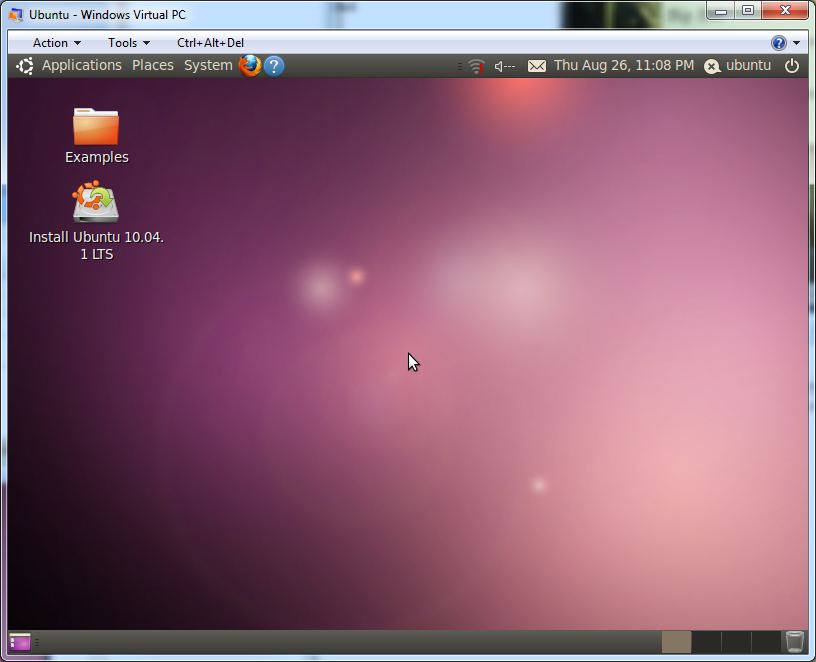
If you click in your VM, the mouse will be captured. You can get out with Ctrl+Alt+Left Arrow.

Double-Click Install Ubuntu and start the process using all the defaults.
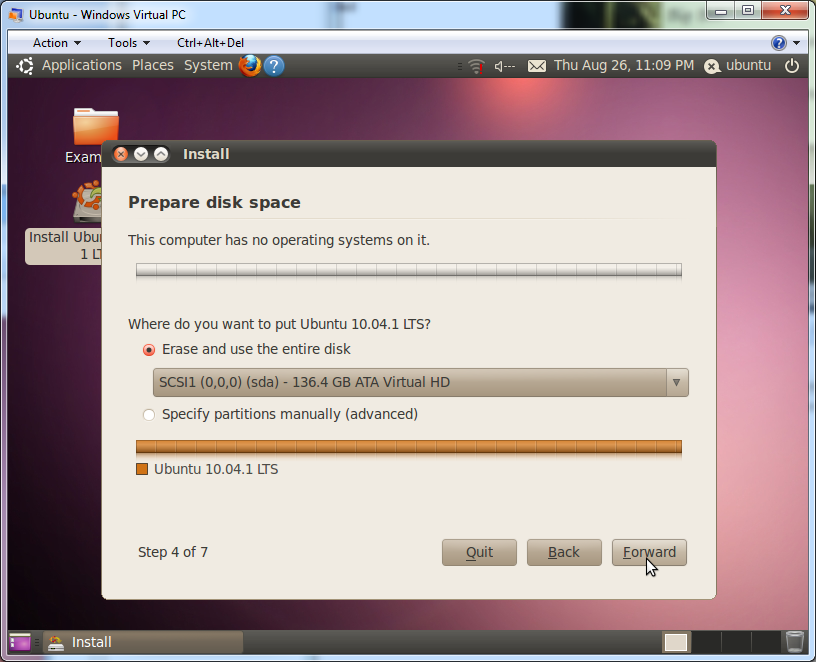
Blah blah blah...
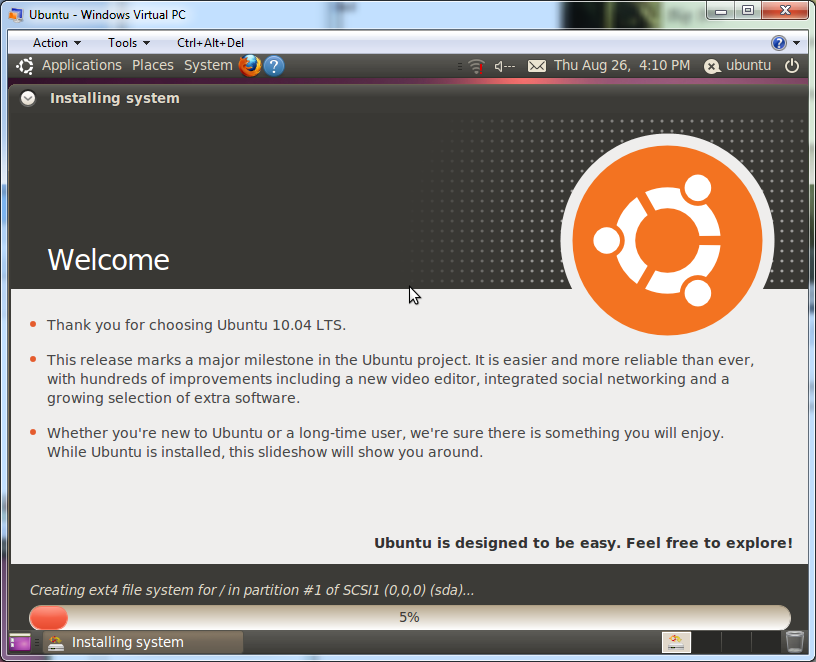
Wait a while...and IMPORTANT do not restart when it's done or you are screwed.

Instead, you need to make a few changes to make your new system bootable. Click "Continue Testing."
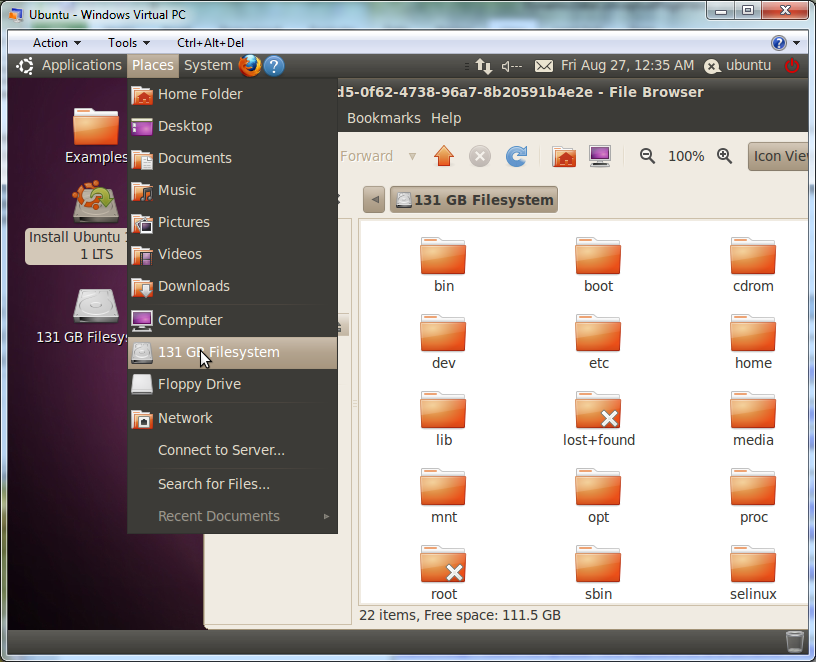
Now, go to the Places Menu in the top menu and click your File System. That will open up a disk browsing window with a GUID (yes, a GUID) in the title bar. You're going to need to type that, so get emotionally ready. You'll also want to rearrange the windows so you can open up a Terminal Window (from Applications, Accessories) and have the two near each other.
Now, open your Terminal. From Marks's blog, type:
sudo mount -o bind /dev /media/THATGUID/dev
sudo chroot /media/THATGUID/ /bin/bash
mount -t proc none /proc
nano /etc/default/grub
That last line will bring up a text editor.
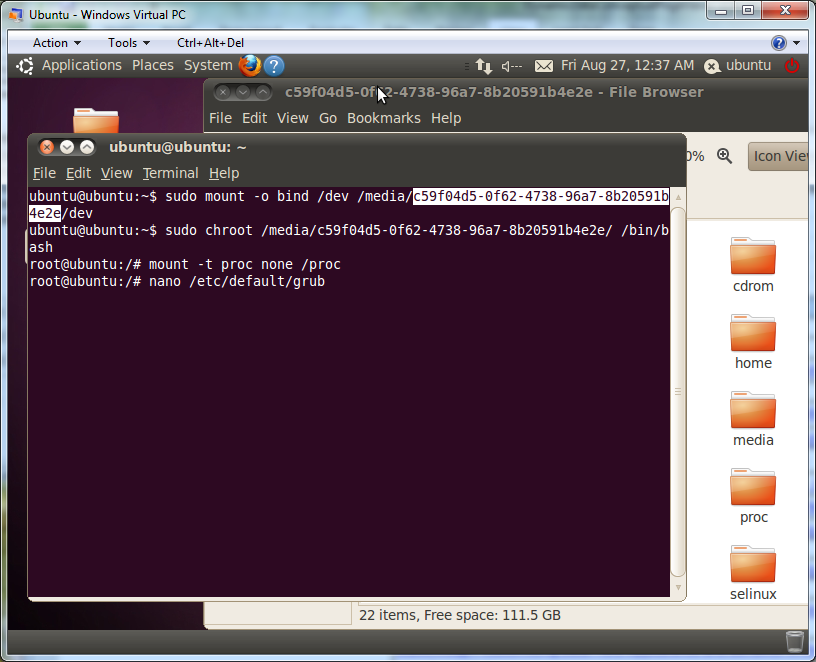
From the text editor, change "quiet splash" to VGA=788 or one of the VGA codes from this table. Mark also recommends commenting outu GRUD_HIDDEN_TIMEOUT with a #. Oddly, while the codes for resolutions seem to work initially, X switches back to 800x600 when it starts.
| Depth | 800×600 | 1024×768 | 1152×864
|
1280×1024 | 1600×1200 |
| 8 bit | vga=771 | vga=773 | vga=353 | vga=775 | vga=796 |
| 16 bit | vga=788 | vga=791 | vga=355 | vga=794 | vga=798 |
| 24 bit | vga=789 | vga=792 | vga=795 | vga=799 |
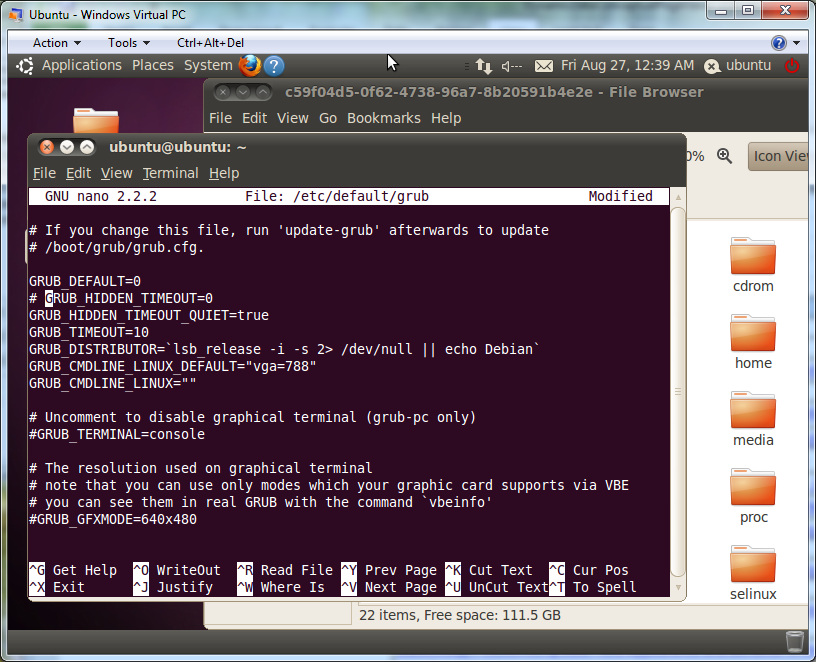
Save with Ctrl-X, then run nano /etc/grub.d/10_linux from the terminal to edit one more file. Add noreplace-paravirt (remember that) after args="$4" like this:
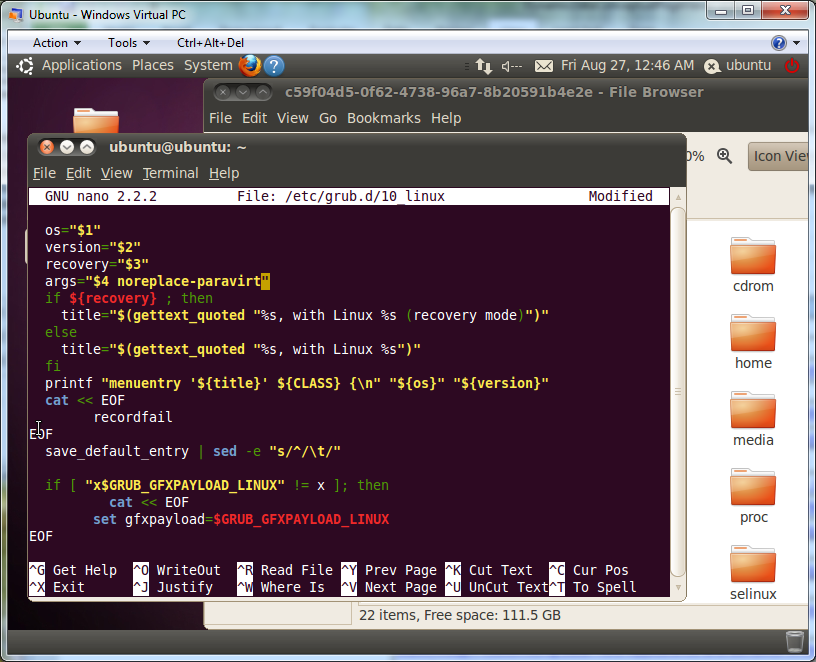
Finally, run "update-grub" from the command line. NOW you can restart using the on-off button dealie on in the upper-right corner. I had to hit enter a few times in text mode to get it to finally restart. Ignore the error about Casper and just press enter.
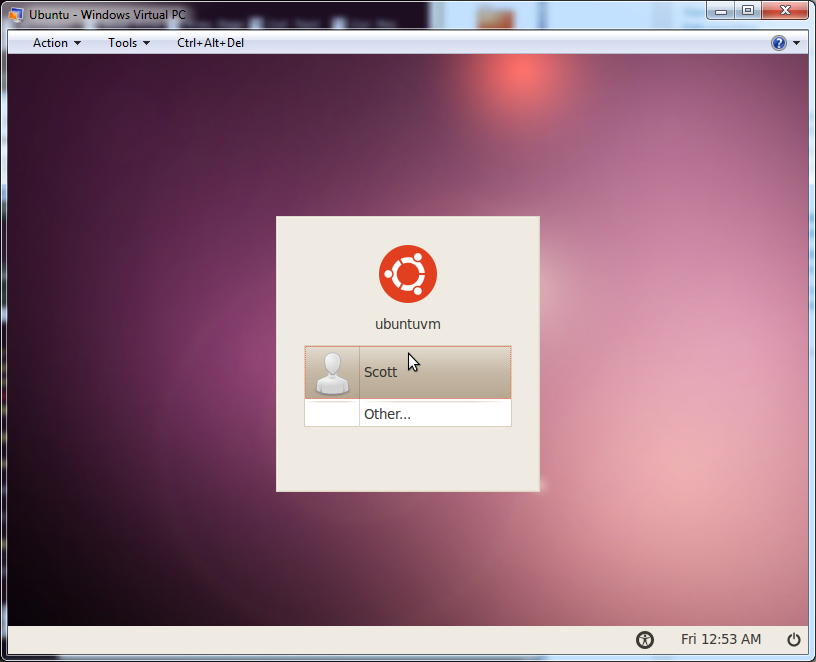
At this point with Ubuntu 10.4 on Virtual PC:
- No sound - faking it with modprobe snd-sb16 doesn't work
- No mouse wheel - hacks found around don't appear to work
- Difficult to change resolution.
Of course, using the Virtual Box virtualization tool works great with Ubuntu right out of the box and includes Virtual Additions that are custom to Linux and allow resizing, but I was (am) hoping to get this VPC thing working completely so I can stick with my one standard virtualization solution.
If you've solved any of these, specific to Ubuntu 10.4, then please let me know and I'll update this post.
About Scott
Scott Hanselman is a former professor, former Chief Architect in finance, now speaker, consultant, father, diabetic, and Microsoft employee. He is a failed stand-up comic, a cornrower, and a book author.


About Newsletter

 Darren James

But I've found it a bit flaky though, occasional "reboot" of VirtualBox itself required. (Kill, restart).


The main reason for me is that it's the only VM solution I've encountered that has 3D support in Windows out of the box. VPC doesn't have 3D support at all.
I'm not sure how well VirtualBox does 3D in Linux... but 3D in a VirtualBox Windows VM is a gigantic hack. Literally, as you have to replace some of Windows DLLs to get it working, and it only supports DirectX 8 and 9.

(b) I'm pretty sure that Microsoft have contributed to linux guest additions for HyperV, so if you really don't want to use VirtualBox, VMWare or another multiplatform virtualization tool _not_ from Microsoft, HyperV might be an apt choice

Now the question is... why are you farting around with Ubunutu Scott? I hope Microsoft doesn't see this post... you'll probably get your PC replaced with Windows for Workgroups 3.5 or something!

http://wubi-installer.org/


Besides, if you only need Windows 7 for work, there's no reason to have it as the host system. Replace it with Ubuntu and run Win 7 on a Virtual Box instead.
I sincerely wish I could get rid of Windows completely but unfortunately it's required for work. So exactly the same setup works very well for me. In my case, Windows running as a virtual machine on Ubuntu works even faster than Windows installed on the same physical machine. Go figure.

It doesn't matter if you're using a windows console or a linux terminal, the tab button is your pal.
Has anyone else reported issues like this. I'm on Windows 7 64 Bit Pro.
I do this just like the text and the pictures and my ubuntu doesn't work. :S
I log in and the screen goes purple and doesn't happens nothing.
PS: Sorry for my bad english! xD I'm from Portugal.

Something worth checking out now that you have a *nix VM would be node.js, there is a ton of potential there.


Thanks for this tutorial.
You could note that it is a great help to use the [tab] auto-completion instead of manually typing the full GUID.
BTW, I have just tried with the beta of Ubuntu 10.10, and I cannot get it to start after having completed all the described steps. I will look again when the 10.10 is released.

Is this a VM for Idiiots post?

Resolution, is a known pain. You can do after a reboot, so not sure what the worry was there.
Sound, sure, I guess. Maybe I got lucky or an update somehow fixed it.
Does MSFT even support Virtual PC as a standalone download? Like everyone else said, just use VMWare (or other free alternatives) and you won't have this hassle. I'm all for MSFT products but come on. This post would have been great years ago. Now, not so much.
Personally, I run Ubuntu in VirtualBox.
You can up the resolution after that. Yes it is a pain for that one task, which isn't covered above.
But the extra drive mounting and permission changing seems overly complicated. Unless this is some kind of remove desktop to a VM where you don't have physical access.
Why not just pop in a disk and boot off the Ubuntu install disk? Boom. Done.
I am thinking of just installing Ubuntu and running Windows 7 in a virtual machine, but I need Windows for Gaming!

Good luck!
B>

Replace "quiet splash" to "VGA=788 i8042.noloop" in GRUB config and upgrade.
Worked for me. Greetz :)

-I executed Terminal
-cd /
-sudo nano /etc/default/grub
-I replaced 'quiet splash' with 'vga=791'
It worked for me. Is it shorter?

BusyBox v1.13.3 (Ubuntu 1:1.13.3-1ubuntu11) built-in shell (ash)
Enter 'help' for a list of built-in commands.
(initramfs) mount: mounting /dev/loop2 on //filesystem.squashfs failed: Input/output error
Can not mount /dev/loop0 (/cdrom/casper/filesystem.squashfs) on //filesystem.squashfs
What do I do????

[ 3103.1######] end_request: I/O error, dev sr0, sector 521###
can anyone help me please.

And for those of you who never had a problem - why are you writing on a website telling other people yours worked and questioning the tutorial? Lucky you, but your experience and situation is not necessarily the same as everybody elses. And can I have some of your free time please? (minor rant over)
I looked through most of the comments and couldn't see any Vista specifics but the main differences/points I found were...
1) To set up a fixed disk create the virtual machine, then before running it in the settings for that machine...
* select the Hard Disk 1
* start the Virtual Disk Wizard
* create a new fixed disk of an appropriate size somewhere sensible
* wait for it to create the disk
* then change the file for Hard Disk 1 to the file which the wizard just created
2) I'm working on a laptop over wireless and in the settings set Networking to the WiFi adaptor
3) The ISO file to install from is set after the Virtual Machine has been started in the menu CD->Capture ISO Image...
4) It's the Right Alt Key to get your mouse back
5) In the restart at the end its really important to hit enter to get it to stop fully
Thanks again!
Gavin

Thanks!!!


Allow me to "give back" and offer up an error reducing step. Above where it states "get emotionally ready" to type in the GUID, you can copy that GUID into the clipboard by:
1) Right-clicking a whitespace between the folders of the drive.
2) From the "GUID Properties" pop-up window, click on the GUID value in the Name: field.
3) Press Control-a to select all the characters.
4) Press Control-c to copy the GUID into your clipboard.
Thanks again!

First let me say thank you for this blog. I have been struggling to load Ubuntu 10.10 into VPC with little to no success until reading this blog. The thing that stuck with me is that there had to be something that I was missing... it shouldn't be this hard. What I found is that when my VPC was booting I could hit 'Delete' and get into the bios for the VPC. Once in the bios for the VPC I could change the boot order and set the CD Drive to have the boot priority. Once I did this I used MagicDisc to mount the ISO on my host computer and then set that virtual CD to be the CD Drive for the VPC in the settings. Once I did this I was able to install Ubuntu regular from the ISO without having to burn a disc, create an usb bootable drive or anything else. So it seems that having VPC use the ISO directly as the CD was part of the issue for me. I still have the issue of the VPC reverting back to 800x600 and I have ran into another issue of not being able to allocate more than 1 GB of ram but my install of Ubuntu is running and is stable. As to the video reverting back to 800x600 that is because Ubuntu is viewing the monitor as standard VGA, so I just have to remember/find how to add additional resolutions since VPC does not allow Ubuntu direct access to the hardware to make a determination and that should resolve the monitor issue.
~Larry


Using win7 pro.
Virtual PC of about 1.5 gig mem, 10 gig disk
Do all the steps, at update-grub final lines are:
.......
found memtest86+ image: /boot/memtest86+bin
cannot find list of partitions!
last seem serious.
And indeed when I try to reboot I am screwed.
russ

First more about my environment toshiba portable i7 64 bit os.
Found you could get into bios by holding delete and then change boot order so can reboot from iso image when
the hard drive boot fails.
Then holding shift during hard drive boot will let you into grub.
None of the above is a fix, apparently a new kernel is a help. My friend Noah says:
I chroot'd into the machine:
sudo mount -o bind /dev /media/THATGUID/dev
sudo chroot /media/THATGUID/ /bin/bash
mount -t proc none /proc
I then installed the kernel from
http://kernel.ubuntu.com/~kernel-ppa/mainline/v2.6.37-natty/
and rebooted.

Comments are closed.