Migrating a Family to Google Apps from Gmail, Thunderbird, Outlook and others: The Definitive Guide
The migration is complete. The Hanselman Family has moved to Google Apps. Why? Here's why:
- I trust them (more or less).
- I'm smart (I think), but I've recently lost 3 years of a family member's email. Backups are hard.
- It's clean and easy.
- Family members now have 10 gigs of space vs. their previous 50 megs.
However, we had a complex setup, as I assume most families do. Or at least, most Geek Families. This includes not just my wife, but also parents, brothers, cousins, in-laws, etc. Being IT for the family is hard. I've changed the names to protect the innocent, but all the tech is real.
The Pre-Migration Setup
We've got Two Families here, we'll say the Hanselman's and the Smith's. I married a Smith, so I'm the Support Department for them as well.
| Family Member | Email Program | Note | Technique |
| Mama Hanselman | Outlook | Has large local archive. | Purchase gMove from LimitNone. |
| Daddy Hanselman | Thunderbird | Has medium sized local archive, but largely doesn't care. | Create new AIM Mail Account. Setup IMAP and drag all email in. Use Gmail Migration Tools to suck IMAP mail out. |
| Hanselman Wife | Gmail | Already has existing Gmail account with 500 meg. Kept last name at my insistence, wants both domains to go to the same place. Also wants to keep Gmail account name. | One-time import all from Gmail via POP. Foward new Gmail to Gmail for Apps. |
| Brother Hanselman | SmarterMail | Uses standard ISP webmail. Apathetic towards the whole process. No local mail store. | One-time Import via POP. |
| Sister-In-Law Hanselman | Outlook Express | Large local store. Lots of important local mail. Mail is deleted from online via POP. | Create new AIM Mail Account. Setup IMAP and drag all email in. Use Gmail Migration Tools to suck IMAP mail out. |
| Cousin Hanselman | Forwards to Work | Has Hanselman email forwarded to work, but uses SmarterMail sometimes. Has a few emails online. Uses a BlackBerry. | One-time Import via POP. Re-setup forwarding rules to work. Download http://m.google.com/a for BlackBerry. |
| Cousin-In-Law Hanselman | Outlook 2003 | We have email? Couldn't care less, just wants to send sometimes. | One-time Import via POP. Possible candidate for gMove from LimitNone. |
| Brothers-In-Law Smith (3 in Africa) | SmarterMail | All three use the standard online email, but with the @smith.com domain, not @hanselman.com. | One-time Import via POP. |
| Self | Outlook 2007 and SmarterMail | Massive (2 gigs+) offline store in Outlooks. Uses a BlackBerry. Mail is deleted from online via POP after 7 days. | Purchase gMove from LimitNone. Download http://m.google.com/a for BlackBerry. |
At this point, we've got folks with Email stored ONLINE and folks with Email stored OFFLINE. Let's first do the switchover to Google Apps, then tackle each problem one at a time.
Switching Two Domains over to Google Apps (Very Optional)
I have two domains, one for each family's last name. I could certainly create a separate Google Apps account for each last name, and you're welcome to do that. However, I chose to put Hanselman.com as the primary domain, and "Smith" as the Domain Alias. Everyone will be able to choose what last name they want their "From" to show, so it doesn't really matter.
Once you've signed up your first (primary) Domain go into the Domain Settings|Domain Names control panel in Google Apps and create a Domain Alias. When you "claim" ownership for a Domain, Google will give you a big long number and say "go make a text file with this big long number inside, and name it this big long filename. Upload it to your website, then come back and tell me about it, so I can go check to prove you own this domain." You'll need to do this for as many domain aliases as you set up.
Switching MX (Mail) Records in DNS
First, after creating a Google Apps account, make a new Google Apps User for each existing Email User at your existing domain. This is important because you don't want anyone losing email. So, if you've got scott@ and fred@, then make accounts for each one. Google Apps will generate a password, but I set a default one for each person myself.
Second, have a plan as to how you want your subdomains to be laid out. We wanted it simple and obvious, so: home.mydomain.com, docs.mydomain.com, mail.mydomain.com, etc. Log into your Domain Name's Web Control Panel (nearly everyone has this, and Google Apps includes a Dropdown Help menu with detailed instructions on how to do this with most popular hosting services. My folks are used to logging into mail.mydomain.com but I wanted to allow access to the old mail, so I renamed that host address to oldmail.mydomain.com in case I screwed something up.
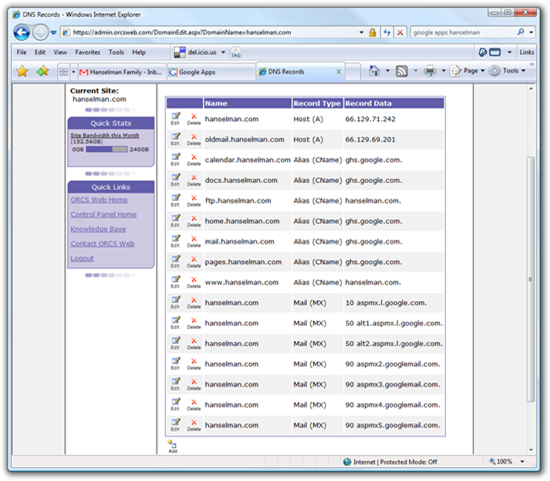
Notice all the CNames that are aliased to ghs.google.com. Each of those subdomains now is pointing to Google Apps. However, it's the MX Record that cause mail to switch over (nearly instantly). When you add those, then new mail starts getting delivered to Google. That's why it's so important you have a user account setup in Google for EVERY existing user ahead of time to catch new mail.
To switch over MX, delete all your existing MX records first, then enter in Google's. Make sure the priorities line up, at least in order. Google might say 1,5,10, etc, but your control panel only allows 10,50,90. That's OK, just make sure they are in the right order and the numbers are monotonically increasing.
After you change the MX records, note that all NEW email will be streaming into Google Apps for all mail to your domains. If you've setup a domain aliax, you'll need to change the MX records for that domain also.
OK, let's tackle each family member's email migration issue, one at a time.
Transferring Mail into Gmail for Apps from Another Online Service via POP
Brother Hanselman as well as the Three Brothers-In-Law Smith are the easiest folks to transfer. They keep all their email online and they are keeping their email addresses.
Go into Gmail for Apps|Accounts and click Add a Mail Account. Note that the name of this account doesn't matter. Gmail will complain if you tell it your email is the SAME. For example, if you were fred@fred.com and now you've moved to Gmail, just tell it the name of this account is fred@old.fred.com. The only thing that matters is that the username for logging into POP is correct and the POP Server is correct. I chose to leave a copy of messages on the server in case of a problem.
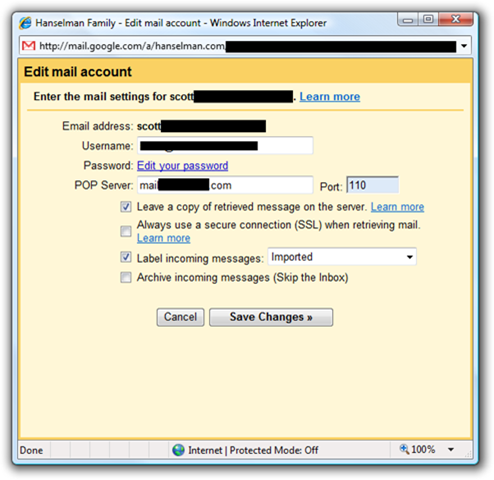
If you have a LOT of email on your server, these emails will come in at a rate of about 100-200 per 10 minutes. It might take hours, or days if you have a many thousands. Be patient, it will happen, and you can keep using Gmail while it does.
I did this for Brother Hanselman and Three Brothers-In-Law Hanselman and they are all in business.
Transferring Mail into Gmail for Apps from *another Gmail account*
(NOTE: Gmail has been considering a built in Gmail Import process, so this section will likely be old some day. Check the manual first!)
I'll be doing this migration via POP, but you can also use the Free gXFER tool from LimitNone for Gmail to Gmail Transfers.
Hanselman Wife has an existing Gmail account and wants to keep all those emails. However, if you try the technique above and enter in pop.gmail.com, you'll get a complaint from Gmail for Apps that you can't import Gmail via POP. Lame.
The solution is two-fold. First, in the original Gmail account, make sure you've enabled POP Email in Settings|Forwarding and POP and selected Enable POP for ALL MAIL.

Then, logout, and login to your destination account in Google for Apps and from Add an Email Account, enter in the Gmail username and the POP Server as 66.249.93.109. Also, note the non-standard port 995. Don't select "Leave a copy" because Gmail won't let you anyway. However, don't worry, your emails won't be deleted in the source.
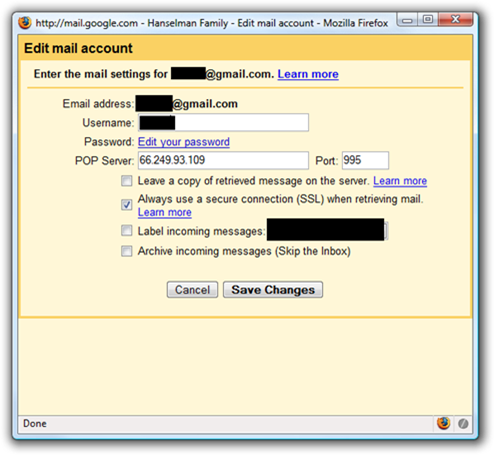
Again, this is a long running thing, so be patient (possibly days of patience.) Ok, so this gets Hanselman Wife her email archives. Now, from the source email account, create a Forwarding Rule to the new account so that emails to the original account are forwarded to the new one.
In the destination (now primary) Google for Apps Account make sure to add an Email Aliases for each email you want this user to be able to send as. Since we had two Domains, I setup email aliases per user as appropriate. This means Hanselman Wife can send as wife@mydomain.com as well as wife@smith.com from the same account.
Transferring Mail into Gmail for Apps from Another Online Service via IMAP
The absolute easiest way to get your email into Gmail for Apps is if you have an IMAP server already. If so, just pay the money for a Google Premium Account and you've got migration tools available for you as seen below.
If not, and you've got a local client like Thunderbird or Outlook, go to http://mail.aol.com and get a free 2 gig account. Add it to your local mail client as seen below. Use imap.aol.com and smtp.aol.com. It's really a very nice service, truly.
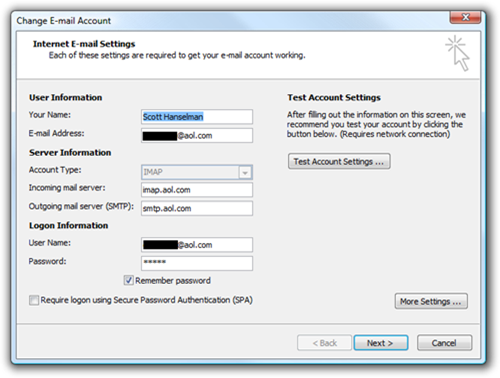
Drag all your email over, folder by folder, into the newly configured IMAP store. FYI, it's WAY faster Thunderbird. Outlook 2007 is a pig for IMAP, so I've got another solution for that, but it costs $.
After the email is up, use the Migration Tools to bring that IMAP email into Google Apps.
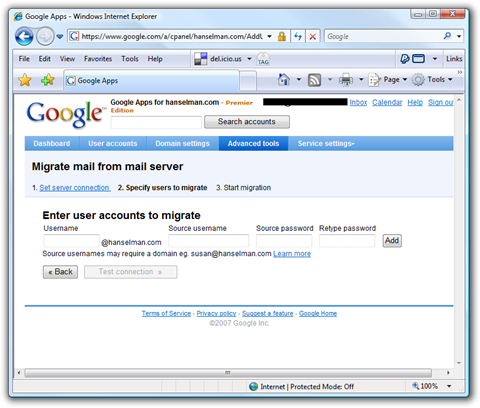
Transferring Mail into Gmail for Apps from Outlook
There's lots of hacky ways that huge amounts of email can be moved from Outlook to Gmail for Apps. Believe me, Google knows this is a problem and I'm 99% sure they are working on it. Until then, you can do the IMAP trick above, or use a tool. Time is money, so I used gMOVE from LimitNone. It's a local app, licensed per computer for $29 ($19 for educational) that basically uses OLE Automation to take email out of Outlook, through it up to a "just in time POP server" at LimitNone, then it uses the GMail API to create a temporary POP account and suck the email back down.
The Good? It just works. Works fine in fact.
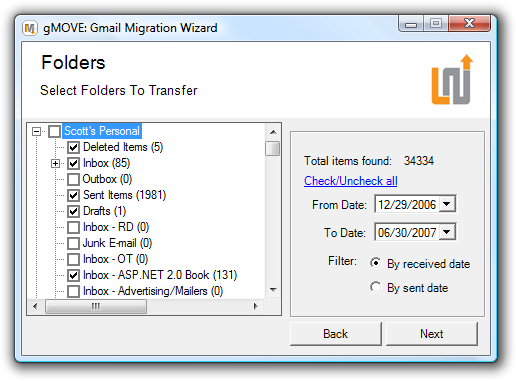
Each folder in Outlook becomes a Tag in Gmail. Your Inbox in Outlook is tagged "gInbox" so as not to mess up your actual Inbox.
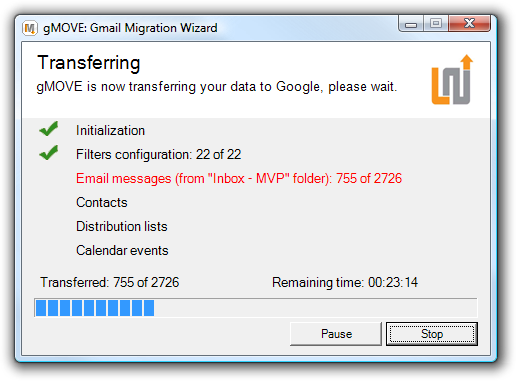
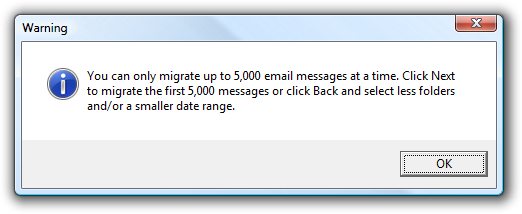
The bad? You can only move 5,000 emails at a time, so I had to run it 7 times. Of course, there are privacy concerns as well, but you can work that out on your own. Gmail also imports messages VERY slowly, as I've said before.
Otherwise, a useful utility, and faster for me than using IMAP.
Conclusion
At this point, all Hanselman and Smith family members have email setup. They can use Gmail for Apps online, or if they prefer Outlook or Thunderbird, they can use the Gmail POP Troubleshooter or configure POP access to keep email in both places.
Other Useful Things and Gotchas to Know
- Don't turn on POP access in your new accounts or configure your email clients to pull email until AFTER your existing POP migrations happen, otherwise email that's still being pulled into Gmail will also get pulled into your email client, possibly causing duplicates.
- If you already have a Google Calendar with the same email you've just transferred over to Google Apps, if you visit calendar.google.com rather than calendar.mydomain.com you'll get this warning. Basically, you're forever stuff with a read-only calendar. I can't figure out how to delete the whole calendar. Worse, if you use any Sync applications that use the Google Calendar API, they will see the FIRST calendar. That means, NOT the one you want them to see.
I'll post more if I get this fixed. This is a great example of the fact that while Google Apps is yummy, it's a WHOLE OTHER UNIVERSE and Lord knows what's happening on the back end. (Note the broken image...You'll also get HTTP/HTTPS warnings, occasionally. Google Apps may be having some growing pains. Any Google Employees want to comment?)
Google sez this about deleting calendars: "Please note that it's not possible to delete your primary calendar. You can clear the events on your primary calendar, rename this calendar and schedule new events to effectively get rid of your original primary calendar." I sez, "weak."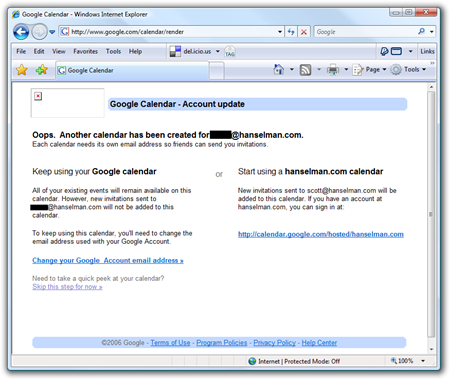
- Plaxo is a great Synchronizing Tool that I like (yes, I know YOU don't like it) and the new Beta includes support for syncing Google Calendars and Outlook. It seems to have a problem with Google Apps, but I'm sure either Plaxo or Google will work it out. SyncMyCal is considered the best tool for syncing with Outlook. If you have a Mac, you can use Spanning Sync to sync with iCal.
- If you've got a BlackBerry or mobile phone with Java, note that there are TWO GMAIL APPS. There's one that has a Red Icon for Gmail Users and one with a Blue Icon for Gmail for Apps Users. Don't ask me why. If you have accounts at both, you need both applications on your mobile phone. You can, of course, also use POP if you prefer.
You can get them:- Gmail Mobile for Apps: http://m.google.com/a
- Gmail Mobile at: http://gmail.com/app
I miss anything? Works for me.
About Scott
Scott Hanselman is a former professor, former Chief Architect in finance, now speaker, consultant, father, diabetic, and Microsoft employee. He is a failed stand-up comic, a cornrower, and a book author.


About Newsletter



Please note that while it won't help you personally at this stage of the game, gMOVE will be removing the 5,000 restriction in the new release in July.
Jon
www.limitnone.com


If not, I guess I'll have to go out and write one ...

Transferred 13 user accounts in 6 different domains. Couldn't have been easier (for a geek - totally impossible for a lay person). Haven't regretted the move for one second.
Originally, my plan was to continue using Outlook to handle sending/receiving my mail - but after using the (enhanced) Gmail interface for a few weeks, I've realized that it completely blasts Outlook out of the water. Seriously - give it a legitimate chance if you haven't already.

"To set your domain's SPF record, publish the following TXT record on the DNS resource: v=spf1 include:aspmx.googlemail.com ~all"

I trust them (more or less).
You seem like a smart guy. Mind drilling down on this at some point?
I can't help but think that the act of migrating our most important data wholesale (and voluntarily!) to one public company will seem ridiculous in a few years.


but what you can do is, add mail.googlemail.com as an pop account.
there you don't need to add the ip adress (that could probably change)

That said, maybe I should just give the pop3 access a whirl on my N95 and see how that goes...


Adam - But I'm not personally paying for the whole family, they are paying for themselves.
<br />


I just migrated to google apps. I have one big problem. I have bought a new domain through them too. Now I want to host my web pages on it. But the 100 MB provided by google for hosting doesn't seem to allow any kind of HTML page outside their own "web site creater" tool.
any suggestions. on how to host my website there


Example: We share a calendar of Birthdays and Anniversaries but.... edit, just flipped over to Google Calendar for reference and discovered that my single biggest complaint has been rectified. Damn! I have nothing whatsoever to whine about now.


I have been a big fan of GAfYD and have been toying with the idea of using it as our family management center.
Family = man, wife, brat child1, brat child2 and granma!
Since I really can't get my head around the setup and the actual day to day functioning (sure, go ahead, call me a dork! DOH!), I have not yet invested the miniscule amount to buy a domain.
Any tips, ideas, suggestions on this, would be very helpful.
R J

A few points:
1) If you simply want to TRY google apps mail, you can do so without changing your MX records;
Simply forward an account or alias via your existing provider the 'test' account that google apps provides;
ie. google_apps_mail_account@YOURDOMAIN.com.test-google-a.com
You can still send mail 'from' your domain, but incoming mail will still come in via your mail provider fowarder. Provides a nice backup outside of google apps, and a quick exit strategy if you want out or you experience an outage or issue with your google account.
More on the Google Apps Discussion Group
Then once you are sure you want to live with it, you can change your MX records. Although, it doesnt seem you have to, I've been using the test-google-a.com forwarding account for months now without an issue..hopefully Google won't change that.
2) @Matt: lifehacker recently had an article on setting up a script method to automatically back up google mail via pop
Geek to Live: Back up Gmail with fetchmail

What about address books and the like? Was there a good way to keep those?
It looks like the Premier version has an IMAP importer? That would be killer - it automatically goes and transfers the emails and folders to Google for you? I was wondering, if you go the POP route (but POP it from an IMAP account) does it get messages that are in folders? Or do you need to move everything over to the Inbox?
Can you cancel the Premier service and go back to basic after using the IMAP import tool? I don't really have a need for all the space, at least not that I'm going to pay for. But it would be very nice to be able to import IMAP accounts in.
If I have my hosted domain email simply forwarding to my gmail account, and I move my gmail account to the google apps email, can I still receive email at my gmail account? Or should I just keep my gmail account and continue to just use the email forwarding? Can you set up email forwards through Google Apps? I'll have to play with it.....
Either way, this sounds very cool!


There's an interesting option to move mail to Gmail, but you need an mbox file to upload. To create an mbox from IMAP you can use http://www.broobles.com/imapsize/ which is a must have for any IMAPholic. Then you can use http://www.gmailuploader.com/ to move the mbox file to you account. I've not tried that myselft but seems another option.

ciao,
mac
If not, I guess I'll have to go out and write one ..."
Before writing one try using Thunderbird to pull the mail down from gmail using POP3. It stores mail in standard mbox formatted text files.
Joe


However, as you said the pop mail fetcher (from another gmail account) is painfully slow.
It's been at it for 2-3 days, only uploaded 1669 mails and is at date 2006-01-09.
I'm guessing this will take atleast a week to finnish. :/
Perhaps I should just stop it now, get the premium account and hope the imap importer (googles migration tools) is much faster.


Many thanks for this valuable experience sharing!

- We may use personal information to provide the services you’ve requested, including services that display customized content and advertising.
- We may also use personal information for auditing, research and analysis to operate and improve Google technologies and services.
- We may share aggregated non-personal information with third parties outside of Google.
Reading your blog you have obviously taken these issues into consideration. I was just wondering what you think of Google's privacy policy, and how it impacted your decision to use Google Apps, if it did.


Please advise

Any email you send from an alias domain address may appear to the recipient as "sent by alias address A on behalf of primary address B" depending on the email client that the recipient is using.
Here is the note from Google Apps regarding this:
Note: your Gmail address will still be included in your email headers in the sender field, to help prevent your mail from being marked as spam. Most email clients do not display the sender field, though some versions of Microsoft Outlook may display "From customaddress@domain.com on behalf of yourusername@gmail.com."
I can confirm that MS Outlook (2003 and 2007) will display both addresses in the recipients email.

If I transfer one domain and send email just from that one domain, will it still send mail as "on behalf of yourusername@gmail.com"?


So I decided we needed Google Apps for the whole family, with our own domain name of course.
Maybe I am missing something, but Google Apps doen not seem to be at the same quality level as standard Google.
1) You cannot do on the startpage what you can do on iGoogle (themes, tabs). OK, makes sense, because your are supposed to create your own fancy homepage, but I liked my iGoogle page.
2) I cannot get the Google Docs&Spreadsheets gadget running. It just says I need to login. I suspect that it only supports the standard Docs&Spreadsheets.
3) I cannot get Notebook to work on GoogleApps, is it supported at all?
4) The GoogleApps "Agenda" gadget is not as nice as the standard "Calender" gadget (which doesn't work with GoogleApps).
Other than that it is quite impressive. Still, this way the only attraction is having our domain name in the email-addresses. For daily usage I preferred the standard stuff. I may even go back and use the domain for email forwarding only.

Just wondering, did you have to buy the premier edition to get the imap tool to work for all acounts, or do you just have to upgrade one account to use it for all accounts (some upgraded, some not)?

Any thoughts? I am on a Mac OSX 10.2.8 using Netscape 7.2 (the same thing happened when I put it all into Thunderbird as well.)
Thanks so much!
David

John Lam - Yes, cygwin's fetchmail backs up Gmail nicely. Schedule it weekly and you can view the archives with Thunderbird.
Stefve - Yes, you can, and should, use Google's SMTP. There is a limit like 500 emails a day though to avoid spam.
Matt - I use fetchmail so far, but surprisingly I'm not too worried about it. I guess I trust them. Maybe I ought not.
Rj - Start by getting a domain. You can get them cheap at godaddy.com
Biff - I don't know much about Yahoo as I haven't used them, but I'd start by trying to find out WHO is the "Registrar" for your Domain. Do *you* really own it, or do they, and you're borrowing it?
Mac - I've had some trouble with Sent Mail not coming across, so I used LimitNone to explicitly transfer that folder specifically.
Thomas - I'm not too worried about privacy because I don't talk about private things in email.
Chris - Re: AOL IMAP - The only thing I can assume is that AOL is on to this use of their mail and doesn't like it?
Jim - Yes, Jim, you can use Google Mail and the Gmail interface to send email from you and it will totally look like you in the from: address. The only time it says "on behalf off" is if you are sending via a domain alias. That means, a non-primary domain, but it only says that in Outlook.
Kevin - Yes, the IMAP stuff is Premier, although premier is a trial, so you could trial, use it, then cancel back to free.
David - I can't speak to this as it worked on my side. Have you tried other IMAP providers?
Comments are closed.
You seems to differentiate between GMail and Google Apps account. Are they different, cause i use the same gmail account to login into both.
Also, quoted from your Gotcha section, " if you visit calendar.google.com rather than calendar.mydomain.com", so you mean that you can host Google Apps on another server? Or you can actually point your domain to google's server?
Well, i've never come across this so far, maybe i've been in the well too long.