I've been loving Application Insights ever since I hooked it up to my Podcast Site. Application Insights is stupid cheap and provides an unreal number of insights into what's going on in your site. I hooked it up and now I have a nice dashboard showing what's up. It's pretty healthy.
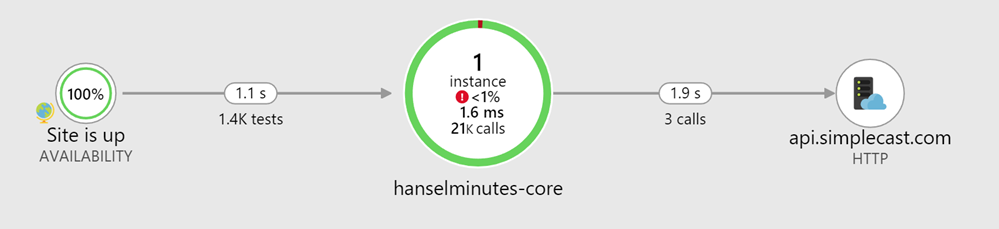
Here's an interesting view that shows the Availability Test that's checking my site as well as outbound calls (there isn't a lot as I cache aggressively) to SimpleCast where I host my shows.
Availability is important, of course, so I set up some tests from a number of locations. I don't want the site to be down in Brazil but up in France, for example.
However, I got an email a week ago that said my site had a sudden rise in failures. Here's the thing, though. When I set up a web test I naively thought I was setting up a "ping." You know, a knock on the door. I figured if the WHOLE SITE was down, they'd tell me.
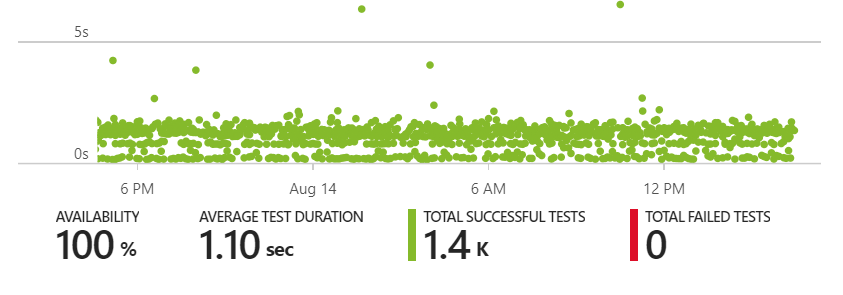
Here's my availability for today, along with timing from a bunch of locations world wide.
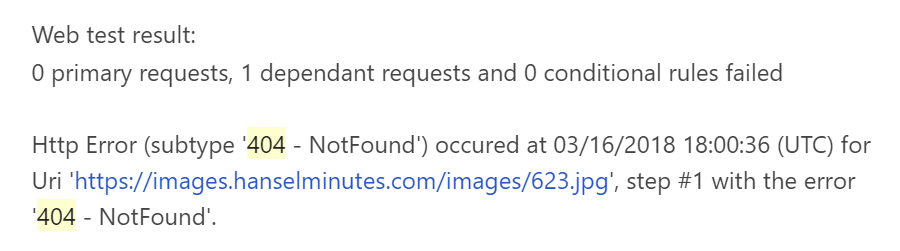
Check out this email. The site is fine; that is, the primary requests didn't fail. But dependent request did fail! Application Insights noticed that an image referenced on the home page was suddenly a 404! Why suddenly? Because I put the wrong date and time for an episode and it auto-published before I had the guest's headshot!
I wouldn't have noticed this missing image until a user emailed me, so I was impressed that Application Insights gave me the heads up.
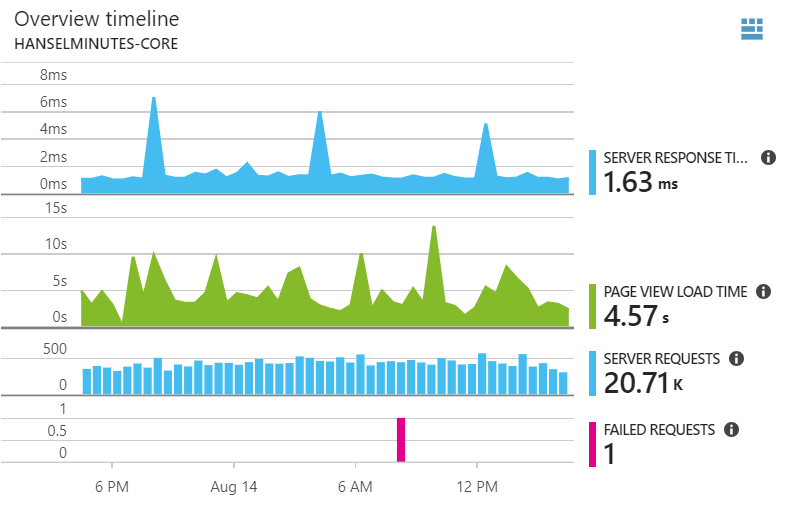
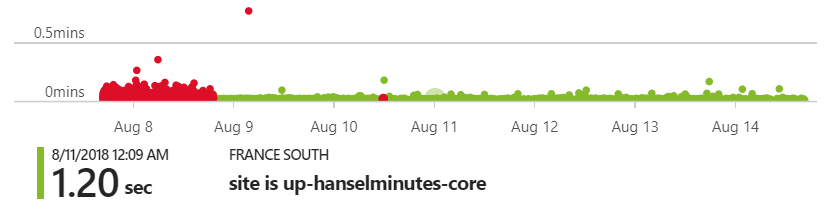
Here is the chart for that afternoon when I published a bad show. Note that the site is technically up (it was) but a dependent request (a request after the main GET) failed.
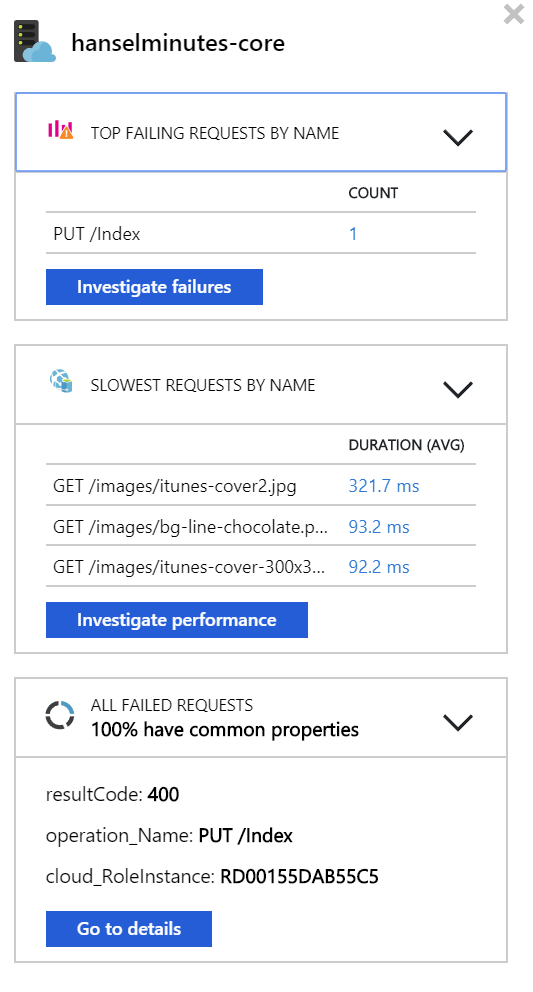
This is a client side failure, right? An image didn't load and it notified me. Cool. I can (and do) also instrument the back end code. Here you can see someone keeps sending me a PUT request, perhaps trying to poke at my site. By the way, random PUT person has been doing this for months.
I've been using Application Insights for maybe a year or two now. Its depth continues to astound me. I KNOW I'm not using it to its fullest and I love that I'm still surprised by it.
Scott Hanselman is a former professor, former Chief Architect in finance, now speaker, consultant, father, diabetic, and Microsoft employee. He is a failed stand-up comic, a cornrower, and a book author.
It's been 7 years since the last time I built "The Ultimate Developer PC 2.0," and over 11 since the original Ultimate Developer PC that Jeff Atwood built with for me. That last PC was $3000 and well, frankly, that's a heck of a lot of money. Now, I see a lot of you dropping $2k and $3k on MacBook Pros and Surfaces without apparently sweating it too much but I expect that much money to last a LONG TIME.
Do note that while my job does give me a laptop for work purposes every 3 years, my desktop is my own, paid for with my own money and not subsidized by my employer in any way. This PC is mine.
I wrote about money and The Programmer's Priorities in my post on Brain, Bytes, Back, and Buns. As Developer we spend a lot of time looking at monitors, sitting in chairs, using computers, and sleeping. It stands to reason we should should invest in good chairs, good monitors and PCs, and good beds. That also means good mice and keyboards, of course.
Was that US$3000 investment worth it? Absolutely. I worked on my PC2.0 nearly every day for 7 years. That's ~2500 days at about $1.25 a day if you consider upgradability.
Continuous PC Improvement via reasonably priced upgrades
How could I use the same PC for 7 years? Because it's modular.
Hard Drive - I upgraded 3 years back to a 512 gig Samsung 850 SSD and it's still a fantastic drive at only about $270 today. This kept my machine going and going FAST.
Video Card - I found a used NVidia 1070 on Craigslist for $250, but they are $380 new. A fantastic card that can do VR quite nicely, but for me, it ran three large monitors for years.
Memory - I started at 16 gigs and upgraded to 24 gigs when memory got cheaper.
All this adds up to me running the same first generation i7 processor up until 2018. And frankly, I probably could have gone another 3-5 years happily.
So why upgrade? I was gaming more and more as well as using my HTC Vive Pro and while the 1070 was great (although always room for improvement) I was pushing the original Processor pretty hard. On the development side, I have been running somewhat large distributed systems with Docker for Windows and Kubernetes, again, pushing memory and CPU pretty hard.
Ultimately however, price/performance for build-your-own PCs got to a reasonable place plus the ubiquity of 4k displays at reasonable costs made me think I could build a machine that would last me a minimum of 5 years, if not another 7.
Specifications
I bought my monitors from Dell directly and the PC parts from NewEgg.com. I named my machine IRONHEART after Marvel's Riri Williams.
Intel Core i9-7900X 10-Core 3.3 Ghz Desktop Processor - I like this processor for a few reasons. Yes, I'm an Intel fan, but I like that it has 44 PCI Express lanes (that's a lot) which means given I'm not running SLI with my video card, I'll have MORE than enough bandwidth for any peripherals I can throw at this machine. Additionally, it's caching situation is nuts. There's 640k L1, 10 MEGS L2, and 13.8 MEGS L3. 640 ought to be enough for anyone, right? ;) It's also got 20 logical processors plus Intel Turbo Boost Max that will move specific cores to 4.5GHz as needed, up from the base 3.3Ghz freq. It can also support up to 128 GB of RAM, although I'll start with 32gigs it's nice to have the room to grow.
ASUS ROG STRIX LGA2066 X299 ATX Motherboard - Good solid board with built in BT and Wifi, an M.2 heatsink included, 3x PCIe 3.0 x16 SafeSlots (supports triple @ x16/x16/x8), 1x PCIe 3.0 x4, 2x PCIe 3.0 x1 and a Max of 128 gigs of RAM. It also has 8x USB 3.1s and a USB C which is nice.
Corsair Hydro Series H100i V2 Extreme Performance Water/Liquid CPU Cooler - My last PC had a heat sink you could see from space. It was massive and unruly. This Cooler/Fan combo mounts cleanly and then sits at the top of the case. It opens up a TON of room and looks fantastic. I really like everything Corsair does.
WD Black 512GB Performance SSD - M.2 2280 PCIe NVMe Solid State Drive - It's amazing how cheap great SSDs are and I felt it was time to take it to the next level and try M.2 drives. M.2 is the "next generation form factor" for drives and replaces mSATA. M.2 SSDs are tiny and fast. This drive can do as much as 2gigs a second as much as 3x the speed of a SATA SSD. And it's cheap.
CORSAIR Crystal 570X RGB Tempered Glass, Premium ATX Mid Tower Case, White - I flipping love this case. It's white and clear, but mostly clear. The side is just a piece of tempered glass. There's three RGB LED fans in the front (along with the two I added on the top from the cooler, and one more in the back) and they all are software controllable. The case also has USB ports on top which is great since it's sitting under my clear glass desk. It is very well thought out and includes many cable routing channels so your cables can be effectively invisible. Highly recommended.
Corsair 120mm RGB LED Fans - Speaking of fans, I got this three pack bringing the total 120mm fan count to 6 (7 if you count the GPU fan that's usually off)
ASUS ROG GeForce GTX 1080 Ti 11 gig Video Card - This was arguably over the top but in this case I treated myself. First, I didn't want to ever (remember my 5 year goal) sweat video perf. I am/was very happy with my 1070 which is less than half the price, but as I've been getting more into VR, the NVidia 1070 can struggle a little. Additionally, I set the goal to drive 3 4k monitors at 60hz with zero issues, and I felt that the 1080 was the a solid choice.
THREE Dell Ultra HD 4k Monitors P2715Q 27" - My colleague Damian LOVES these monitors. They are an excellent balance in size and cost and are well-calibrated from the factory. They are a full 4k and support DisplayPort and HDMI 2.0.
Remember that my NVidia card has 2 DisplayPorts and 2 HDMI ports but I want to drive 3 monitors and 1 Vive Pro? I run the center Monitor off DisplayPort and the left and right off HDMI 2.0.
NOTE: When running the P2715Q off DisplayPort from an NVidia card you might initially get an output color format of YCbCr 4:2:2 which will make the anti-aliased text have a colored haze while the HDMI 2.0 displays look great with RGB color output. You'll need to go into the menus of the display itself and set the Input Color Format to RGB *and* also into the NVidia display settings after turning the monitor and and off to get it to stick. Otherwise you'll find the NVidia Control Panel will reset to the less desirable YCbCr422 format causing one of your monitors to look different than the others.
Last note, sometimes Windows will say that a DisplayPort monitor is running at 59Hz. That's almost assuredly a lie. Believe your video card.
What about perf?
Developers develop, right? A nice .NET benchmark is to compile Orchard Core both "cold" and "warm." I use .NET Core 2.1 downloaded from http://www.dot.net.
Orchard is a fully-featured CMS with 143 projects loaded into Visual Studio. MSBUILD and .NET Core in 2.1 support both parallel and incremental builds.
A warm build of Orchard Core on IRONHEART takes just under 10 seconds.
UPDATE: With overclock and tuing it builds in 7.39 seconds.
My Surface Pro 3 builds it warm in 62 seconds.
A totally cold build (after a dotnet clean) on IRONHEART takes 33.3 seconds.
UPDATE: With overclock and tuning it builds in 21.2 seconds.
My Surface Pro 3 builds it cold in 2.4 minutes.
Additionally, the CPUs in this case weren't working at full speed very long. This may be as fast as these 143 projects can be built. Note also that Visual Studio/MSBuild will use as many processors as it your system can handle. In this case it's using 20 procs.
I can choose to constrain things if I think the parallelism is working against me, for example here I can try just with 4 processors. In my testing it doesn't appear that spreading the build across 20 processors is a problem. I tried just 10 (physical processors) and it builds in 12 seconds. With 20 processors (10 with hyperthreading, so 20 logical) it builds in 9.6 seconds so there's clearly a law of diminishing returns here.
dotnet build /maxcpucount:4
Regardless, My podcast site builds in less than 2 seconds on my new machine which makes me happy. I'm thrilled with this new machine and I hope it lasts me for many years.
PassMark
I like real world benchmarks, like building massive codebases and reading The Verge with an AdBlocker off, but I did run PassMark.
UPDATE with Overclocking
I did some modest overclocking to about 4.5Gz as well as some Fan Control and temperature work, plus I'm trying it with Intel Turbo Boost Max turned off and here's the updated Passmark taking the the machine into the 99% percentile.
Overall 6075 -> 7285
CPU 19842 -> 23158
Disk 32985 -> 42426
2D Mark 724 -> 937 (not awesome)
3D Mark (originally failed with a window resize) -> 15019
Memory 2338 -> 2827 (also not awesome)
I still feel I may be doing something wrong here with memory. If I turn XMP on for memory those scores go up but then the CPU goes to heck.
and let me know in the comments how fast your PC is with both cold and warm builds!
GOTCHAS: Some of you are telling me you're getting warm builds of 4 seconds. I don't believe you! ;) Be sure to run without "measure-command" and make sure you're not running a benchmark on a failed build! My overlocked BUILD now does 7.39 seconds warm.
NOTE: I have an affiliate relationship with NewEgg and Amazon so if you use my links to buy something I'll make a small percentage and you're supporting this blog! Thanks!
Sponsor: Preview the latest JetBrains Rider with its built-in spell checking, initial Blazor support, partial C# 7.3 support, enhanced debugger, C# Interactive, and a redesigned Solution Explorer.
About Scott
Scott Hanselman is a former professor, former Chief Architect in finance, now speaker, consultant, father, diabetic, and Microsoft employee. He is a failed stand-up comic, a cornrower, and a book author.
I was talking to my friend Rob Caron today. He produces Azure Friday with me - it's our weekly video podcast on Azure and the Cloud. We were talking about the magic for a successful episode, but then realized the ingredients that Rob came up with were generic enough that they were the essential for anyone who is teaching or advocating for a technology.
Personally I don't believe in "evangelism" in a technical context and I dislike the term "Technology Evangelism." Not only does it evoke unnecessary zealotry but it also implies that your religion technology is not only what's best for someone, but that it's the only solution. Java people shouldn't try to convert PHP people. That's all nonsense, of course. I like the word "advocate" because you're (hopefully) advocating for the right solution regardless of technology.
Here's the 11 herbs and spices that are needed for a great technical talk, a good episode of a podcast or show, or a decent career talking and teaching about tech.
Empathy for the guest – When talking to another person, never let someone flounder and fail – compensate when necessary so they are successful.
Empathy for the audience – Stay conscious that you're delivering an talk/episode/post that people want to watch/read.
Improvisation – Learn how to think on your feet and keep the conversation going (“Yes, and…”) Consider ComedySportz or other mind exercises.
Listening – Don't just wait to for your turn to speak, just to say something, and never interrupt to say it. Be present and conscious and respond to what you’re hearing
Speaking experience – Do the work. Hundreds of talks. Hundreds of interviews. Hundreds of shows. This ain’t your first rodeo. Being good means hard work and putting in the hours, over years, whether it's 10 people in a lunch presentation or 2000 people in a keynote, you know what to articulate.
Technical experience – You have to know the technology. Strive to have context and personal experiences to reference. If you've never built/shipped/deployed something real (multiple times) you're just talking.
Be a customer – You use the product, every day, and more than just to demo stuff. Run real sites, ship real apps, multiple times. Maintain sites, have sites go down and wake up to fix them. Carry the proverbial pager.
Physical mannerisms – Avoid having odd personal ticks and/or be conscious of your performance on video. I know what my ticks are and I'm always trying to correct them. It's not self-critical, it's self-aware.
Personal brand – I'm not a fan of "personal branding" but here's how I think of it. Show up. (So important.) You’re a known quantity in the community. You're reliable and kind. This lends credibility to your projects. Lend your voice and amplify others. Be yourself consistently and advocate for others, always.
Confidence – Don't be timid in what you have to say BUT be perfectly fine with saying something that the guest later corrects. You're NOT the smartest person in the room. It's OK just to be a person in the room.
Production awareness – Know how to ensure everything is set to produce a good presentation/blog/talk/video/sample (font size, mic, physical blocking, etc.) Always do tech checks. Always.
Sponsor: Preview the latest JetBrains Rider with its built-in spell checking, initial Blazor support, partial C# 7.3 support, enhanced debugger, C# Interactive, and a redesigned Solution Explorer.
About Scott
Scott Hanselman is a former professor, former Chief Architect in finance, now speaker, consultant, father, diabetic, and Microsoft employee. He is a failed stand-up comic, a cornrower, and a book author.
You want your local web development set up to reflect your production reality as much as possible. URL parsing, routing, redirects, avoiding mixed-content warnings, etc. It's very easy to accidentally find oneself on http:// when everything in 2018 should be under https://.
I'm using ASP.NET Core 2.1 which makes local SSL super easy. After installing from http://dot.net I'll "dotnet new razor" in an empty folder to make a quick web app.
Then, when I "dotnet run" I see two URLs serving pages:
C:\Users\scott\Desktop\localsslweb> dotnet run Hosting environment: Development Content root path: C:\Users\scott\Desktop\localsslweb Now listening on: https://localhost:5001 Now listening on: http://localhost:5000 Application started. Press Ctrl+C to shut down.
One is HTTP over port 5000 and the other is HTTPS over 5001. However, if I hit https://localhost:5001, I may see an error:
That's because this is an untrusted SSL cert that was generated locally:
There's a dotnet global tool built into .NET Core 2.1 to help with certs at dev time, called "dev-certs."
C:\Users\scott> dotnet dev-certs https --help
Usage: dotnet dev-certs https [options]
Options: -ep|--export-path Full path to the exported certificate -p|--password Password to use when exporting the certificate with the private key into a pfx file -c|--check Check for the existence of the certificate but do not perform any action --clean Cleans all HTTPS development certificates from the machine. -t|--trust Trust the certificate on the current platform -v|--verbose Display more debug information. -q|--quiet Display warnings and errors only. -h|--help Show help information
I just need to run "dotnet dev-certs https --trust" and I'll get a pop up asking if I want to trust this localhost cert..
On Windows it'll get added to the certificate store and on Mac it'll get added to the keychain. On Linux there isn't a standard way across distros to trust the certificate, so you'll need to perform the distro specific guidance for trusting the development certificate.
Close your browser and open up again at https://localhost:5001 and you'll see a trusted "Secure" badge in your browser.
Note also that by default HTTPS redirection is included in ASP.NET Core, and in Production it'll use HTTP Strict Transport Security (HSTS) as well, avoiding any initial insecure calls.
public void Configure(IApplicationBuilder app, IHostingEnvironment env) { if (env.IsDevelopment()) { app.UseDeveloperExceptionPage(); } else { app.UseExceptionHandler("/Error"); app.UseHsts(); }
That's it. What's historically been a huge hassle for local development is essentially handled for you. Given that Chrome is marking http:// sites as "Not Secure" as of Chrome 68 you'll want to consider making ALL your sites Secure by Default. I wrote up how to get certs for free with Azure and Let's Encrypt.
Sponsor: Preview the latest JetBrains Rider with its built-in spell checking, initial Blazor support, partial C# 7.3 support, enhanced debugger, C# Interactive, and a redesigned Solution Explorer.
About Scott
Scott Hanselman is a former professor, former Chief Architect in finance, now speaker, consultant, father, diabetic, and Microsoft employee. He is a failed stand-up comic, a cornrower, and a book author.
There's a ton of great open source hardware solutions out there. Often they're used to teach kids how to code, but their also fun for adults to learn about hardware!
Recently my 10 year old and I have been playing with the Circuit Playground Express from Adafruit. We like it because it supports not just block-based programming and JavaScript via MakeCode (more on that in a moment) but you can also graduate to Circuit Python. Want to be even more advanced/ You can also use the Arduino IDE to talk to Circuit Playground Express. It's quickly becoming our favorite board. Be sure to get the board, some batteries and a holder, as well as a few alligator clips.
I think the Circuit Playground Express is excellent by itself, but I like that I can stack it on top of the AdaFruit Crickit to make a VERY capable robotics platform. It's an ingenious design where three screws and metal standoffs connect the Crickit to the Circuit Playground and provide a bus for power and communication. The 10 year old wants to make a BattleBot now.
Sitting architecturally on top of all this great hardware is the open source Microsoft Make Code development environment. It's amazing and more people should be talking about it. MakeCode works with LEGO Mindstorms EV3, micro:bit, Circuit Playground Express, Minecraft, Cue robots, Chibichips, and more. The pair of devices is truly awesome.
Frankly I'm blown away at how easy it is and how easily my kids were productive. The hardest part of the whole thing was the last step where they need to copy the compiled code to the Circuit Playground Express. The editor is all online at GitHub https://github.com/Microsoft/pxt and you can run it locally if you like but there's no reason to unless you're developing new packages.
We went to https://makecode.adafruit.com/ for the Circuit Playground Express. We made a new project (and optionally added the Crickit board blocks as an extension) and then got to work. The 10 year old followed a tutorial and made a moisture sensor that uses an alligator clip and a nail to check if our plants need to be watered! (If they do, it beeps and turns red!)
When you've written your code, you just click DOWNLOAD and you'll get a "uf2" file.
Then the hardest part, you plug in the Circuit Playground Express via USB, it shows up as a Drive called "CPLAYBOOT," and you copy that file over. It's easy for techies, but a speed bump for kids.
It's really a genius process where they have removed nearly every obstacle in the hardware. After the file gets copied over (literally after the last byte is written) the device resets and starts running it.
The "Developer's Inner Loop" is as short as possible, so kudos to the team. Code, download, deploy, run/test, repeat.
This loop is fast and clever, but I wanted to speed it up a little so I wrote this little utility to automatically copy your MakeCode file to the Circuit Playground Express. Basically the idea is:
Associate my app with *.uf2 files
When launched, look for a local drive labeled CPLAYBOOK and copy the uf2 file over to it.
That's it. It speeds up the experience and saves me a number of clicks. Sure there's batch file/powershell/script ways to do it but this wasn't hard.
static void Main(string[] args)
{
var sourceFile = args[0];
var drive = (from d in DriveInfo.GetDrives()
where d.VolumeLabel == "CPLAYBOOT"
select d.RootDirectory).FirstOrDefault();
if (drive == null) {
Console.WriteLine("Press RESET on your Circuit Playground Express and try again!");
Environment.Exit(1);
}
Console.WriteLine($"Found Circuit Playground Express at {drive.FullName}");
File.Copy(sourceFile, Path.Combine(drive.FullName, Path.GetFileName(sourceFile)));
}
Then I double click on the uf2 file and get this dialog and SCROLL DOWN and click "Look for another app on this PC." (They are making this hard because they want you to use a Store App, which I haven't made yet)
Now I can just click my uf2 files in Windows Explorer and they'll automatically get deployed to my Circuit Playground Express!
Found Circuit Playground Express at D:\
You can find source here https://github.com/shanselman/MakeCodeLaunchAndCopy if you're a developer, just get .NET Core 2.1 and run my .cmd file on Windows to build it yourself. Feel free to make it a Windows Store App if you're an overachiever. Pull Requests appreciated ;)
Otherwise, get the a little release here https://github.com/shanselman/MakeCodeLaunchAndCopy/releases and unzip the contents into its own folder on Windows, go double-click a UF2 file and point Windows to the MakeCodeLaunchAndCopy.exe file and you're all set!
Sponsor: Preview the latest JetBrains Rider with its built-in spell checking, initial Blazor support, partial C# 7.3 support, enhanced debugger, C# Interactive, and a redesigned Solution Explorer.
About Scott
Scott Hanselman is a former professor, former Chief Architect in finance, now speaker, consultant, father, diabetic, and Microsoft employee. He is a failed stand-up comic, a cornrower, and a book author.