Managing the Cloud from the Command Line
I blogged about the Windows Azure cloud a few weeks ago. I'm digging the new stuff and trying different scenarios on Macs, PCs and Linux (I prefer Ubuntu). As a long time PowerShell and Command Line fan I'm always looking for ways to do stuff "in text mode" as well as scripting site creations and deployments.
Turns out there are a mess of ways to access Azure from the command line - more than even I thought. There's a JSON-based Web API that these tools end up talking to. You could certainly call that API directly if you wanted, but the command line tools are damn fun.
You can install the Mac Azure SDK installer to get the tools and more on a Mac, or if you install node.js on Windows or Mac or Linux you can use the Node Package Manager (npm) to install Azure tools like this:
npm install azure-cli --global
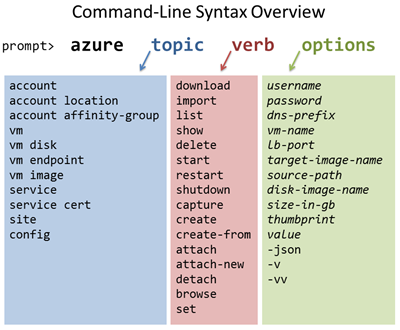
You can also use apt-get or other repository commands. After this, you can just run "azure" which gives you these commands that you link together in a very intuitive way, "azure topic(noun)verb option" so "azure site list" or "azure vm disk create" and the like.
There's even ASCII art, and who doesn't like that. ;)
Seriously, though, it's slick. Here's a sample interaction I did just now. I trimmed some boring stuff but this is starting from a fresh machine with no tools and ending with me interacting with my Windows Azure account.
scott@hanselmac:~$ npm install azure-cli
npm http GET https://registry.npmjs.org/azure
...bunch of GETS...
scott@hanselmac:~$ azure
info:            _    _____   _ ___ ___
info:           /_\  |_  / | | | _ \ __|
info:     _ ___/ _ \__/ /| |_| |   / _|___ _ _
info:   (___  /_/ \_\/___|\___/|_|_\___| _____)
info:      (_______ _ _)         _ ______ _)_ _
info:             (______________ _ )   (___ _ _)
info:
info:   Windows Azure: Microsoft's Cloud Platform
info:
info:   Tool version 0.6.0
...bunch of help stuff...

scott@hanselmac:~$ azure account download
info:   Executing command account download
info:   Launching browser to http://go.microsoft.com/fwlink/?LinkId=254432
help:   Save the downloaded file, then execute the command
help:     account import
info:   account download command OK
scott@hanselmac:~$ cd ~
scott@hanselmac:~$ cd Downloads/
scott@hanselmac:~/Downloads$ ls
3-Month Free Trial.publishsettings
scott@hanselmac:~/Downloads$ azure account import 3-Month\ Free\ Trial.publishsettings
info:   Executing command account import
info:   Setting service endpoint to: management.core.windows.net
info:   Setting service port to: 443
info:   Found subscription: 3-Month Free Trial
info:   Setting default subscription to: 3-Month Free Trial
warn:   Remember to delete it now that it has been imported.
info:   Account publish settings imported successfully
info:   account import command OK
scott@hanselmac:~/Downloads$ azure site list
info:   Executing command site list
+ Enumerating locations
+ Enumerating sites
data:   Name               State    Host names
data:   -----------------  -------  -------------------------------------------------------------
data:   superawesome       Running  superawesome.azurewebsites.net,www.acustomdomain.com
info:   site list command OK
scott@hanselmac:~/Downloads$ azure site list --json
[
  {
    "AdminEnabled": "true",
    "AvailabilityState": "Normal",
    "EnabledHostNames": [
      "superawesome.azurewebsites.net",
      "www.acustomdomain.com"
    ],
    "HostNames": [
      "ratchetandthegeek.azurewebsites.net",
      "www.ratchetandthegeek.com"
    "State": "Running",
    "UsageState": "Normal",
    "WebSpace": "eastuswebspace"
  }
]
Here's how I can create and start a VM from the command line. First I'll list the available images I can start with, then I create it. I wait for it to get ready, then it's started and ready to remote (RDP, SSH, etc) into.
scott@hanselmac:~$ azure vm image list
info:   Executing command vm image list
+ Fetching VM images
data:   Name                                                                        Category   OS
data:   --------------------------------------------------------------------------  ---------  -------
data:   CANONICAL__Canonical-Ubuntu-12-04-amd64-server-20120528.1.3-en-us-30GB.vhd  Canonical  Linux
data:   MSFT__Windows-Server-2012-RC-June2012-en-us-30GB.vhd                        Microsoft  Windows
data:   MSFT__Sql-Server-11EVAL-11.0.2215.0-05152012-en-us-30GB.vhd                 Microsoft  Windows
data:   MSFT__Win2K8R2SP1-120514-1520-141205-01-en-us-30GB.vhd                      Microsoft  Windows
data:   OpenLogic__OpenLogic-CentOS-62-20120531-en-us-30GB.vhd                      OpenLogic  Linux
data:   SUSE__openSUSE-12-1-20120603-en-us-30GB.vhd                                 SUSE       Linux
data:   SUSE__SUSE-Linux-Enterprise-Server-11SP2-20120601-en-us-30GB.vhd            SUSE       Linux
info:   vm image list command OK
scott@hanselmac:~$ azure vm create hanselvm MSFT__Windows-Server-2012-RC-June2012-en-us-30GB.vhd scott superpassword --location "West US"
info:   Executing command vm create
+ Looking up image
+ Looking up cloud service
+ Creating cloud service
+ Retrieving storage accounts
+ Creating VM
info:   vm create command OK
scott@hanselmac:~$ azure vm list
info:   Executing command vm list
+ Fetching VMs
data:   DNS Name               VM Name   Status
data:   ---------------------  --------  ------------
data:   hanselvm.cloudapp.net  hanselvm  Provisioning
info:   vm list command OK
That's the command line tool for Mac, Linux, and optionally Windows (if you install node and run "npm install azure --global") and there's PowerShell commands for the Windows admin. It's also worth noting that you can check out all the code for these as they are all open source and up on github at http://github.com/windowsazure. The whole command line app is written in JavaScript, in fact.
Just as the command line version of the management tools has a very specific and comfortable noun/verb/options style, the cmdlets are very "PowerShelly" and will feel comfortable folks who are used to PowerShell. The documentation and tools are in a Preview mode and are under ongoing development, so you'll find some holes in the documentation.
The PowerShell commands all work together and data is passed between them. Here a new Azure VM configuration is created while the VM Name is pull from the list, then the a provisioning config object is passed into New-AzureVM.
C:\PS>New-AzureVMConfig -Name "MySUSEVM2" -InstanceSize ExtraSmall -ImageName (Get-AzureVMImage)[7].ImageName
` | Add-AzureProvisioningConfig –Linux –LinuxUser $lxUser -Password $adminPassword
` | New-AzureVM
Next, I want to figure out how I can spin up a whole farm of websites from the command line, deploy an app to the new web farm, configure the farm for traffic, then load test it hard, all from the command line. Such fun!
Sponsor: I want to thank the folks at DevExpress for sponsoring this week's feed. Check out their DXperience tools, they are amazing. You can create web-based iPad apps with ASP.NET and Web Forms. I was personally genuinely impressed. Introducing DXperience 12.1 by DevExpress - The technology landscape is changing and new platforms are emerging. New tools by DevExpress deliver next-generation user experiences on the desktop, on the Web or across a broad array of Touch-enabled mobile devices.
About Scott
Scott Hanselman is a former professor, former Chief Architect in finance, now speaker, consultant, father, diabetic, and Microsoft employee. He is a failed stand-up comic, a cornrower, and a book author.


About Newsletter

I think one of the fails around Amazon Cloud Drive and Cloud Player is the complete lack of API. I mean, obviously if they had a decent API they wouldn't be able to force me to find a Windows box and use their byzantine software in order to download the MP3s I bought, which would obviously be a negative, but I do think the positive benefits outweigh that.
The fact that I can't ssh into my home machine and issue a command on the CLI to upload an MP3 to my cloud drive is a travesty.


My parents are diabetic. Is there any blood monitoring device without strips? I pay more to blood strips.. Please advice.

RDP doesn't currently work to connect to Azure from a Mac. It is a known issue and one that hopefully be addressed in the future. One option for now is to install a VNC server on the VM and then use a VNC client. Using the portal or the CLI you can open up the VNC port to allow you to remotely connect.


per azure npm module:
"The azure cli has been moved to a separate project. Please use "npm install azure-cli" to get it."
so, running 'npm install azure-cli --global' would do the trick.


I've been playing around with Azure SDKs for powershell. I had some troubles installing the azure cmdlet because the nojde.js version was too old and was downloading something wrong. After I upgraded it I could install and see all azure commands both in the powershell console and the command prompt. But now I'm trying to link my Azure site with my git repository and I don't have the azure cmdlet available in my git console. Could you please give me some hints?
Thanks in advance

I already run both "npm azure -g" and "npm azure-cli -g", I read that "g" parameter makes the installation as global so that azure commands be available everywhere. However I can't execute them.

Comments are closed.
Cheers.