Querying Virtual Server 2005 via VM with PowerShell
One of the guys in IT manages a lot of Virtual Server instances, like dozens, adding up into many dozens of Virtual Machines all supporting our many devs. He wanted to get some status information with PowerShell. Here's what I came up with.
We used WMI Explorer to check out the WMI namespace installed by Virtual Server (root/vm/virtualserver).
Given a CSV file like this full of (at least) Virtual Server ComputerName
computername,owner,whatever
MSVS1,fred,somedata
MSVS2,joe,somedata
MSVS3,luigi,somedata
We did this:
import-csv servers.csv | foreach-object
{ $_.computername } |
foreach-object
{ Get-WmiObject -computername $_ -namespace "root/vm/virtualserver" -class VirtualMachine } |
select
@{Expression={"__SERVER"}; Name="Server"},
Name, CpuUtilization,
select @{Expression={"Uptime/60"}; Name="Uptime(min)"},
PhysicalMemoryAllocated,
DiskSpaceUsed |
format-table -groupby Server -property name,CpuUtilization,Uptime,PhysicalMemoryAllocated,DiskSpaceUsed
Which gives us more or less this:
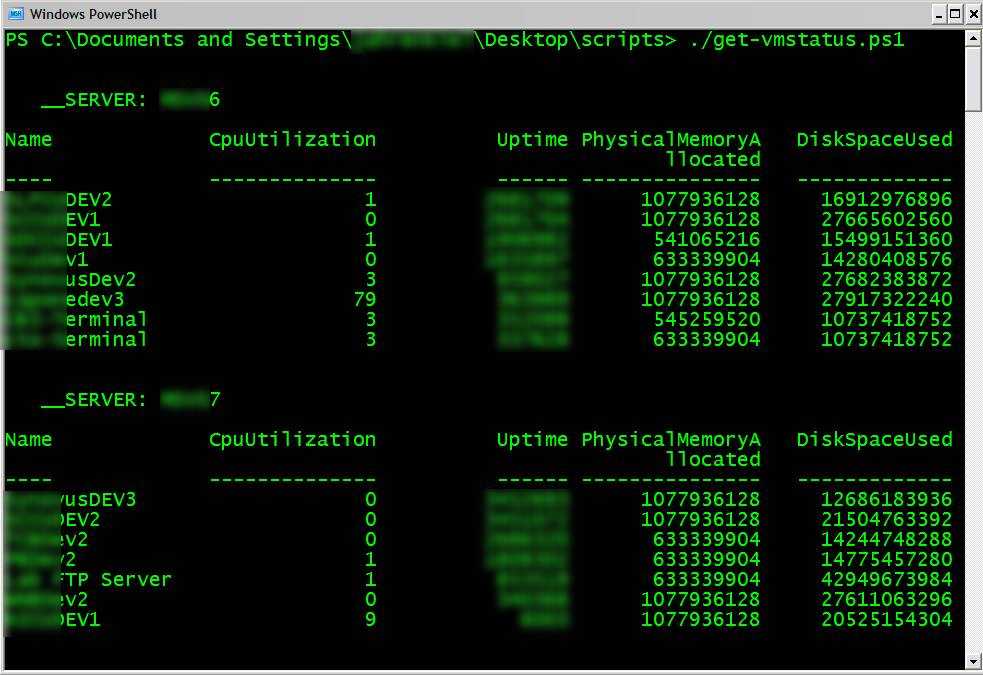
Which can also reformat, make smaller and run in a loop to get a "top" equivalent for all our VMs. We can catch machines that are running out of space, working too hard, and do capacity planning.
Note, I originally wanted to do this:
import-csv servers.csv | Get-WmiObject -namespace "root/vm/virtualserver" -class VirtualMachine
and have "computername" automatically bound to because the name was the same in the CSV file and the powershell parameter name. This does work in this instance...make a CSV file like this named pids.csv:
ID
1
2
3
4
5
and execute this PowerShell pipeline
import-csv pids.csv | get-process
and you'll get
Get-Process : No process with process ID 1 was found.
At line:1 char:33
+ import-csv pids.csv | get-process <<<<
Get-Process : No process with process ID 2 was found.
At line:1 char:33
+ import-csv pids.csv | get-process <<<<
Get-Process : No process with process ID 3 was found.
At line:1 char:33
+ import-csv pids.csv | get-process <<<<Handles NPM(K) PM(K) WS(K) VM(M) CPU(s) Id ProcessName
------- ------ ----- ----- ----- ------ -- -----------
2399 0 0 32 2 507.75 4 System
Get-Process : No process with process ID 5 was found.
At line:1 char:33
+ import-csv pids.csv | get-process <<<<
See how it called get-process for each ID and it automatically bound the ID column of the table coming from the CSV to the ID property? I wanted to do the same with with computername, but it didn't work.
Get-WmiObject : The input object cannot be bound to any parameters for the comm
and either because the command does not take pipeline input or the input and it
s properties do not match any of the parameters that take pipeline input.
At line:1 char:21
I got this error which I assume means that Get-WMIObject doesn't take pipeline input in the build of PowerShell I have (RC1). I hope this is queued to get fixed ASAP or I'm just missing something.
UPDATE: A "help get-wmiobject" (duh, RTFM) confirms that -computername doesn't take pipeline input.
-ComputerName <System.String[]>
Declares on which computer(s) the WMI object may be found
Parameter required? false
Parameter position? named
Parameter type System.String[]
Default value localhost
Accept multiple values? true
Accepts pipeline input? false
Accepts wildcard characters? false
Bummer.
About Scott
Scott Hanselman is a former professor, former Chief Architect in finance, now speaker, consultant, father, diabetic, and Microsoft employee. He is a failed stand-up comic, a cornrower, and a book author.


About Newsletter

Greetings /\/\o\/\/
PS. still think they have to trust us on this one ... ;-)

Try this and let me know if it works:
Import-csv servers.csv | Get-WmiObject -namespace "root/vm/virtualserver" -class VirtualMachine -ComputerName @{$_.ComputerName}
See: http://blogs.msdn.com/powershell/archive/2006/06/23/643674.aspx for details
Jeffrey Snover
Windows PowerShell Architect

I ran a copy of the first script in this post, and I am getting significantly different behavior from what is in this article. Now, I don't even qualify as a "beginner" with Powershell yet, but here's what I got:
It appears that "Expressions" are not being evaluated, but are handled as literals.
Steps that I took:
1. I added ` characters to the end of each line, which seem to be line extensions (told ya -- not even a beginner yet)
2. When I ran it, I received an error "A parameter cannot be found that matches parameter name 'System.Object[]" This occurred for the first "select" statement.
3. I removed the 2nd select statement, and the expression for uptime, and I added Uptime, CpuUtilization, etc to the 1st select statment. like so:
select @{Expression={"__SERVER"}; Name="Server"}, `
Name, CpuUtilization, Uptime, `
PhysicalMemoryAllocated, DiskSpaceUsed `
With this, I could run the script, but the "Server" line in the group by comes out wrong. In your screen shot, it is "__SERVER: (a blurred-out server name)"
In mine, the output is literally: "Server: __SERVER".
Then I tried to put the expression back into uptime, but with a single select statement:
select @{Expression={"__SERVER"}; Name="Server"}, `
Name, CpuUtilization, @{Expression={"Uptime/60"}; Name="Uptime_"}, `
PhysicalMemoryAllocated, DiskSpaceUsed `
I found that I had to change the format-table statment to match the "Uptime_" label (before that, it came out blank, and if I kept the "(min)", there was an error from format-table, it appeared to be looking for a function or something).
On this run, the Values in the "Uptime_" column were the string literal: "Uptime/60"
So, it looks as though the expressions are being evaluated as literal strings.
I am runnin the RC1 release of Powershell, with no modifications, add-ins, or additional script block registrations. Am I missing something?
Comments are closed.
this tool was actually used for tracking server usage across many different researchers and billing the appropriate research account with the CPU load they used.