Scott Hanselman

Most Common ASP.NET Support issues - Reporting from deep inside Microsoft Developer Support

May 18, 2010 Comment on this post [21] Posted in ASP.NET | Bugs
Sponsored By

Microsoft Developer Support or ("CSS" - Customer Support Services) is where you're sent within Microsoft when you've got problems. They see the most interesting bugs, thousands of issues and edge cases and collect piles of data. They report this data back to the ASP.NET team (and other teams) for product planning. Dwaine Gilmer, Principal Escalation Engineer, and I thought it would be interesting to get some of that good internal information out to you, Dear Reader. With all those cases and all the projects, there's basically two top things that cause trouble in production ASP.NET web sites. Long story short, Debug Mode and Anti-Virus software.

Thanks to Dwaine Gilmer, Doug Stewart and Finbar Ryan for their help on this post! It's all them!

#1 Issue - Configuration

Seems the #1 issue in support for problems with ASP.NET 2.x and 3.x is configuration.

Symptoms

Notes

  • OOM
  • Performance
  • High memory
  • Hangs
  • Deadlocks

There are more debug=true cases than there should be.

People continue to deploy debug versions of their sites to production. I talked about how to automatically transform your web.config and change it to a release version in my Mix talk on Web Deployment Made Awesome. If you want to save yourself a headache, release with debug=false.

Additionally, if you leave debug=true on individual pages, note that this will override the application level setting.

Here's why debug="true" is bad. Seriously, we're not kidding.

  • Overrides request execution timeout making it effectively infinite
  • Disables both page and JIT compiler optimizations
  • In 1.1, leads to excessive memory usage by the CLR for debug information tracking
  • In 1.1, turns off batch compilation of dynamic pages, leading to 1 assembly per page.
  • For VB.NET code, leads to excessive usage of WeakReferences (used for edit and continue support).

An important note: Contrary to what is sometimes believed, setting retail="true" in a <deployment/> element is not a direct antidote to having debug="true"!

#2 Issue - Problems with an External (non-ASP.NET) Root Cause

Sometimes when you're having trouble with an ASP.NET site, the problem turns out to not be ASP.NET itself. Here's the top three issues and their causes. This category are for cases that were concluded because of external reasons and are outside of the control of support to directly affect. The sub categories are 3rd party software, Anti-virus software, Hardware, Virus attacks, DOS attacks, etc.

If you've ever run a production website you know there's always that argument about whether to run anti-virus software in production. It's not like anyone's emailing viruses and saving them to production web servers, but you want to be careful. Sometimes IT or security insists on it. However, this means you'll have software that is not your website software trying to access files at the same time your site is trying to access them.

Here's the essence as a bulleted list

  • Concurrency while under pressure: This causes problems in big software. Make sure your anti-virus software is configure appropriately and that you're aware of which processes are accessing which files, as well as how, why and when
  • Profile your applications: .NET and the Web are not black boxes. You can see what's happening if you look. Know what bytes are going out the wire. Know who is accessing the disk. Measure twice, cut once, they say? I say measure a dozen times. You'd be surprised how often folks put an app in production and they've never once profiled it.
  • Anti-Virus Software: It can't be emphasized enough that site owners should ensure they are running the latest AV engine and definitions from their chosen anti-malware vendor. They've see folks hitting hangs due to flakey AV drivers that are over two years out of date.  Another point about AV software is that it is not just about old-school AV scanning of file access. Many products now do low level monitoring of port activity, script activity within processes and memory allocation activity and do not always do these things 100% correctly. Stay up to date!
  • Know where you're calling out to: Also, connection to remote endpoints: calling web services, accessing file systems etc. All of this can slow you down if you're not paying attention. Is your DNS correct? Did you add your external hosts to a hosts file to remove DNS latency? 
  • processModel autoconfig=true: This is in machine.config and folks always mess with it. Don't assume that you know better than the defaults. Everyone wants to change the defaults, add threads, remove threads, change the way the pool works because they think their textboxes-over-data application is special. Chances are it's not, and you'd be surprised how often people will spend days on the phone with support and discover that the defaults were fine and they had changed them long ago and forgotten. Know what you've changed away from the defaults, and know why. Don't program by coincidence.

...and here's the table of details:

Issue

Product

Description

Symptoms

Notes

Anti-virus software

All

Anti-virus software is installed onto Servers and causes all kinds of problems. 

  • Application restarting
  • Slow performance
  • Session variable are null
  • Cannot install hotfix
  • Intermittent time outs
  • High memory
  • Session lost
  • IDE Hangs
  • Deadlocks

This consists of all AV software reported by our customers. All cases do not report the AV software that is being used so the manufacturer is not always known. 

KB821438, KB248013, KB295375, KB817442

3rd party Vendors

All

This is a category of cases where the failure was due to a 3rd party manufacturer.

  • Crash
  • 100% CPU
  • High memory
  • Framework errors
  • Hang

The top culprits are 3rd party database systems, and 3rd party internet access management systems.

Microsoft component

All

Microsoft software

  • Intermittent time outs
  • High memory
  • Deadlocks
  • 100% CPU
  • Crash

Design issues that cause performance issues like sprocs, deadlocks, etc. Profile your applications and the database! (Pro tip: select * from authors doesn't scale.) Pair up DBAs and programmers and profile from end to end.

Spread the word! What kinds of common issues do YOU run into when running production sites, Dear Reader?

About Scott

Scott Hanselman is a former professor, former Chief Architect in finance, now speaker, consultant, father, diabetic, and Microsoft employee. He is a failed stand-up comic, a cornrower, and a book author.

facebook bluesky subscribe
About   Newsletter
Hosting By
Hosted on Linux using .NET in an Azure App Service

Make the Visual Studio 2010 IDE colors look like Visual Studio 2008

May 14, 2010 Comment on this post [14] Posted in VS2010
Sponsored By

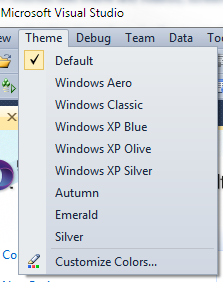
 Theme MenuPersonally, I like the new Visual Studio 2010 IDE colors but I got this comment recently from a helpful reader:

Why did the default colour theme for VS 2010 have to be so hideously ugly? Why put all that work into making the most advanced IDE ever, and then present it with a look that screams "we didn't care?" ... An official facelift patch would be nice, if just the 2008 look was applied to 2010.

Well, each to is own. Just like Henry Ford said, "You can have any color you want as long as it's black." Seriously, though, you can change the colors if it makes you happy. Folks feel strongly about their colors, like our friend above.

There's a free Visual Studio Color Theme Editor by Matthew Johnson that you can download and modify the VS IDE theme however you like. Once you've installed it (it's a VSIX - an extension to VS2010 - not an MSI, so don't be scared) there will be a new menu in VS called "theme."

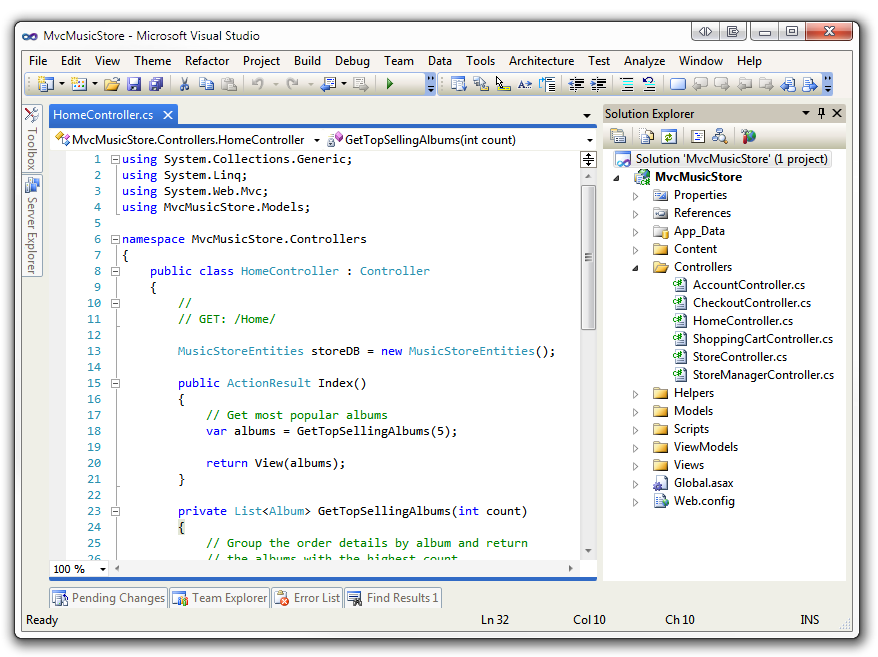
Here's the built in themes. Remember these are VS themes, not Windows themes, so they won't affect Windows colors. Also, this is changing the colors of the IDE itself, not the text editor. You can choose your text styles at http://studiostyles.info.

Windows XP Silver

MvcMusicStore - Microsoft Visual Studio (5)

Windows Classic

MvcMusicStore - Microsoft Visual Studio (9)

Windows XP Emerald

MvcMusicStore - Microsoft Visual Studio (7)

Windows XP Autumn

 MvcMusicStore - Microsoft Visual Studio (6)

Windows XP Olive

MvcMusicStore - Microsoft Visual Studio (4) 

Windows XP Blue

MvcMusicStore - Microsoft Visual Studio (3)

Windows Aero

MvcMusicStore - Microsoft Visual Studio (2)

Windows XP Blue

 MvcMusicStore - Microsoft Visual Studio

Default Visual Studio 2010 Theme

 MvcMusicStore - Microsoft Visual Studio (8)

Have fun! You can make your own themes as well and import/export them. Enjoy.

About Scott

Scott Hanselman is a former professor, former Chief Architect in finance, now speaker, consultant, father, diabetic, and Microsoft employee. He is a failed stand-up comic, a cornrower, and a book author.

facebook bluesky subscribe
About   Newsletter
Hosting By
Hosted on Linux using .NET in an Azure App Service

30 Tips for Successful Communication as a Remote Worker

May 14, 2010 Comment on this post [17] Posted in Remote Work
Sponsored By

2715599454_ca105ab726_mAs a Remote Worker I'm always looking for tips and tricks and checklists to make my, ahem, remote working life easier. I've made a cheap Wide Angle Lens so I could better see my co-workers, created a robot cart so they won't forget me, tested 4G cards so I can be online anywhere, switched to Hi-Def Video Cameras for web chat, written articles on how to Collaborate with Remote Employees and Phil Haack and I made the HanselPortal, for virtual camaraderie.

Recently I write up my "Good Better Best" webcam equipment list, so you can look amazing with a RingLight and a quality camera.

Show consideration

  • Set up calls at mutually workable hours. Avoid blocking calendars with local meetings during shared hours. Fridays are often a poor choice.
  • Start on time. Leaders should set up the bridge or Zoom/Teams/Meeting before the call starts. Attendees should always show up on time.
  • If you can't make it, cancel or decline least 18 hours in advance. Changing your plans to attend a non-existent meeting is very frustrating. Think carefully if the recipient will see your cancellation in time (they may be asleep).
  • Assume the best. If the other team isn't meeting your expectations, it's probably because of a lack of awareness or a misunderstanding—not incompetence. Clarify and confirm before drawing conclusions or judging.

Use the right tools

  • Choose the right tool. Skype is great for 1-1s and small group meetings. Teams is usually better for large group meetings.
  • Use video.  Seeing faces increases the quality of the communication. It also helps create focus, preventing people from getting distracted, having side conversations, checking their email, etc.
  • In a group, use a Camera with a wide angle. Mount it so the ROOM can be seen.  As well as enabling video, the noise-cancelling mics it has are excellent.  Make sure all your meeting rooms have one, including the satellite mics.
  • On your own, use a headset.  The sound quality for both parties is far superior.
  • Don't use your laptop microphone. Laptop microphones are poor quality and pick up noise from your laptop's fan, disk, and keyboard. Use the mic on your webcam or, better yet, an external mic.
  • Be a black-belt with the tools. Make sure you can set up and join meetings quickly so that they start on time. Learn all the available features. Set up time to sit with your local team to practice and explore.

Be Heard and Understood

  • Speak clearly and slowly. The connections aren't always clear.
  • Be precise and concise. Help to keep the meeting short and productive.
  • Speak one at a time, otherwise no-one can be heard.
  • Ask for confirmation that the callers heard everything clearly.
  • Sit near the microphone, especially if your voice is soft.
  • Ask for comments. It's hard to break into the conversation over the phone.
  • Avoid jargon and culture-specific phrases. English is not the first language of many people on our teams, and can also vary greatly across cultures.
  • Meet face to face from time to time.  Meeting in person builds your knowledge of each other's mannerisms and communication style.  Subsequent remote communications are much richer and misunderstandings rarer as a result.

Make meetings effective

  • Pick the right forum. Use meetings rather than long email threads to discuss complex issues. For small meetings, it is often better if everyone is in their own office rather than using a meeting room—this promotes equality between local and remote team members.
  • Share the context and goals. Shared context is critical to clear communication. There are often a lot of assumptions you know in a particular location based on side-conversations, etc.
  • Share a deck. It's much easier to follow the conversation if everyone is looking at the same thing. Even if you are sharing via Zoom or Teams, send the deck or a link to the deck by email well in advance (home connections can be slow) and call out each slide.
  • Send minutes promptly. After every meeting, send minutes documenting all decisions and including clear actions and owners. Avoid cryptic or overly-concise notes—imagine them being read or reported out by someone who wasn't there, six months later.
  • Record and share brown bags. Brown bags are often at unsociable hours. Recording and sharing helps partner teams as well as your own.

Make Email Work

  • Be clear and precise. It's very easy to misinterpret email, especially across cultures and languages. Re-read your emails before sending.
  • Document everything. Document all decisions - if it's not recorded in email, it didn't happen.
  • Share everything. Use email to share face-to-face hallway, office, lunchtime or post-meeting conversations.
  • Be inclusive. Leave time for other sites to read and reply before closing the issue (as appropriate).
  • Set up inclusive DLs. Having all stakeholders on the appropriate distribution lists is the easiest way to keep from forgetting other sites. Don't hide DL membership.
  • Answer all questions asked. Incomplete answers lead to frustration and wasted time.
  • Avoid unnecessary questions. Ask yourself ‘is it really worth a 24-hour turn-around to answer this question? Can I answer it myself, or ask someone local?' Don't block an important thread with a trivial question.

Related Links

About Scott

Scott Hanselman is a former professor, former Chief Architect in finance, now speaker, consultant, father, diabetic, and Microsoft employee. He is a failed stand-up comic, a cornrower, and a book author.

facebook bluesky subscribe
About   Newsletter
Hosting By
Hosted on Linux using .NET in an Azure App Service

Hanselminutes Podcast 214 - Type 1 Diabetes and Running Marathons with Gary Schmidt

May 07, 2010 Comment on this post [3] Posted in Diabetes | Podcast
Sponsored By

stl-half-marathon-2009-race-pic-1 My two-hundred-and-fourteenth podcast is up. Gary Schmidt from runningwitht1.com runs marathons and triathlons. He also wears an insulin pump 24 hours a day, just like Scott. These two Type 1 diabetics chat about what's involved in being both diabetic and active.

I would also encourage you to watch my "I am Diabetic" video on YouTube, and consider donating to the ADA if this blog as ever helped you.

(Ya, I know, I'm late to post this.)

Subscribe: Subscribe to Hanselminutes Subscribe to my Podcast in iTunes

Download: MP3 Full Show

Links from the Show

Do also remember the complete archives are always up and they have PDF Transcripts, a little known feature that show up a few weeks after each show.

I want to add a big thanks to Telerik. Without their support, there wouldn't be a Hanselminutes. I hope they, and you, know that. Someone's gotta pay the bandwidth. Thanks also to Carl Franklin for all his support over these last 4 years!

Telerik is our sponsor for this show.

Building quality software is never easy. It requires skills and imagination. We cannot promise to improve your skills, but when it comes to User Interface and developer tools, we can provide the building blocks to take your application a step closer to your imagination. Explore the leading UI suites for ASP.NET AJAX,MVC,Silverlight,Windows Formsand WPF. Enjoy developer tools like .NET reporting, ORM,Automated Testing Tools, TFS, and Content Management Solution. And now you can increase your productivity with JustCode, Telerik’s new productivity tool for code analysis and refactoring. Visit www.telerik.com.

As I've said before this show comes to you with the audio expertise and stewardship of Carl Franklin. The name comes fromTravis Illig, but the goal of the show is simple. Avoid wasting the listener's time. (and make the commute less boring)

Enjoy. Who knows what'll happen in the next show?

About Scott

Scott Hanselman is a former professor, former Chief Architect in finance, now speaker, consultant, father, diabetic, and Microsoft employee. He is a failed stand-up comic, a cornrower, and a book author.

facebook bluesky subscribe
About   Newsletter
Hosting By
Hosted on Linux using .NET in an Azure App Service

Visual Studio 2010 - Help Viewer Power Tool BETA - Help Index and Standalone Help

May 04, 2010 Comment on this post [30] Posted in MSDN | VS2010
Sponsored By

The help system changed in Visual Studio 2010. I totally had a "Who Moved My Cheese" moment, as did many folks.

  • Where's my "as I type" Help Index?
  • Where's my separate Help Viewer? I don't want help in my browsers, it clutters my tabs.

If you don't install the Help Documentation at the end of the Visual Studio 2010 setup, you help will be online and shown in your default browser. Personally, I like the idea of an external help viewer. I just saw on the Help Team's blog that they released the Help Viewer Power Tool today. It's an unsupported local content Help Viewer.

First, make sure your Help Content is installed locally, rather than served from the web.

  1. Click Help | Manage Help Settings.
  2. Click Choose Online or Local. Select Local, a path, then OK.
  3. Click Install Content from Online (or from Disk)
  4. Select your content by clicking Add on each topic you want, click OK.

When you've got local help content setup, go install the Help Viewer Power Tool. So what do you get?

The Help Viewer Power Tool supports two modes: in-browser and standalone.

  1. The Power Tool defaults to an in-browser experience that adds two additional tabs – Index and Search – to the left pane using a Silverlight control. In addition, the left pane is now fully resizable.
  2. The Power Tool can be configured to provide a standalone experience with three tabs for navigating content: Contents, Search Results, and Index. This mode provides some additional features over the in-browser experience:
    • The help window has its own icon and is easily located in the task bar.· The help window can be pinned to the Win7 Taskbar.
    • F1 queries overlay the previous help topic (eliminates tab proliferation).
    • The standalone window is resizable and can be positioned independently without affecting browser settings.

Here's what your in-browser Help will look like. Notes the Contents, Search Results and Index on the left:

in-browser help

Here's the standalone Help Viewer. Once you've run it, you can also pin it to Explorer in Windows 7.

Standalone Help Brower 

How do I switch to standalone mode?

  1. From your system drive, run the following from an elevated command prompt
    (note you might be in \Program files (x86))
    cd \program files\microsoft help viewer\v1.0
    hlpvwpt.exe standaloneviewer=true
  2. Shut down any instances of the Help Library Agent. Right-click on the Help Library Agent icon in the taskbar and select ‘Exit.

How do I switch back to in-browser mode?

  1. From your system drive, run the following from an elevated command prompt:
    cd \program files\microsoft help viewer\v1.0
    hlpvwpt.exe standaloneviewer=false
  2. Shut down any instances of the Help Library Agent. Right-click on the Help Library Agent icon in the taskbar and select ‘Exit.

If you're installing on a non-English system, make sure you read the Readme to make sure your localized help is shown. Also, if you only have IE6, you'll need IE8.

Another way to find the Help Viewer Power Tool

Start Page - Microsoft Visual Studio

As an aside, you can also just go to the Tools | Extension Manager inside VS2010, and query something like "help viewer power" and you can get to the download page from inside VS.

Extension Manager (2)

Related Links

  • How To: Updating multiple VS 2010 installations' Help content with a single download - This technique will show you how to share help between multiple developers via a Shared Drive. This is helpful in constrained bandwidth environments.
    • A comment from my blog: "Also, while the updating feature is great, the downloads appear quite large and if you have a number of machines to update then this can be a slow and bandwidth consuming task, is there any way to download and share the help system updates between multiple installations?
  • Community Created H3Viewer.exe - Alternative VS 2010 help viewer in the style of DExplore. Features a full TOC, full Index, Search and favorites.
  • Keyword Index for Visual Studio 2010 Help Documentation - An unsupported inside-the-IDE Help Client with keyword index.
  • Developer Documentation and Help Forum - Ryan, the developer of this tool, will be watching the forums for your feedback.

About Scott

Scott Hanselman is a former professor, former Chief Architect in finance, now speaker, consultant, father, diabetic, and Microsoft employee. He is a failed stand-up comic, a cornrower, and a book author.

facebook bluesky subscribe
About   Newsletter
Hosting By
Hosted on Linux using .NET in an Azure App Service

Disclaimer: The opinions expressed herein are my own personal opinions and do not represent my employer's view in any way.