Abusing the Microsoft Research's Touch Mouse Sensor API SDK with a Console-based Heat-map
 In August I purchased and reviewed the Microsoft Touch Mouse. I still use my Microsoft Arc Mouse more than the touch, initially due to what I felt was dodgy scrolling performance on the Touch Mouse, as I mentioned in my review. Still, I've kept it in my backpack and I use the Touch Mouse perhaps a few times a month and have kept the software up to date in case there's some software changes made to improve performance.
I can happily say that they've changed something and the scrolling performance is WAY better. I can finally get 1 to 2 pixel precision with it while scrolling in my browsers. The other nice feature is the "three finger swipe up" which gives you effectively a Windows version of the Mac Expose window switcher view.
Today I noticed while catching up on Long Zheng's excellent blog that the Touch Mouse Sensor SDK is available for download. Per their site:
"The Microsoft Touch Mouse supports multitouch gestures via an integrated sensor. The Touch Mouse Sensor API SDK is a small library intended to enable students and researchers to experiment directly with Touch Mouse sensor output.
Using this SDK, you can create your own applications consuming the 13×15 sensor image. The SDK includes C# and C++ samples demonstrating how to read and manipulate sensor data"
OK, so what can we do with this thing? It comes with a number of samples to get the bitmap from the sensor and process it. It includes examples in both C# and C++. Because I don't have C++ on this machine I got an error opening that solution, but you can just remove that project and still build the samples.
You don't need to do your work in a graphical application, although it's nice to visualize this data of course. First sample is a console app, that tells you were the center of mass of your big fat finger is.
The smarts are in the Microsoft.Research.TouchMouseSensor namespace. You implement a callback function that the mouse effectively calls whenever something interesting happens. It looks like this:
/// <summary>
/// Function receiving callback from mouse.
/// </summary>
/// <param name="pTouchMouseStatus">Values indicating status of mouse.</param>
/// <param name="pabImage">Bytes forming image, 13 rows of 15 columns.</param>
/// <param name="dwImageSize">Size of image, assumed to always be 195 (13x15).</param>
static void TouchMouseCallbackFunction(ref TOUCHMOUSESTATUS pTouchMouseStatus,
    byte[] pabImage,
    int dwImageSize)
{
...
}
As you can see, the image size is 13x15, always. You get the raw bytes that represent the image, 195 bytes long.
_2.png "A console app outputing the center of mass as an X,Y coordinate")
The first thing I was surprised to see was just HOW MUCH of the surface area of the mouse is covered and how high the resolution is. I was thinking, "13x15? That's so small, how could it tell me anything useful with such a limited structure?" Well, that's how clueless I was.
Of course, each of these bytes is giving a number between 0 and 255 so a lot of information can be extrapolated between two pixels with different values and you can get a pretty detailed picture of what's going on. How much? Well, before I move on to a graphical example, why not abuse ASCII as much as we can?
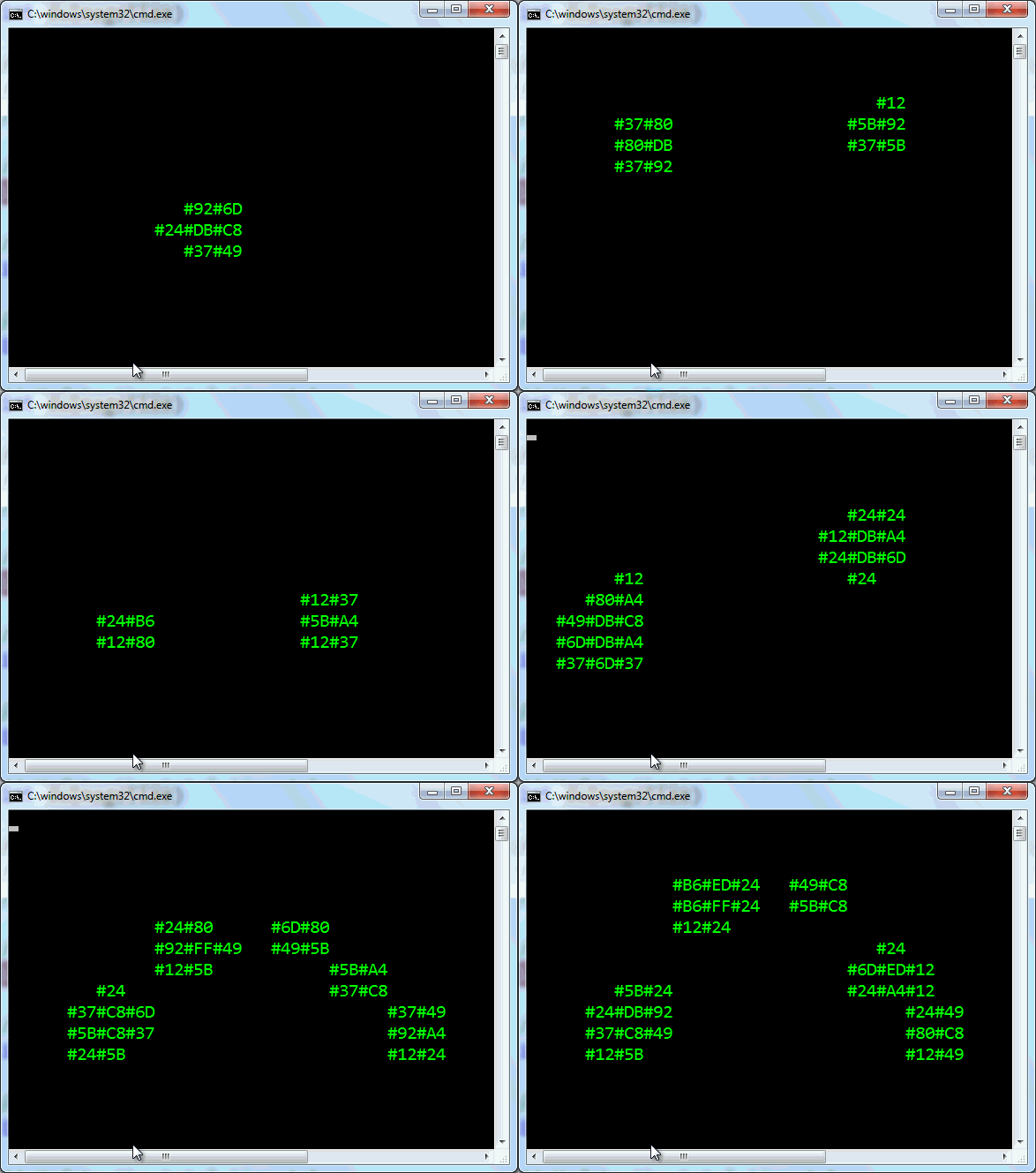
First, I'll output just the hex values with this code, then show what it looks like when I move my figures around the surface of the mouse.
Console.SetWindowSize(50,16);
Console.SetCursorPosition(0, 0);
StringBuilder sb = new StringBuilder(300);

for (Int32 y = 0; y < pTouchMouseStatus.m_dwImageHeight; y++)
{
    // Iterate over columns.
    for (Int32 x = 0; x < pTouchMouseStatus.m_dwImageWidth; x++)
    {
        // Get the pixel value at current position.
        int pixel = pabImage[pTouchMouseStatus.m_dwImageWidth * y + x];
        if (pixel > 0)
            sb.AppendFormat("#{0:X2}", pixel);
        else
            sb.Append("   ");
    }
    sb.Append("\n");

}
Console.Write(sb.ToString());
Here's the result, animated.
Cool. But what about with color? I could use the default Console stuff and set the colors, or I could get direct access to the Console, use the Win32 APIs and what not, but I could also use Tim Sneath's ConsoleEx class that's on NuGet thanks to Anthony Mastrean! First, I'll "install-package ConsoleEx" to bring it in.
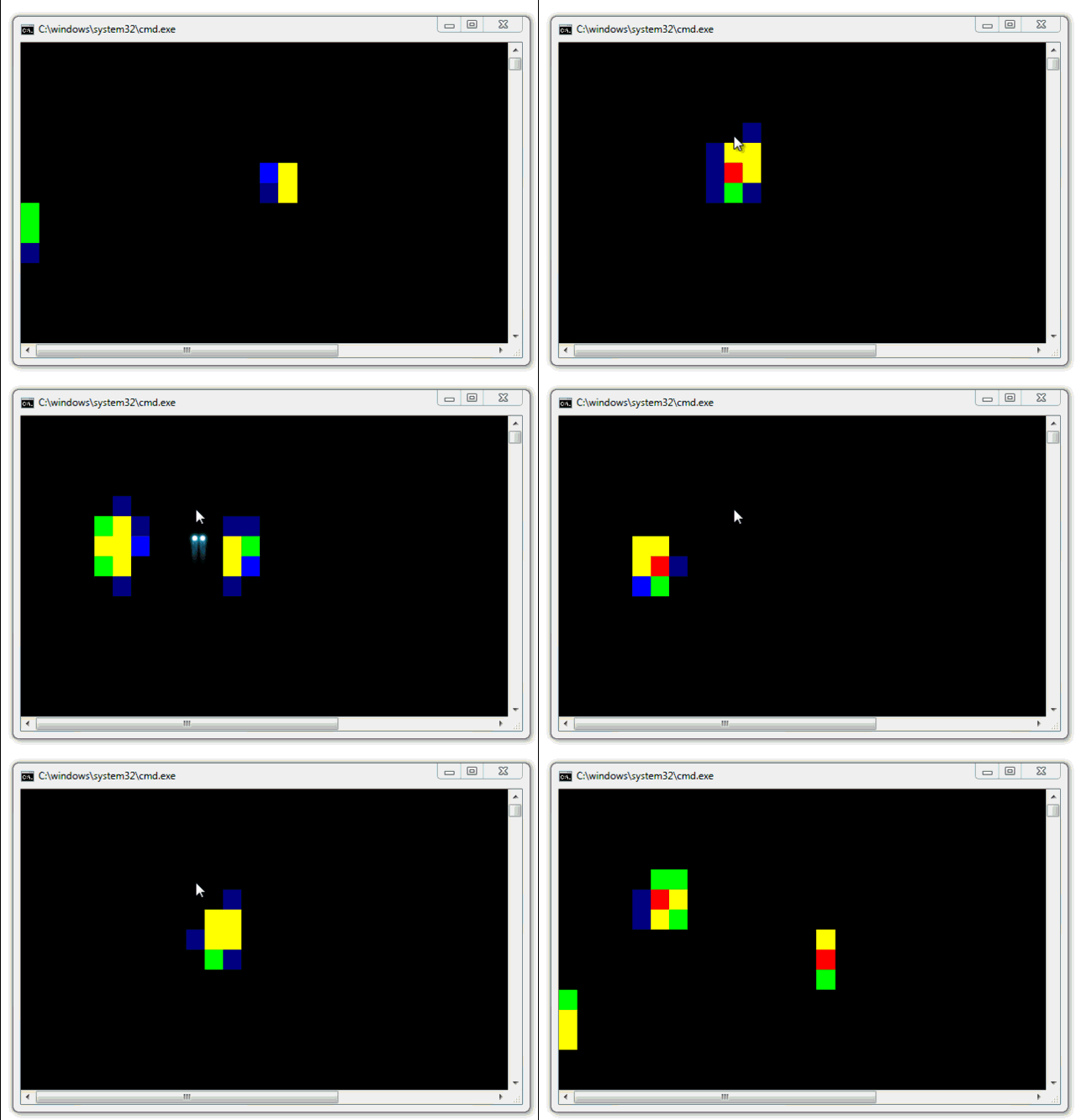
How about a mouse touch heat-map with color? I thought about building a whole "find closest color" map and trying to map 255 different colors, but then I just did this.
if (pixel > 230)
    Console.BackgroundColor = ConsoleColor.Red;
else if (pixel > 128)
    Console.BackgroundColor = ConsoleColor.Yellow;
else if (pixel > 90)
    Console.BackgroundColor = ConsoleColor.Green;
else if (pixel > 45)
    Console.BackgroundColor = ConsoleColor.Blue;
else if(pixel > 15)
    Console.BackgroundColor = ConsoleColor.DarkBlue;
else
    Console.BackgroundColor = ConsoleColor.Black;

ConsoleEx.WriteAt(x*2, y, "  ");
And the result is this:
You can do the same thing in WPF, of course, with better bitmap support, but seriously, with a Console-based heatmap, who needs graphics? ;)
OK, fine, here's the sample code that takes the results of the TouchMouseSensorEventArgs and creates a grayscale image.
void TouchMouseSensorHandler(object sender, TouchMouseSensorEventArgs e)
{
    // We're in a thread belonging to the mouse, not the user interface
    // thread. Need to dispatch to the user interface thread.
    Dispatcher.Invoke((Action<TouchMouseSensorEventArgs>)SetSource, e);
}

void SetSource(TouchMouseSensorEventArgs e)
{
    // Convert bitmap from memory to graphic form.
    BitmapSource source =
        BitmapSource.Create(e.Status.m_dwImageWidth, e.Status.m_dwImageHeight,
        105, 96,
        PixelFormats.Gray8, null, e.Image, e.Status.m_dwImageWidth);

    // Show bitmap in user interface.
    SensorImage.Source = source;
}
And the result:
_04ad1f12-a57d-4e39-9ced-5da75afe12e8.png "256 color grayscale heatmap of the Touch Mouse")
One way to look at this is as if the surface of the mouse is a tiny Xbox Kinect. What kinds of gestures could I recognize and hook up to do stuff? Control WIndows, do custom stuff inside my application, browser, or whatever. Any ideas?
The downloads are here:
Enjoy!
About Scott
Scott Hanselman is a former professor, former Chief Architect in finance, now speaker, consultant, father, diabetic, and Microsoft employee. He is a failed stand-up comic, a cornrower, and a book author.


About Newsletter

 Isaac Overacker
While using the mouse, do you feel it gives you an edge over a regular mouse with scroll wheel?
Keep up the flow of cool things :)


Or is that my personal "first world problem"?

its a horrible mouse, i brought it back to the store after 2 weeks of usage. There is no excuse for releasing an update on the software after more then 3 months. This was an release of a buggy product and there was no way that ms did not know about that. A release was more important then deliver quality.
I switched back to my ms pilot mouse.

One Finger Flick Right -> Step Over Next Statement
One Finger Flick Left -> Step Out of Current Function
Two Finger Flick Down -> [context sensitive]
* Inside loop, run through and break on next iteration
* Elsewhere, run until next breakpoint
Two Finger Tap -> Add Watch / Inspect
etc...
Obviously, the specifics could be changed slightly, or perhaps made configurable.

But the mouse is heavy, the whole-body-click movement is clumsy and heavy, the right-click is unreliable and the friction with the table is high. And then the scrolling was lame compared to a good wheel. After using it for just 10 min, my hand was aching. I persisted for about 2 weeks with everyone admiring it on my desk then put it back in it's box.


The built-in gesture support is interesting, though.
But, there is no information in this article on defining custom gestures.
Can you even, using the SDK, intercept the built-in vocabulary of gestures and "do your own thing" based on them, over-riding their "default effect" ?
Just not information in this article to begin to evaluate whether this would be of interest to me.
thanks, Bill

If they put the ability for tactle feedback into the "mouse"...
pins that could rise or fall about 2.5 mm on the control surface
- pin head size = to screen pixil size...
AND
include a logical screen overlay (one byte per pixil) that would be used to indicate virtical displacement...
You would now have a new UI...
a Tactle UI...
drag and drop by FEEL, etc.
throw in a presure response algorithim and now can emulate the "feel" of physical materials
capture the "presure map" as a function over time and you can also emulate secondary effects such as (the resultant) sounds of the finger actions
Oh, I don't think you would have to worry about Apple and Google here, Microsoft would be the eary bird (like it is with Kinect)
-David S.


I'm hoping this will be a decent mouse for Windows 8, but in the developer preview it's just not there.
Still, it's a good size and weight, and although the effort to have sensible gestures isn't there yet, maybe Microsoft will decide they might want to sell them, and realize that this device could be a stopgap for Windows 8's touch centric UI for users with older non-touch hardware.
Thanks for the info.


Just bought one for 40 bucks ;)
I'm going to be writing hopefully a gesture support hook into FF/Chrome. Anyone do that yet? :3
Comments are closed.