Scott Hanselman

Free Windows 10 development virtual machines for HyperV, Parallels, VirtualBox, and VMWare

February 18, 2021 Comment on this post [9] Posted in Win10
Sponsored By

You probably know that you can download free developer tools for Windows 10 up at the Windows Dev Center here.

Visual Studio Community IS effectively the Pro SKU and is free for Open Source. You may even have a "Take Home" license at your work since the paid version of VS is licensed per-user, not per-machine, so ask your boss if you can install it at home and get the same pro tools you use at work.

BUT, did you know (I did not!) that you can download a free time-boxed Windows 10 Development environment for your Mac, Windows, or Linux machine as a virtual machine?

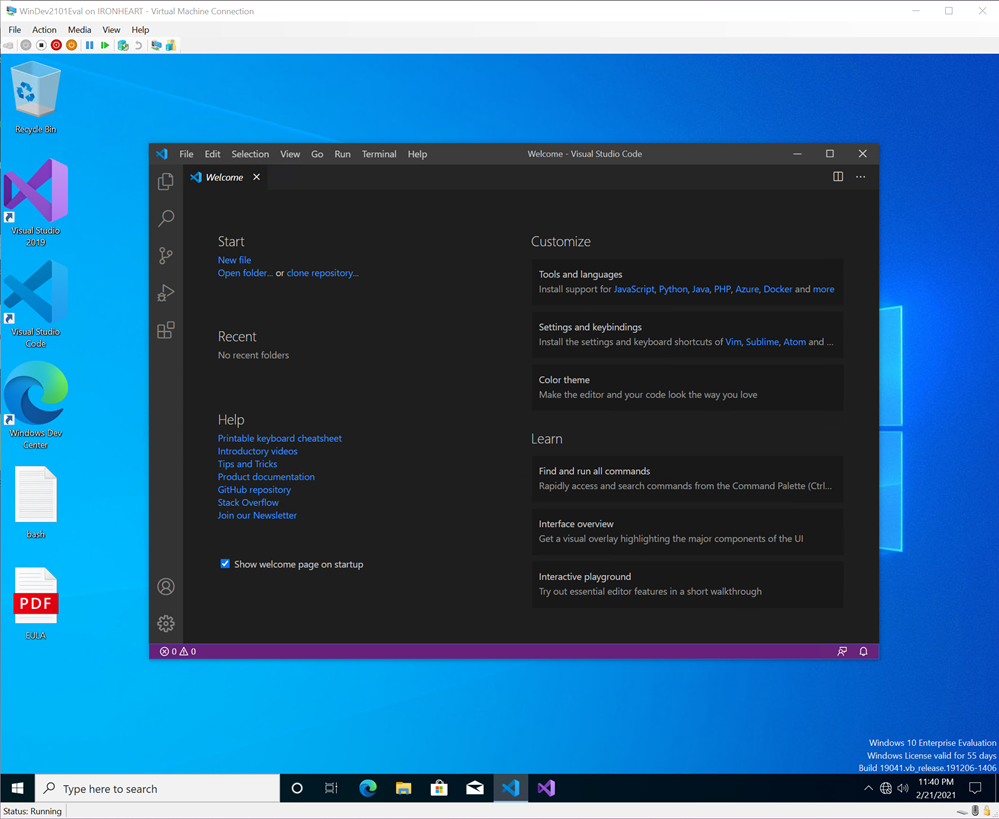
That means, there's a pre-configured VM for VMWare or Hyper-V or VirtualBox or Parallels up at https://developer.microsoft.com/en-us/windows/downloads/virtual-machines/ right now. This has been super useful when I wanted to get a build running fast on a system to test something or get started TODAY.

This evaluation virtual machine includes:

  • Windows 10, version 2004 (10.0.19041.0)
  • Windows 10 SDK, version 2004 (10.0.19041.0)
  • Visual Studio 2019 with the UWP, .NET desktop, and Azure workflows enabled and also includes the Windows Template Studio extension
  • Visual Studio Code
  • Windows Subsystem for Linux enabled with Ubuntu installed
  • Developer mode enabled

These are for eval or quick testing and expire regularly, so check back to get another if you need to. (BTW there are also free VMs for testing IE11 or Edge Legacy but we don't talk about those.)

Free Windows 10 VMs

Again, VS Code is free for Windows, Mac, and Linux, and VS itself is free for Windows and Mac so you may not need these VMs, but knowing there are Windows developer VMs available free for eval is a super useful way to bootstrap development on any machine. Enjoy!


Sponsor: Have what it takes to code securely? Select from dozens of complimentary interactive secure coding labs, test your skills, and earn a badge. Learn more!

About Scott

Scott Hanselman is a former professor, former Chief Architect in finance, now speaker, consultant, father, diabetic, and Microsoft employee. He is a failed stand-up comic, a cornrower, and a book author.

facebook bluesky subscribe
About   Newsletter
Hosting By
Hosted on Linux using .NET in an Azure App Service

Free eBook: How to use Dapr for .NET Developers

February 16, 2021 Comment on this post [1] Posted in DotNetCore | Open Source
Sponsored By

According to the Dapr open source website:

"Dapr helps developers build event-driven, resilient distributed applications. Whether on-premises, in the cloud, or on an edge device, Dapr helps you tackle the challenges that come with building microservices and keeps your code platform agnostic."

Dapr free eBookI've had Mark Russinovich on my podcast recently to talk about Dapr which is now at version 1.0. Dapr is platform agnostic, and you can use Dapr with your language of choice by leveraging an SDK or making simple HTTP or gRPC calls. Dapr is language agnostic and can run on any hosting environment including local development machines, Kubernetes, and public clouds such as AWS, Azure and GCP. The Dapr sidecar container collects traces so your application is instrumented with no additional code.

Since a lot of folks who read my blog use .NET, I wanted to let you know there's a free eBook on how to use Dapr with .NET available now.
You can download the free eBook "Dapr for .NET Developers" here now! It's available as a PDF and it's being actively improved so can offer feedback to the authors directly via GitHub issue.

Congrats to Rob Vetter, Sander Molenkamp, and Edwin van Wijk and for their hard work on this book!

This free book covers common needs for complex cloud apps and how to make it happen with Dapr and .NET, including:

  • State management
  • Service invocation
  • Pub/sub
  • Bindings
  • Observability
  • Secrets
  • Dapr .NET SDK
  • and more.

Dapr enables developers using any language or framework to easily write microservices. It addresses many of the challenges found that come along with distributed applications, such as:

  • How can distributed services discover each other and communicate synchronously?
  • How can they implement asynchronous messaging?
  • How can they maintain contextual information across a transaction?
  • How can they become resilient to failure?
  • How can they scale to meet fluctuating demand?
  • How are they monitored and observed?

There's also a project at the dotnet-architecture GitHub that includes a complete sample app (go give them a GitHub star, please, for their hard work!) that takes the eShopOnContainers project and instruments it with Dapr!

Dapr Architecture for eShop

eShopOnDapr runs in containers and requires Docker to run. There are various ways to start the application:

Hope you enjoy it! The team would really hard on making it happen.


Sponsor: Have what it takes to code securely? Select from dozens of complimentary interactive secure coding labs, test your skills, and earn a badge. Learn more!

About Scott

Scott Hanselman is a former professor, former Chief Architect in finance, now speaker, consultant, father, diabetic, and Microsoft employee. He is a failed stand-up comic, a cornrower, and a book author.

facebook bluesky subscribe
About   Newsletter
Hosting By
Hosted on Linux using .NET in an Azure App Service

DotNet Boxed includes prescriptive templates for .NET Core

February 11, 2021 Comment on this post [3] Posted in DotNetCore | Open Source | VS2019
Sponsored By

This is pretty cool. As you may know, when you type "dotnet new" from the command line, or if you turn on the Visual Studio preview feature "Show all .NET Core templates in the New Project Dialog" that you see a bunch of potential starter templates. These are basic jumping off points for your next new project.

Turn on Visual Studio 2019 Preview features for .NET Core

Some folks feel there should be more included "out of the box." Enter "dotnet-boxed" templates! You can install them from the command line easily like this:

dotnet new --install Boxed.Templates

You can confirm they are there by running dotnet new at the command line. The new "boxed" templates have a different tag:

Templates                    Short Name  Tags
----------------------------------------------------------
ASP.NET Core API Boxed api .NET Boxed/Cloud/Service/Web
ASP.NET Core GraphQL Boxed graphql .NET Boxed/Cloud/Service/Web
ASP.NET Core Orleans Boxed orleans .NET Boxed/Cloud/Service/Web
NuGet Package Boxed nuget .NET Boxed/Library

Let's try them out! I can see them here in the File New Project dialog in VS2019:

.NET boxed in Visual Studio 2019

There's a really nice project that sets up a NuGet package right from File New! It can even set up Test, GitHub Actions, .editorconfig, license, cake build, code of conduct, and more. All that boring boilerplate is done for you!

File | New | NuGet Package

This is just one template example, there are also ones for WebAPIs, GraphQL projects, and Microsoft Orleans projects.

DotNet-boxed is a great community supported project! Head over to GitHub now and give them a STAR and get involved! Even better, I see some "help wanted" issues on their GitHub. I'm sure they'd appreciate your help. https://github.com/Dotnet-Boxed/Templates


Sponsor: Tired of not finding the code you're looking for? Get Sourcegraph universal code search and search code across ALL your repos, languages, and code hosts. Find and fix code fast with Sourcegraph. Try it now!

About Scott

Scott Hanselman is a former professor, former Chief Architect in finance, now speaker, consultant, father, diabetic, and Microsoft employee. He is a failed stand-up comic, a cornrower, and a book author.

facebook bluesky subscribe
About   Newsletter
Hosting By
Hosted on Linux using .NET in an Azure App Service

Tiny top-level programs with C# 9 and SmallSharp and Visual Studio

February 09, 2021 Comment on this post [7] Posted in DotNetCore | Open Source | VS2019
Sponsored By

One of the things I'm always working on and am always excited about is making C# simpler for new folks.

With .NET 5, today, this works, as it includes C# 9

> dotnet new console
The template "Console Application" was created successfully

> echo System.Console.WriteLine("Hello World"); > program.cs

> dotnet run
Hello World

That's C# 9 top level programs. We should be able to remove even more. Skip the first command completely and do it all on one line, one file.

A hello world is either

using System;

Console.WriteLine("Hello World!");

or

System.Console.WriteLine("Hello World!");

or, scandalously

using System;
using static System.Console;

WriteLine("Hello World!");

Not sure how I feel about that last one. Regardless...would this work in Visual Studio 2019? What if I was teaching a class and wanted to have one file per homework assignment, for example? Right now Visual Studio only supports one top-level program per project. Make sense why, but for learning, why not allow folks to choose from the run/debug menu?

I'm going to add a reference to SmallSharp like this (or in Visual Studio)

> dotnet add package smallsharp

Now here's what my homework looks like in Visual Studio 2019! There's one menu item per top level program!

One menu item per top level program

This lovely prototype was done by Daniel Cazzulino (kzu) and you can learn more at https://github.com/devlooped/SmallSharp, or just try it out as I have here!

What do you think? How can small top-level programs help new people?

What about this?

> dotnet new microservice
> dotnet run

Sound off in the comments. How tight and simple would that be?


Sponsor: Tired of not finding the code you're looking for? Get Sourcegraph universal code search and search code across ALL your repos, languages, and code hosts. Find and fix code fast with Sourcegraph. Try it now!

About Scott

Scott Hanselman is a former professor, former Chief Architect in finance, now speaker, consultant, father, diabetic, and Microsoft employee. He is a failed stand-up comic, a cornrower, and a book author.

facebook bluesky subscribe
About   Newsletter
Hosting By
Hosted on Linux using .NET in an Azure App Service

Get on the Windows Terminal PREVIEW train - now with Settings UI

January 28, 2021 Comment on this post [0] Posted in Tools
Sponsored By

Turns out you can install both the Windows Terminal AND the Windows Terminal Preview side by side! This will let you try out all the upcoming features in this "skip next" version. You can grab the next version of the Windows Terminal at https://aka.ms/terminal-preview now.

The two Terminals can be pinned side by side if you like. Here you can see the Preview Terminal has a "Pre" badge in the taskbar.

Windows Terminal rocks

Historically you've had to edit a settings.json file - usually with Visual Studio Code and it's lovely json schema support, natch - but as of Windows Terminal 1.6, you've got a preview of the long-awaited Settings UI.

Get the Terminal 1.6 Preview, press Ctrl+, to get your settings.json, then paste this down by the actions array at the bottom:

{ "command": { "action": "openSettings", "target": "settingsUI" }, "keys": "ctrl+shift+," },

That'll make Ctrl+Shift+, bring up the new Settings UI!

Here is just one section! I thought I know all the settings but there's a TON I missed. You'll also notice all my Profiles on the left PLUS a Base Layer for inheritance. I was pleased to see the Grayscale vs ClearType (subpixel rgb anti-aliasing) choice, as well as some of the more obscure cursor options.

Windows Terminal Settings UI

A real color schema editor is also overdue, so it was awesome to see that as well.

Color schemes

You can, of course, hop between JSON the UI. Here's the UbuntuLegit (from Kayla!) color schema as a UI, above, and as JSON, below.

{
"background": "#2C001E",
"black": "#75F50A",
"blue": "#3465A4",
"brightBlack": "#555753",
"brightBlue": "#729FCF",
"brightCyan": "#34E2E2",
"brightGreen": "#8AE234",
"brightPurple": "#AD7FA8",
"brightRed": "#EF2929",
"brightWhite": "#EEEEEE",
"brightYellow": "#FCE94F",
"cursorColor": "#FFFFFF",
"cyan": "#06989A",
"foreground": "#EEEEEE",
"green": "#300A24",
"name": "UbuntuLegit",
"purple": "#75507B",
"red": "#CC0000",
"selectionBackground": "#FFFFFF",
"white": "#D3D7CF",
"yellow": "#C4A000"
},

I've been using Windows Terminal Preview as my primary lately, even over the "more stable" released version. Fortunately I can run both, but the Preview is my go-to right now.

Related Links


Sponsor: Protect your apps from reverse engineering and tampering with PreEmptive, the makers of Dotfuscator. Dotfuscator has been in-the-box with Microsoft Visual Studio since 2003. Visit preemptive.com/hanselminutes for a professional-grade trial.

About Scott

Scott Hanselman is a former professor, former Chief Architect in finance, now speaker, consultant, father, diabetic, and Microsoft employee. He is a failed stand-up comic, a cornrower, and a book author.

facebook bluesky subscribe
About   Newsletter
Hosting By
Hosted on Linux using .NET in an Azure App Service

Disclaimer: The opinions expressed herein are my own personal opinions and do not represent my employer's view in any way.