Scott Hanselman

Guide to Freeing up Disk Space under Windows 8.1

June 08, 2014 Comment on this post [31] Posted in
Sponsored By

This is an "updated for Windows 8.1" version of my popular original article Guide to Freeing up Disk Space under Windows 7.

I've got a 256 gig C: drive that is an SSD, but things add up and I've noticed that in the last week or so I've only got about 20 gigs free and it was feeling cramped. A few hours later, I have 80G free. Here's how.

Warranty: There is none. Please read carefully and with all things you find on a random blog, be careful because you have no one to blame but yourself. However, if you take a few minutes, read carefully and do even a few of these tips or just run Disk Cleanup, you'll get lots of space back.

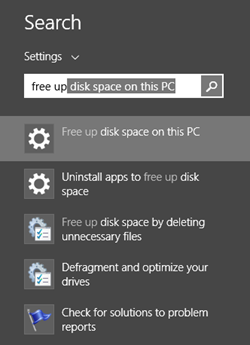
  • Press Windows Key + W and type "Free up." You'll see a few options. We're going to run two things.
    • First "Free up disk space on this PC" which runs full screen as a "modern app."
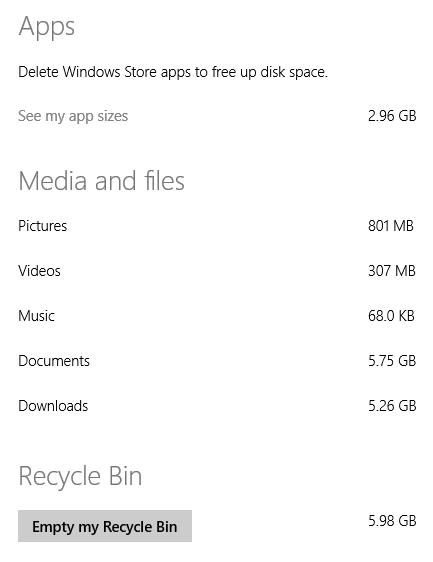
    • From here you can see how much space your Windows Store apps take up, as well as pictures, Videos, etc. You can also empty your recycle bin from here. It'll also give you a decent idea of how your personal files take up space.
      image
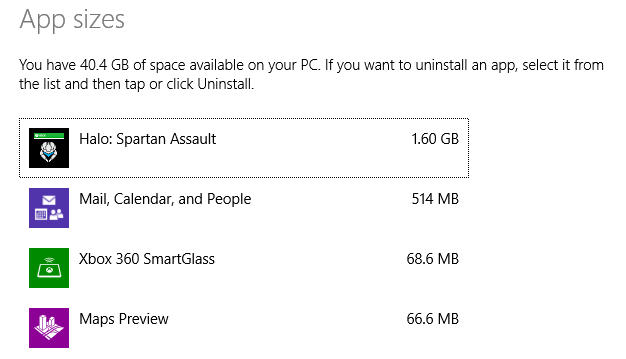
    • If you click "See my app sizes" you'll go to this screen where you can quickly uninstall apps. I don't bother with anything under 100 megs.
      image
  • Now, run "Free up disk space by deleting unnecessary files" which is the Disk Cleanup desktop app.
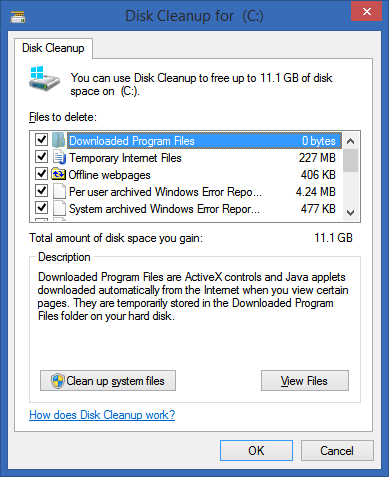
    • This app is your main line of defense and lists all kinds of things it can clean up. Be sure to click the "Clean up system files" option to run Disk Cleanup as Administrator. This will allow it to find and identify a lot more files for cleanup.
    • image
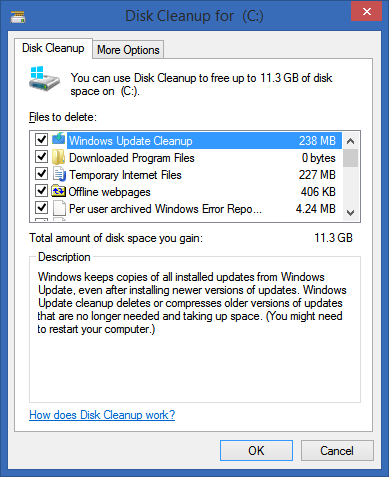
    • When you run Disk Cleanup as admin, as I have below, it is able to cleanup after Windows Update files. Note the difference between the screenshot above (run normally) and the one below (after clicking "Cleanup System files." It's found 238 megs of files from Windows Update that aren't needed. You may find lots more.
      image
  • Set your Windows Store Mail app to only download a month of mail. See how mail above uses 514 megs of space? That's because I told it to download all my mail. From within the Windows 8.1 mail application, press Ctrl-C, then click Settings, then go to Accounts and under Options for your account change the "Download Email from..." option to the last month, or even less.
  • Disable Hibernate - I have a desktop, and I prefer just three power states, sleeping, on or off. I don't use Hibernate. Plus, I have 12 gigs of RAM, and hibernation uses as much disk space as you have RAM. From an administrative command prompt, type "powercfg -h off" to get that space back. Got me back 12 gigs. It's up to you. Don't turn it off if you use the feature.
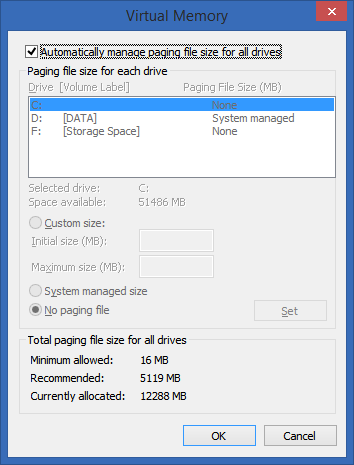
  • Virtual Memory - If you've got 8 or more gigs of RAM, it's likely that Windows has allocated more Virtual Memory as a file on disk than needed. It's not bad, and it's not a bug, it's just conservative. For example, I have 12 gigs of RAM and Windows has allocated a 12 gig "swap file." Interestingly, it's recommending (not sure if that's to me, or to itself) that I have only 5 gigs. Boom, change it manually and I get 7 gigs free. Not a big deal with a 500 gig drive, but a HUGE deal on a 128 gig SSD.
    Type Windows Key+W, then "Advanced System Settings" and enter. From here, go to Performance Settings, then Advanced. Under Virtual Memory, click Change. This is usually managed for you. Change it only if you feel you know what you're doing. Here I've moved it to my D: drive, opening up space for my smaller C: drive.
    image
  • %TEMP% Files - Even though Disk Cleanup is great, sometimes for whatever reason it doesn't always get stuff out of the TEMP folder. I recommend you try to delete the TEMP folder. I do this from the command line. Open up an administrative console, type "cd /d %TEMP%" (without the quotes, of course). Then, go up one folder with "cd .." and type "rd /s temp"
    Do be warned, this command says to TRY to delete the whole folder and everything underneath it. It's very unambiguous. If you don't feel comfortable, don't do it. If you feel in over your head, don't do it. If it screws up your computer, don't email me. Next, I do a "dir temp" to see if the folder really got deleted. It usually doesn't because almost always some other program has a temp file open and the command can't get remove everything. If it DOES remove the folder, just "md temp" to get it back fresh and empty. This got me back 12 gigs. I'm sure you'll be surprised and get lots back.
  • imageDelete your Browser Cache - Whether you use Chrome, IE or Firefox, your browser is saving probably a gig or more of temporary files. Consider clearing it out manually (or use the CCleaner mentioned below) occasionally or move the cache from your browser's settings to another drive with more space.
  • Clean up System Restore - Windows keeps backups of lots of system files every time something major (driver installation, some software installations, etc) happens, and after a while this can take up lots of space. It uses a service/subsystem called ShadowCopies and can be administered with a tool called vssadmin.
    Now, the EASIEST way to handle this is just to run Disk Cleanup, then click More Options and "Clean up…" which will delete all but the most recent System Restore data. That's what I did. That got me back lots of space back on my C: drive.
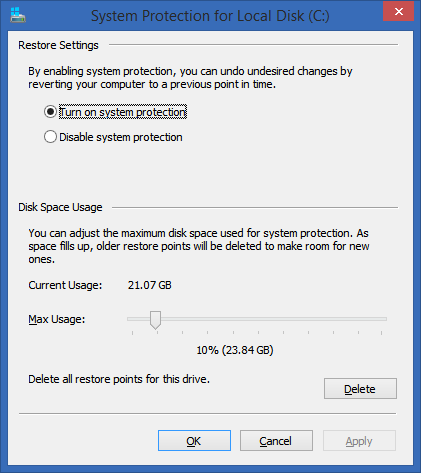
    You can also go to System Properties, then System Protection, then Configure and not only control how much space to allow for System Protection but also delete preview restore points as seen in the screenshot at left.
    Alternatively, you can use the vssadmin tool from an admin command prompt to to do important things. One, you can set a max size for the System Restore to get. Two, you can set an alternative drive. For example, you could have the D: drive be responsible for System Restore for the C: drive.
    You can use the commands like this. Note that you can put whatever drive letters you have in there. I ran it for each of my three drives. Note that this isn't just used for System Restore, it's also used for the "Previous Versions" feature of Windows that keeps some number of Shadow Backups in case you delete something and didn't mean it. Kind of a mini, local time machine. Point is, this isn't a feature you probably want off, just one you want kept to a max.
    Here's the command line I used. Your mileage may vary.
    vssadmin Resize ShadowStorage /On=C: /For=C: /MaxSize=15GB
  • SpaceSniffer 1.1.0.0 - www.uderzo.it Understand what's taking up all that space with SpaceSniffer or WinDirStat or TreeSize Free.  - I've used a large number of Windows Folder Size checkers, and the one I keep coming back to is WinDirStat. WinDirStat is oldish but is Open Source, and it works great in Windows. It's wonderfully multi-threaded and is generally fabulous. It'll help you find those crazy large log files you've forgotten about deep in %APPDATA%. It saved me 10 gigs of random goo. SpaceSniffer is also amazing and really lets you drill into what's going on space-wise in your disk.
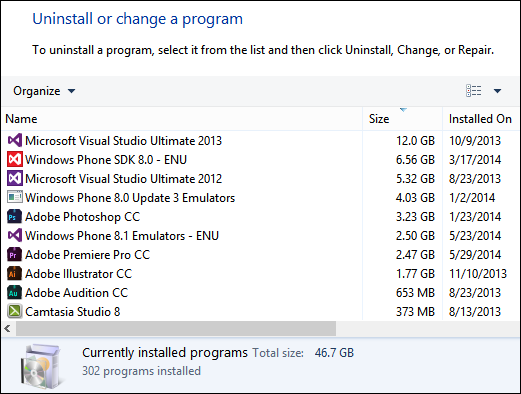
  • Remove Old Stuff - Just go into Add/Remove Programs or Programs and Features and tidy up. There's likely a pile of old crap in there that's taking up space. I removed some Games and Game Demos and got back 5 gigs.
    Be sure to SORT by size to find big stuff AND sort by "installed on" to find old stuff you've forgotten! Also note the "Total size" at the bottom that no one notices. This is the total size of Desktop apps, not Windows Store apps.
    image
  • Uninstall anything evil - If you want to get a quick look at what's on a machine and uninstall LOTS of stuff quickly, look no further than NirSoft's My Uninstaller (download). Remove Toolbars (they think they need them and they never do and won't miss them), and anything that looks like it might destabilize their system. I check out toolbars, add-ins, etc
  • Wasteful TempFiles/ScratchFiles Settings in Popular Programs - Most programs that need scratch space have a way to set a ceiling on that Max Space. Go into Internet Explorer or Firefox, into the options and delete the Temporary Internet Files. Set a reasonable size like 250 megs or 500 megs. I've seen those cache sizes set to gigs. If you've got a speedy connection to the internet, that's just overkill. Check other programs like Adobe Photoshop and other editors and see where they store their temporary files and how large they've become. I used SpaceSniffer (mentioned above) and was shocked to find 5 gigs of old temp files from a year ago in little used programs.
  • Podcast Apps, especially iTunes - If you've configured iTunes to automatically download podcasts, be aware that these can app up if you use the default settings. Set your podcasts to keep only the last episode or last few, rather than 10 or more unlistened-to files.
  • A nicely compressed directoryNTFS Compression - That's right, baby, Stacker (kidding). This is a great feature of NTFS that more people should use. If you've got a bunch of folders with old crap in them, but you don't want to delete them, compress. If you've got a folder that fills up with text files or other easily compressed and frequently access stuff, compress 'em. I typically compress any and all folders that are infrequently accessed, but I'm not ready to toss. That is about 30-40% of my hard drive. Why bother to compress when Disk Space is so cheap? Well, C: drive space usually isn't. I've got an SSD, and it's small. I'd like to get as much out of it as I can without the hassle of moving my Program Files to D:. More importantly, Why the heck not? Why shouldn't I compress? It's utterly painless. Just right click a folder, hit Properties, then Advanced, then Compress. Then forget about it. As long as you're not compressing a bunch of ZIP files (won't do much) then you're all set. You might consider defragging when you're done, just to tidy up if you don't have an SSD.
  • Find Fat Temp File Apps and squash them - Google Earth and Microsoft Virtual Earth 3D are really fast and loose with the disk space. You can poke around for a while and next thing you know you're down 2 gigs or more. If you don't use the app a lot, delete the caches when you exit, or better yet, make the cache size for each app small.
  • Remove Crap with CrapCleaner (CLeaner) - This is a brilliant utility that removes crapware, unneeded programs, toolbars and other things that might litter up your machine.
  • works-on-my-machine-starburst ADVANCED: Use Junction Points/Hard Links/Reparse Points to move temp file folders - This is an advanced technique. If this technique kills your beloved pet cat, don't email me. You have been warned. Also, note that I'm only saying it works for me.
    I reclaimed 25 gigs just today by moving the MobileSync Backup folder from iTunes to a spinning rust disk off my SSD.
    Here's the idea. You'll move it to a drive with more space, but you'll LIE to iTunes using a little-used Windows Utility that will make a LINK between the folder iTunes expects to find and the folder you want your backups in. See? It's advanced but VERY powerful, especially when you
    C:\Users\Scott\AppData\Roaming\Apple Computer\MobileSync>dir

    Directory of C:\Users\Scott\AppData\Roaming\Apple Computer\MobileSync

    11/25/2011 10:10 PM <DIR> .
    11/25/2011 10:10 PM <DIR> ..
    11/25/2011 10:10 PM <JUNCTION> Backup [f:\iTunesMobileSync\Backup]
    0 File(s) 0 bytes
    3 Dir(s) 97,594,851,328 bytes free

While your are in there, why not do some more maintenance on your machine, blow out that dust and install some updates? Check out the The Technical Friend's Essential Maintenance Checklist for Non-Technical Friend's Windows Computer.

Hope this helps! If I missed anything, sound off in the comments!


Sponsor: Big thanks to Mindscape for joining us and sponsoring the blog feed this week! I discovered Raygun.io and started using it for my side project and I LOVE it. Get notified of your software’s bugs as they happen! Raygun.io has error tracking solutions for every major programming language and platform - Start a free trial in under a minute!

About Scott

Scott Hanselman is a former professor, former Chief Architect in finance, now speaker, consultant, father, diabetic, and Microsoft employee. He is a failed stand-up comic, a cornrower, and a book author.

facebook bluesky subscribe
About   Newsletter
Hosting By
Hosted on Linux using .NET in an Azure App Service

FIXED: Blue Screen of Death (BSOD) 7E in HIDCLASS.SYS while installing Windows 7

June 07, 2014 Comment on this post [14] Posted in Bugs
Sponsored By

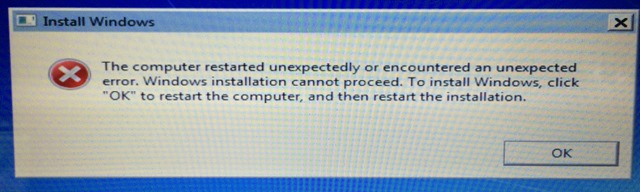
I was doing tech support for a friend this weekend. He was paving an old HP Envy laptop (although this happens on some Dell Inspirons as well) and was getting a blue screen in the middle of install. Then, of course, if you're not looking at it you'll just reboot and drop back into setup and get the "the computer restarted unexpectedly or encountered an unexpected error." At this point he was in a setup loop.

IMG_1519

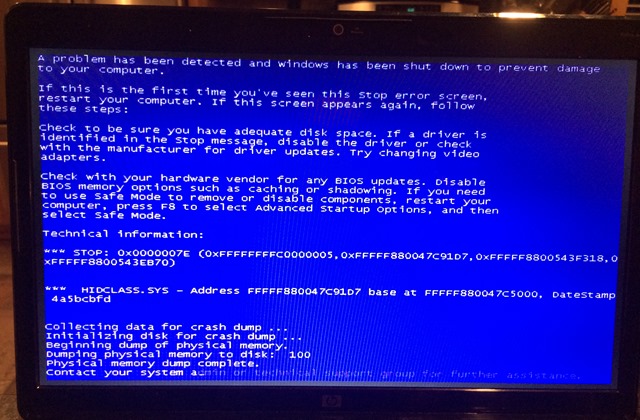
"HIDCLASS.SYS" is the driver that failed. HID means Human Interface Device, and that means "keyboards or mice" for the most part.

IMG_1543

Errors in HIDCLASS.SYS, especially during setup, almost always means that there's trouble with an attached keyboard or attached mouse. I asked my buddy if he had a mouse attached and he did. He removed the mouse, and started setup over again. Setup succeeded. Then, he spent about an hour (and several reboots) getting Windows 7 "gold" (which was released in July of 2009, almost 5 years ago) up to date with patches, service pack 1, and the latest drivers. Then he was able to attach his mouse and it works fine.


Sponsor: Big thanks to Mindscape for joining us and sponsoring the blog feed this week! I discovered Raygun.io and started using it for my side project and I LOVE it. Get notified of your software’s bugs as they happen! Raygun.io has error tracking solutions for every major programming language and platform - Start a free trial in under a minute!

About Scott

Scott Hanselman is a former professor, former Chief Architect in finance, now speaker, consultant, father, diabetic, and Microsoft employee. He is a failed stand-up comic, a cornrower, and a book author.

facebook bluesky subscribe
About   Newsletter
Hosting By
Hosted on Linux using .NET in an Azure App Service

This URL shortener situation is officially out of control

June 02, 2014 Comment on this post [54] Posted in Musings
Sponsored By

I saw a URL today on Twitter to an article on Slate.com. It was a custom short URL - http://slate.me/1h0svt8 but since I was visiting it via Twitter, it was wrapped with Twitter's t.co URL, so I really started at http://t.co/sxSvcJnT2L.

When I visited it for the FIRST time, I got this lovely HTTP interaction. That's SEVEN HTTP 301s, count them, 7, before I get to the destination page.

image

It would have been 8 redirects if I'd counted t.co as well. Note also that after it bounced around three of Slate's URL shorteners, it also goes through goog.gl as well.

  • t.co is twitter's URL shortener that acts as a "safety gate" that allows Twitter to shut down a bad URL at the Twitter level. This means Twitter can stop malware faster, they say.
  • trib.al is a URL shortener that provides marketing analytics. They are bouncing me around in order to set marketing cookies because it's the first time they've seen me.
  • goo.gl is what you'd think it is, it's Google's URL shortener.

That's a lot of back and forth just to get me a a web page. And getting me a web page is kind of the most important thing the web does. Redirects are being abused and I don't see any work happening in HTTP 2.0 to change it.

The second request to the same URL is better, but still frustratingly indirect.

image

Every redirect is a one more point of failure, one more domain that can rot, one more server that can go down, one more layer between me and the content.

Oh, and just to be obnoxious, I've created http://hnsl.mn/thisurlisverysmall to make the point. Tweet it!

If you prefer long URLs, you can also get to this post from

http://uniformresourcelocatorelongator.com/aHR0cDovL3d3dy5oYW5zZWxtYW4uY29tL2Jsb2cvVGhpc1VSTFNob3J0ZW5lclNpdHVhdGlvbklzT2ZmaWNpYWxseU91dE9mQ29udHJvbC5hc3B4%7CGOvZCfcZVkHOsSZtVQgwUuzvaJeOVXWmOSgexmjuleGbleSSULshLkwpqddRmAkZYVheOvaZCDELQYCzOZzpvGgrnlGTIHypnqBBwVZEJZzlkpTwazjUBoqJUQJyudWXoBQvIOOfwrmqNpHEZmZXwHTYzrCFFSahOScKYLKAfkroAoopMbjuNcLKwSMEzsGeiawVCedYIZFNNQLWSEvQdkZMkDFyDosVlfLLhGizNOTxGQKHESsLoCoNleNtmlPIXedNEQcomXKRsJKOXzrLiAoJZRctSwYduzqvczTPgBgAjvzXRltkhpYDxkEpgiUqthRNiYgLOiDsFptekhiJxyfMKiCCAHYwNHmuKtlDqanKEZLlyqQYjURVbQQXikPrzUPYKHCmZrPOBUCHGssMyMekyfCkNOwhjgOGSrPPUQYtkLdvLQHjnszIJTOfKKMlBVMUoayZGMigAnIzrRfRtIczCOrhbFWthtMysDnHnTmDaTAfZFUCCGPskHqmVCtGFBhkwGQJxUdgPIYRyQXJJhylmfkCRQrvJqwOqnneWMKDTfcVdRxHXKHPkXoxwVpqfRWpSAzJKWMSKObRjzUfHXINRnlIcEGeigJJEIMcbfyXxMhVDxzwyOMboEfHHzTnQPbLyuRFKLxMlrfQbNMkoKJopCKDnKoxiNSFgBGoWjdYApYozbVIaBLoPHpDHXwgCneURTJdLnfLJPEEtxvmaVchmoNnyCvXnTmYFnFnDnLytKClfNFDJgpYsoyXhvTsuhhYapBzXBcKwacpcsZcMScmJIFHVNnrnxnwPIxHlWDMQKAeljmeInjBjACURODHbCSsgGvaAzaRPCLAhYQmtGYOeUfMqKSGPsEDQLDxSYxvtgGLSrfkOU

What do you think?


Sponsor: Big thanks to Mindscape for joining us and sponsoring the blog feed this week! I discovered Raygun.io and started using it for my side project and I LOVE it. Get notified of your software’s bugs as they happen! Raygun.io has error tracking solutions for every major programming language and platform - Start a free trial in under a minute!

About Scott

Scott Hanselman is a former professor, former Chief Architect in finance, now speaker, consultant, father, diabetic, and Microsoft employee. He is a failed stand-up comic, a cornrower, and a book author.

facebook bluesky subscribe
About   Newsletter
Hosting By
Hosted on Linux using .NET in an Azure App Service

AppVeyor - A good continuous integration system is a joy to behold

May 29, 2014 Comment on this post [22] Posted in Learning .NET
Sponsored By

All my open source projects building in AppVeyorEpisode 4 (that's from 2006, people, over 8 years ago!) of the Hanselminutes Podcast was on (CI) Continuous Integration. I was deep into CI at a large bank and having a blast. It's just such a joy to have a reliable and repeatable build. Even more so if setting up that build is easy. A good CI build that includes build, test, and deploy means you don't have to fear your code.

Back in the day we used Batch Files, dreams, and wishes to setup our CI systems. Later we moved to CruiseControl.NET. Today we've got lots of amazing options, some we can download and setup inside the company, and some hosted that require virtually no effort at all!

Like many of you, I've got a number of utilities and open source projects up on GitHub. Mine are at http://github.com/shanselman, of course.

However, some are older, some aren't often built, and honestly I couldn't tell you if they build anymore. Sometimes I'll even accept a Pull Request (PR) without really confirming that there isn't a missing semicolon or a syntax error. Ya, I said it. I haven't been nailed yet, but we all do it, and we know it's bad. A reliable CI system that kicks off a build on a commit is the only way to be sure.

I decided to revisit AppVeyor as an option for my CI system. I looked at it 18 months ago and it was time to check it out again.

Just to be clear, they don't know I'm writing this, I don't know AppVeyor, and I don't do paid reviews. This is all my opinion.

AppVeyor says they "automate building, testing and deployment of .NET applications helping your team to focus on delivering great apps."

Cool. I like automation, I like building, testing and deploying. I'm lazy, as are all good developers, so automated all the things!

Their pricing is impressive. It's free for unlimited public repositories, which means I can setup a CI build for all my little utilities and open source projects on GitHub. However, their Pro and Premium options are extremely competitive when compared against running my own VM and CI system in Azure for a month. 

Setting Up

I don't want to gush, but it's simple and gorgeous. I signed up with my GitHub creds (and also added BitBucket as I have some stuff there as well) and made a new project. They automatically sucked in my repositories, as well as the ones I have access to from other organizations. I selected a small one, my WiFi Manager for Windows 8, and clicked New Build.

It cloned my project and started building within a minute. I got an immediate failure, which surprised me.

Specify the Project

I stared at the error for a moment. Ah, my folder has more than one project or solution. Odd, there's just one project. Ah! But there's a foo.csproj AND a foo.sln.

Intuitively I go to Settings | Build, and enter the name of my csproj file. By the time I come back to the dashboard it's building again.

The build dashboard is at the same time impressive and comforting. It looks like a command prompt in HTML and it updates on its own, so you never feel like you're waiting or wondering what's happening.

Build Success

Amazing, look at that. It worked. I can add tests, and identify artifacts (results of the build) and act on them.

Here's my xUnit tests running automatically and their results showing up in the dashboard. Magic.

Tests too!

Here's AppVeyor uploading a build artifact.

Found an artifact

One EXE as Artifact

Here I've added an artifact and can download it and run it right from the browser. If your artifacts are NuGet packages, they'll even give you a private NuGet feed for those artifacts that you can use in other projects or automate yourself!

Finally you can automate deployment to whatever environment you like. Push to Blob Storage (like I do for myEcho), push to a NuGet server, or Web Deploy.

Deploy Anywhere

Impressively, AppVeyor restores NuGet packages as well. It even built a two year old ASP.NET MVC repository of mine on the first try.

So my open source project builds, now what? Now I add a status badge to my project's ReadMe.md to let everyone who visits my GitHub repository that this is a healthy project that is building successfully!

Status Badges

It literally took me longer to write this blog post than it did for me to setup Continuous Integration for FOUR open source projects in AppVeyor. Literally about 15 minutes from start to finish.

AppVeyor is really impressive, fun to use, and "just works." It's a great example of Software as a Service and the kinds of software I talked about in my recent post We are abstracting on the shoulders of giants.

With cloud apps like AppVeyor for build/test/deploy, services like like RayGun.io for error management, Trello for products backlogs, FreshDesk for support tickets, there's just so many great choices for a software companies large and small. It's a great time to be writing software.

Related Links


Sponsor: Big thanks to Mindscape for joining us and sponsoring the blog feed this week! I discovered Raygun.io and started using it for my side project and I LOVE it. Get notified of your software’s bugs as they happen! Raygun.io has error tracking solutions for every major programming language and platform - Start a free trial in under a minute!

About Scott

Scott Hanselman is a former professor, former Chief Architect in finance, now speaker, consultant, father, diabetic, and Microsoft employee. He is a failed stand-up comic, a cornrower, and a book author.

facebook bluesky subscribe
About   Newsletter
Hosting By
Hosted on Linux using .NET in an Azure App Service

Xamarin.Forms - Write Once, Run Everywhere, AND Be Native?

May 28, 2014 Comment on this post [91] Posted in Mobile
Sponsored By
Xamarin lets you shared code across platforms

I worked in Java for a number of years at Nike, writing an order management application that would run on four platforms. We used to joke that we'd "write once, debug everywhere." Now, this was the early days of Java, but the thing was, every form and control was 'owner drawn.' That meant that a button looked the same everywhere because it wasn't a real button as far as the operating system was concerned. It was a picture of a button. We used to use Spy++ and different Windows inspector programs to explore our applications and they could never see a Java program's controls. This meant that the app pretty much worked everywhere, but the app always LOOKED like a Java App. They didn't integrated with the underlying platform.

With MVVM (Model, View, View-Model) patterns, and techniques like the Universal apps work on Windows Phone 8.1 and Windows 8.1, code sharing can get up into the high 90% for some kinds of apps. However, even for simple apps you've still got to create a custom native view for each platform. This is desirable in many cases, but for some app it's just boring, error prone, and tedious.

Xamarin announced Xamarin.Forms today which (in my words) effectively abstracts away native controls to a higher conceptual level. This, to my old eyes, is very similar to the way I wrote code in Java back in the day - it was all done in a fluent code-behind with layouts and flows. You create a control tree.

"Xamarin.Forms is a new library that enables you to build native UIs for iOS, Android and Windows Phone from a single, shared C# codebase. It provides more than 40 cross-platform controls and layouts which are mapped to native controls at runtime, which means that your user interfaces are fully native."

Xamarin uses Shared Projects in Visual StudioWhat's interesting about this, to me, is that these "control/concepts" (my term) are coded at a high level but rendered as their native counterparts. So a "tab" in my code is expressed in its most specific and native counterpart on the mobile device, rather than as a generic tab control as in my Java example. Let's see an example.

My buddy from Xamarin, James Montemagno, a fellow Chipotle lover, put together the ultimate cross-platform Hanselman application in a caffeinated late night hack to illustrate a few points for me. This little app is written in C# and runs natively on Windows Phone, Android, and iOS. It aggregates my blog and my tweets.

Here is the menu that switches between views:

WindowsPhone2Android2iPhone2

And the code that creates it. I've simplified a little for clarity, but the idea is all MVVM:

public HomeMasterView(HomeViewModel viewModel)
{
    this.Icon = "slideout.png";
    BindingContext = viewModel;

    var layout = new StackLayout { Spacing = 0 };

    var label = new ContentView {
        Padding = new Thickness(10, 36, 0, 5),
        BackgroundColor = Color.Transparent,
        Content = new Label {
            Text = "MENU",
            Font = Font.SystemFontOfSize (NamedSize.Medium)
        }
    };

    layout.Children.Add(label);
        
    var listView = new ListView ();

    var cell = new DataTemplate(typeof(ListImageCell));

    cell.SetBinding (TextCell.TextProperty, HomeViewModel.TitlePropertyName);
    cell.SetBinding (ImageCell.ImageSourceProperty, "Icon");

    listView.ItemTemplate = cell;

    listView.ItemsSource = viewModel.MenuItems;

//SNIP

listView.SelectedItem = viewModel.MenuItems[0]; layout.Children.Add(listView); Content = layout; }

Note a few things here. See the ListImageCell? He's subclassed ImageCell, which is a TextCell with an Image, and setup data binding for the text and the icon. There's recognition that every platform will have text and an icon, but the resources will be different on each. That's why the blog and Twitter icons are unique to each platform. The concepts are shared and the implementation is native and looks native.

That's the UI side, on the logic side all the code that loads the RSS feed and Tweets is shared across all three platforms. It can use async and await for non-blocking I/O and in the Twitter example, it uses LinqToTwitter as a PCL (Portable Class Library) which is cool. For RSS parsing, it's using Linq to XML.

private async Task ExecuteLoadItemsCommand()
{
    if (IsBusy)
        return;

    IsBusy = true;

    try{
        var httpClient = new HttpClient();
        var feed = "http://feeds.hanselman.com/ScottHanselman";
        var responseString = await httpClient.GetStringAsync(feed);

        FeedItems.Clear();
        var items = await ParseFeed(responseString);
        foreach (var item in items)
        {
            FeedItems.Add(item);
        }
    } catch (Exception ex) {
        var page = new ContentPage();
        var result = page.DisplayAlert ("Error", "Unable to load blog.", "OK", null);
    }

    IsBusy = false;
}

And ParseFeed:

private async Task<List<FeedItem>> ParseFeed(string rss)
{
    return await Task.Run(() =>
        {
            var xdoc = XDocument.Parse(rss);
            var id = 0;
            return (from item in xdoc.Descendants("item")
                select new FeedItem
                {
                    Title = (string)item.Element("title"),
                    Description = (string)item.Element("description"),
                    Link = (string)item.Element("link"),
                    PublishDate = (string)item.Element("pubDate"),
                    Category = (string)item.Element("category"),
                    Id = id++
                }).ToList();
        });
}

Again, all shared. When it comes time to output the data in a List on Windows Phone, Android, and iPhone, it looks awesome (read: native) on every platform without  having to actually do anything platform specific. The controls look native because they are native. Xamarin.Forms controls are a wrapper on native controls, they aren't new controls themselves.

WindowsPhone3Android3iPhone3

Here's BlogView. Things like ActivityIndicator are from Xamarin.Forms, and it expresses itself as a native control.

public BlogView ()
{
    BindingContext = new BlogFeedViewModel ();

    var refresh = new ToolbarItem {
        Command = ViewModel.LoadItemsCommand,
        Icon = "refresh.png",
        Name = "refresh",
        Priority = 0
    };

    ToolbarItems.Add (refresh);

    var stack = new StackLayout {
        Orientation = StackOrientation.Vertical,
        Padding = new Thickness(0, 8, 0, 8)
    };

    var activity = new ActivityIndicator {
        Color = Helpers.Color.DarkBlue.ToFormsColor(),
        IsEnabled = true
    };
    activity.SetBinding (ActivityIndicator.IsVisibleProperty, "IsBusy");
    activity.SetBinding (ActivityIndicator.IsRunningProperty, "IsBusy");

    stack.Children.Add (activity);

    var listView = new ListView ();

    listView.ItemsSource = ViewModel.FeedItems;

    var cell = new DataTemplate(typeof(ListTextCell));

    cell.SetBinding (TextCell.TextProperty, "Title");
    cell.SetBinding (TextCell.DetailProperty, "PublishDate");
    cell.SetValue(TextCell.StyleProperty, TextCellStyle.Vertical);

    listView.ItemTapped +=  (sender, args) => {
        if(listView.SelectedItem == null)
            return;
        this.Navigation.PushAsync(new BlogDetailsView(listView.SelectedItem as FeedItem));
        listView.SelectedItem = null;
    };

    listView.ItemTemplate = cell;

    stack.Children.Add (listView);

    Content = stack;
}

Xamarin Forms is a very clever and one might say, elegant, solution to the Write Once, Run Anywhere, AND Don't Suck problem. What's nice about this is that you can care about the underlying platform when you want to, and ignore it when you don't. A solution that HIDES the native platform isn't native then, is it? That'd be a lowest common denominator solution. This appears to be hiding the tedious and repetitive bits of cross-platform multi-device programming.


WindowsPhone1Android1iPhone1

There's more on Xamarin and Xamarin Forms at http://xamarin.com/forms and sample code here. Check out the code for the Hanselman App(s) at https://github.com/jamesmontemagno/Hanselman.Forms.

About Scott

Scott Hanselman is a former professor, former Chief Architect in finance, now speaker, consultant, father, diabetic, and Microsoft employee. He is a failed stand-up comic, a cornrower, and a book author.

facebook bluesky subscribe
About   Newsletter
Hosting By
Hosted on Linux using .NET in an Azure App Service

Disclaimer: The opinions expressed herein are my own personal opinions and do not represent my employer's view in any way.