Scott Hanselman

Scott Hanselman's 2021 Ultimate Developer and Power Users Tool List for Windows

December 22, 2020 Comment on this post [57] Posted in Tools
Sponsored By

Can you believe it's been 6 years since my last Tools list? Tools have changed, a lot are online, but honestly, it's just a LOT OF WORK to do the tools list. But here's one for 2020-2021. These are the tools in my Utils folder. I made a d:\dropbox\utils folder and I added it to my PATH. That way it's on all my computers and in my path on all my computers and I can get to any of them instantly.

This is the Updated for 2020-21 Version of my 2003, 2005, 2006, 2007, 2009, 2011, and 2014 List, and currently subsumes all my other lists. I’ve been doing this for over 17 years. Wow. I need to do better, I guess. 

Everyone collects utilities, and most folks have a list of a few that they feel are indispensable.  Here's mine.  Each has a distinct purpose, and I probably touch each at least a few times a week.  For me, "util" means utilitarian and it means don't clutter my tray.  If it saves me time, and seamlessly integrates with my life, it's the bomb. Many/most are free some aren't. Those that aren't free are very likely worth your 30-day trial, and very likely worth your money.

These are all well loved and oft-used utilities.  I wouldn't recommend them if I didn't use them constantly. Things on this list are here because I dig them. No one paid money to be on this list and no money is accepted to be on this list.

Personal Plug: If this list is the first time you and I have met, you should subscribe to my blog, and check out my podcasts, and sign up for my newsletter of Wonderful Things.

Please Link to http://hanselman.com/tools when referencing the latest Hanselman Ultimate Tools List. Feel free to get involved here in the comments, post corrections, or suggestions for future submissions. I very likely made mistakes, and probably forgot a few utilities that I use often.

THE LIFE AND WORK-CHANGING UTILITIES

"If everything was perfect, you would never learn and you would never grow." - Beyoncé

  • Windows Subsystem for Linux - It really can't be overstated how WSL/WSL2 has put the cherry on top of Windows 10. It runs on any build 18362 or higher as it was recently backported and it's integration with Windows is fantastic. It's also WAY faster than running a VM. Go learn more on my YouTube
  • Windows Terminal - Finally Windows has a modern terminal. You can run shells like Command Prompt, PowerShell, and Windows Subsystem for Linux (WSL). Its main features include multiple tabs, panes, Unicode and UTF-8 character support, a GPU accelerated text rendering engine, and the ability to create your own themes and customize text, colors, backgrounds, and shortcuts. It also includes a pseudo-console so 3rd party Terminals like hyper, conemu, terminus and more work better!
  • Windows PowerToys - They are back and they should be built into Windows. Install them here and get a color picker, fancy zones, file explorer addons, image resizers, keyboard manager and remapper, an Apple Spotlight-like running in the form of PowerToyrs Run, the Shortcut Guide and more!
    • Also check out Ueli as a great launcher/spotlight for Windows!
  • VS Code - Visual Studio Code is hella fast and is my goto text and code editor. I still use notepad sometimes and I'm in full Visual Studio a lot, but VS Code is like the Tesla of code editors. Check out my Favorite VS Code Extensions below.
  • PowerShell/OhMyPosh/PoshGit/Cascadia Code - I've had a blast this year taking my console prompt to the next level. Try these out but also look at Starship. Whatever you do, play! Don't accept the defaults!
  • ZoomIt - A true classic but also the answer to the #1 question I'm asked. How do you draw on the screen when you're sharing your screen? ZoomIt has been THAT TOOL in my toolbox. Really take some time and learn how to do boxes, arrows, colors and more and you'll be a more effective screen-sharer. In fact, just go get the whole SysInternals suite and put it all in your PATH.
  • Winget - It's apt-get for Windows. Similar to choco which I've used in the past, WinGet is going to be included in Windows 10 and has a ton of nice features. I use it to setup a machine in an hour from the command line, versus a day before doing it manually. Just add your MSA (Microsoft login) to the Package Manager Insiders Program and get it from the Store. It's bundled with the Windows App Installer. Then just "winget search <tool>" and winget install whatever!
  • QuickLook - Free in the Windows Store, just highlight a file in Explorer and press Space to get a preview!

Amazing .NET and Developer utilities

"Power means happiness; power means hard work and sacrifice." - Beyoncé

  • CodeTrack - CodeTrack is a free .NET Performance Profiler and Execution Analyzer. It works on basically every version of .NET and will give you massive insight into how your code is running! The flamegraph view is fantastic. It's free but you should donate as it's a one-person amazing app!
  • LINQPad - Interactively query your databases with LINQ with this tool from Joseph Albahari. A fantastic learning tool for those who are just getting into LINQ or for those who want a code snippet IDE to execute any C# or VB expression. Free and wonderful.
  • WinMerge - WinMerge just gets better and better. It's free, it's open source and it'll compare files and folders and help you merge your conflicted source code files like a champ. Also see Perforce Visual Merge which free and also can diff images, which is pretty amazing.
  • WinDbg - Low-level and classic but also new and fresh! WinDbg (Wind-bag?) is now in the Windows Store with ALL NEW VISUALS and more!
  • Insomnia and Nightingale are great alternatives to Postman for doing REST APIs!
  • NuGet Package Explorer - This app allows browsing NuGet packages from an online feed and viewing contents of the packages
  • WireShark - What's happening on the wire! WireShark knows!
  • GitHub Desktop - Gits, ahem, out of the way! Watch my Git 101 on YouTube!
  • RepoZ - This is a powerful repository hub for Git that enhances Windows Explorer with git superpowers! See your git details in your Windows Explorer title bar!
    • Also from Andreas, if you're a .NET person you'll want to look at Fusion+, a modern alternative to the Microsoft Assembly Binding Log Viewer!

Useful Windows Utilities that should be built in

"I love my job, but it’s more than that: I need it" - Beyoncé

  • Ear Trumpet - Fantastic advanced volume control for Windows! If you have ever wished that volume on Windows could turn their UI up to 11, Ear Trumpet is that app.
  • Teracopy - While I use the excellent built in copy features of Windows 10 the most, when I want to move a LOT of files as FAST as possible, nothing beats TeraCopy, an app that does just that - move stuff fast. The queue control is excellent.
  • AutoHotKey - This little gem is bananas. It's a tiny, amazingly fast free open-source utility for Windows. It lets you automate everything from keystrokes to mice. Programming for non-programmers. It's a complete automation system for Windows without the frustration of VBScript. This is the Windows equivalent of AppleScript for Windows. (That's a very good thing.
  • 7-Zip - It's over and 7zip won. Time to get on board. The 7z format is fast becoming the compression format that choosey hardcore users choose. You'll typically get between 2% and 10% better compression than ZIP. This app integrates into Windows Explorer nicely and opens basically EVERYTHING you could ever want to open from TARs to ISOs, from RARs to CABs.
  • Paint.NET - The Paint Program that Microsoft forgot, written in .NET. It's 80% of Photoshop and it's free. Pay to support the author by getting the Windows Store version AND it will auto-update! It's only $7, which is an unreal value.
  • NimbleText - Regular Expressions are hard and I'm not very smart. NimbleText lets me do crazy stuff with large amounts of text without it hurting so much.
  • Markdown Monster - While I love VSCode, Markdown Monster does one thing incredibly well. Markdown.
  • Fiddler - The easy, clean, and powerful debugging proxy for checking out HTTP between here and there. It even supports sniffing SSL traffic.
  • NirSoft Utilities Collection - Nearly everything NirSoft does is worth looking at. My favorites are MyUninstaller, a replacement for Remove Programs, and WhoIsThisDomain.
  • Ditto Clipboard Manager - WindowsKey+V is amazing and close but Ditto keeps pushing clipboard management forward on Windows.
  • TaskbarX - It literally centers your Taskbar buttons. I love it. Open Source but also $1 in the Windows Store.
  • ShellEx View - Your Explorer's right click menu is cluttered, this can help you unclutter it!
  • OneCommander and Midnight Commander and Altap Salamander - As a long time Norton Commander user (google that!) there's a lot of great "reimaginings" of the Windows File Explorer. OneCommander and Altap Salamander does that, and Midnight Commander does it for the command line/CLI.
  • WinDirStat - A classic but still essential. What's taking up all that space? Spoiler - It's Call of Duty.
  • FileSeek and Everything - Search it all, instantly!
  • I like Win+Share+S for Screenshots but also check out ShareX, Greenshot, and Lightshot
  • Alt-Tab Terminator - Takes your Alt-Tab to the next level with massive previews and search
  • PureText - PureText pastes plain text, purely, plainly. Free and glorious. Thanks Steve Miller
  • I still FTP and SCP and SFTP and I use WinSCP to do it! It's free or just $10 to get it from the Windows Store and support the author!
  • VLC Player - The best and still the best. Plays everything, everywhere.
  • PSReadline - Makes PowerShell more Bashy in the best way.
  • Yori and all Malcolm Smith's Utilities - Yori is a reimagning of cmd.exe!

Visual Studio Code Extensions

"I use the negativity to fuel the transformation into a better me." – Beyoncé

There's a million great Visual Studio Extensions. The ones I like won't be the that ones you like. But, go explore.

  • GitLens - Glorious. Just makes Git and VS a joy and adds a thousand tiny lovely features that will make you smile. You'll wonder why this isn't built in.
  • Version Lens - Do you have the latest package versions? Now you know
  • CodeSnap - Screenshots specifically tailored to make your code look nice.
  • .NET Core Test Explorer - Makes unit testing with .NET on VS Code so much nicer
  • Arduino for VS Code - The Arduino extension makes it easy to develop, build, deploy and debug your Arduino sketches in Visual Studio Code! So nice.
  • Coverage Gutters - This amazing extension highlights what code is covered with Unit Test and what's not. Ryan is looking for help, so go see if this is a great OSS project YOU can get started with!
  • Docker for VS Code - Container explorer and manager and deployer, directly from VS
  • GitHistory - Another nice add-on for Git that shows your Git Log
  • HexDump - I need this more than I would like to admit
  • LiveShare - Stop screen-sharing and start code and context sharing!
  • PowerShell for VS - A great replacement for the PowerShell ISE
  • Remote Containers - This is an AMAZING EXTENSION you have to try if you have Docker but it has a horrible non-descriptive name. But must be seen to be believed. Perhaps it's "Visual Studio Development Containers," I'm not sure. Open a folder and attach to a development container. No installs, just you debugging Rust, Go, C#, whatever whilst installing NOTHING. Amazing.
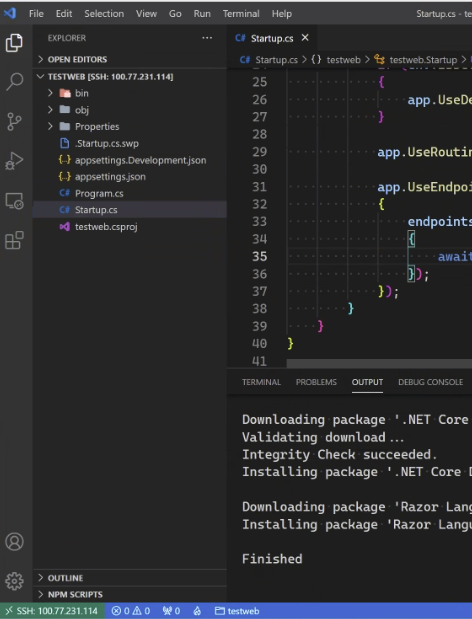
  • Remote SSH - Another in the VS Remote Family of Extensions, this one lets you use any remote SSH Server as your development environment.
  • Remote WSL - Edit and debug and build code from Windows...using Linux!
  • And finally, Yoncé, my current VS Code theme. Beyoncé inspired.

Things I enjoy

“We all have our purpose, we all have our strengths.” – Beyoncé

  • RescueTime - Are you productive? Are you spending time on what you need to be spending time on? RescueTime keeps track of what you are doing and tells you just that with fantastic reports. Very good stuff if you're trying to GTD and TCB. ;
  • Carnac - This wonderful little open source utility shows the hotkey's you're pressing as you press them, showing up as little overlays in the corner. I use it during coding presentations.
  • DOSBox - When you're off floating in 64-bit super-Windows-10-Pro land, sometimes you forget that there ARE some old programs you can't run anymore now that DOS isn't really there. Enter DOSBox, an x86 DOS Emulator! Whew, now I can play Bard's Tale from 1988 on Windows 10 in 2021! Check out Gog.com for lots of DOSBox powered classics

Oh yes, and finally Windows Sandbox - You already have this and didn't even know it! You can fire up in SECONDS a copy of your Windows 10 machine in a safe sandbox and when you close it, it's gone. Poof. Great for testing weird tools and utilities that some rando on a blog asks you to download.


Sponsor: IDC Innovators Report: Multicloud Networking--Read the latest from IDC and discover one of the premier platforms addressing the rise of multicloud architectures and cloud-native apps. Download now.

About Scott

Scott Hanselman is a former professor, former Chief Architect in finance, now speaker, consultant, father, diabetic, and Microsoft employee. He is a failed stand-up comic, a cornrower, and a book author.

facebook bluesky subscribe
About   Newsletter
Hosting By
Hosted on Linux using .NET in an Azure App Service

Taking your PowerShell prompt to the next level with Windows Terminal and Oh my Posh 3

December 17, 2020 Comment on this post [50] Posted in Musings
Sponsored By

I love my pretty prompt that I use with Windows Terminal and Powershell. I also like using PSReadline to bring even more cool features to the CLI (Command Line Interface).

One of the best and easiest ways to get an awesome looking prompt on Windows is with Oh My Posh, and there's now Oh My Posh 3! Now, to be clear, you get to be pretty extra with these prompts and some people find them to be a turn off if there's too much bling. Remember: It's your prompt and you are in control. It's totally configurable - so configure it!

What do you need to start?

  • Windows Terminal
  • A super charged Cascadia Code font.
  • PowerShell (works on Windows, Linux, and Mac and is open source) and Oh my Posh
    • Now, to be clear, you can use Oh My Posh on zsh, bash, fish, nu and other shells also, but I like PowerShell as my main shell.

Let's upgrade my Oh My Posh installation to Oh My Posh 3 and see what's new and changed, shall we?

Here's my current prompt:

There's an upgrading section in the docs, if you are going from an existing installation of Oh My Posh to v3. Let's check it out.

Looks like I just need to do this:

Update-Module -Name oh-my-posh -AllowPrerelease -Scope CurrentUser

That's...suspiciously...not difficult. Now, just add this text to your $profile (again, there are instructions for other prompts).

NOTE: Be sure to make sure that your paths are correct. The example assumes a c:\tools folder AND it assumes you have a ~\.poshthemes folder. Change those paths however you want, but if it doesn't work, it's likely a pathing issue.

Here's a clever feature, you can call "Get-PoshThemes" and see a PREVIEW of different prompt themes and pick one!

Get-PoshThemes

Hey that "jandedobbeleer" font is as extra as I am. I like it.

Set-PoshPrompt -Theme jandedobbeleer

The fun stuff is where you can add things like your current Azure subscruption, or your current kubectl, or even YouTube music. I like the dotnet option. Let me see how to change that.

There is an OhMyPosh executable you can get that will print your current config that you can then modify. Download the right version of that and put it in your PATH somewhere. I put mine in my sync'ed d:\dropbox\utils which makes it available on any machine, but that's just me.

NOTE: If it's a new release of OhMyPosh, it may not have built up reputation without a code signing cert, but ignore that for now. I submitted it as safe in smartscreen and you can too if you like.

I will get the current config and put it in the clipboard, then paste it into VS Code and modify it.

posh-windows-amd64.exe -print-config 

Unicode! Note that you may not be able to | pipe this to clip.exe or > to a file as there's fancy Unicode in there and your shell may mangle the glyphs. I ended up copying the JSON manually directly by selecting it in Windows Terminal. You can also do this to get the json file

Write-PoshTheme | Out-File -FilePath ~/.go-my-posh.json -Encoding oem

If you want to copy in your own fancy glyph, use charmap.exe to copy the one you want. There's lots of choices in nerdfonts.

Charmap

Pretty fancy! I've got the path, my git, and the current .NET Core SDK version in that path, as well as a heartbeat of the current CLI error code.

My new OhMyPosh prompt

I've uploaded my ohmyposhv3.json as a Gist on GitHub. Next I think I'll look into how to make my own custom segment and make a Nightscout Blood Sugar segment and show my blood sugar in real time as I used to.


Sponsor: Have you tried developing in Rider yet? This fast and feature-rich cross-platform IDE improves your code for .NET, ASP.NET, .NET Core, Xamarin, and Unity applications on Windows, Mac, and Linux.

About Scott

Scott Hanselman is a former professor, former Chief Architect in finance, now speaker, consultant, father, diabetic, and Microsoft employee. He is a failed stand-up comic, a cornrower, and a book author.

facebook bluesky subscribe
About   Newsletter
Hosting By
Hosted on Linux using .NET in an Azure App Service

The regular joy of the Adafruit AdaBox Subscription and exploring IoT with the family

December 15, 2020 Comment on this post [2] Posted in Musings
Sponsored By

I'm a fan of Adafruit and all their products. There's no referral links here, just fandom and a personal recommendation from me. I've been a long-time subscriber of the AdaBox. The AdaBox is "Curated Adafruit products, unique collectibles, and exclusive discounts. All delivered quarterly."

You can give Adaboxs (Adaboxen?) as a gift one time, or you can sign up for the regular subscription like I did.

How much do I love them? I actually did a pilgrimage to New York and visited them in person. It's as amazing as you'd imagine and Lady Ada is epic.

Scott Hanselman visits Adafruit

Back to the AdaBox! Check out the list of previous Adaboxes (and order one if it's not already sold out!)

As of this writing there are just 2 left of AdaBox007, the SPY box. This one was a hit with my kids as it included a full lockpicking kit! I literally taught them about the internals of a lock and how it works. The AdaBox015 was also cool as it included the CLUE sensor development board that was the same size and shape as the popular BBC micro:bit. The kids made a DIY soil moisture sensor and with the included Water Pump, set up autowatering for our plants!

AdaBoxes are always solderless (unless you want to do something advanced!) and great for kids to explore electronics. You'll get things like IR sensors, Buzzers, LEDs, and full instructions on how to build that box's project!

Every quarter you get a new box and it's a joyful surprise every time. Adabox017 just showed up yesterday at my house! It included a cool MagTag with a 2.9" grayscale E-Ink display! It has an ESP32-S2 wireless module and uses CircuitPython so I, I mean, the children, can easily create a low-power IoT display. The display will even stay on when power is removed. They'll be doing a live unboxing on December 23rd at 8pm ET so subscribe to their YouTube.

We could make a weather display! Internal climate? What's on Netflix? A tiny Dakboard? Show my blood sugar? The possibilities are endless.

AdaBox is available in the United States, Puerto Rico, Canada, the UK, France, Germany, Netherlands, Norway, and Switzerland.  They are signing up for AdaBox018 that will ship in March 2021.

BTW if you are looking for other holiday shopping ideas, check out Adafruit's Holiday Shipping Guide here. Anyway, enough of my rant. Their stuff is a joy, go check it out.


Sponsor: Have you tried developing in Rider yet? This fast and feature-rich cross-platform IDE improves your code for .NET, ASP.NET, .NET Core, Xamarin, and Unity applications on Windows, Mac, and Linux.

About Scott

Scott Hanselman is a former professor, former Chief Architect in finance, now speaker, consultant, father, diabetic, and Microsoft employee. He is a failed stand-up comic, a cornrower, and a book author.

facebook bluesky subscribe
About   Newsletter
Hosting By
Hosted on Linux using .NET in an Azure App Service

The art of Rubber Ducking or Rubber Duck Debugging

December 10, 2020 Comment on this post [33] Posted in Musings
Sponsored By

It works. Really.

"Put a rubber duck on your monitor and tell it how the code is supposed to work."

Rubber Ducking - Pic used under CCThe Rubber Duck can be your disinterested roommate, non-technical spouse, or your work-spouse. I call Damian Edwards or Tara Walker all the time and they just listen to me explain how it should work and somewhere in the middle of explaining it out loud I'll go...OOOOOOOOHHHH...and then I've solved it.

If you are new to programming, go check out my YouTube, specifically this one about being Overwhelmed with Programming. I talk about the importance of Rubber Ducking and verbalizing how your code should work.

This can be challenging in these remote times, so I recommend that you try to build a small community of like minded friends and developers. You can find folks on Discord and other community sites or consider reaching out to a friend on Twitter or from work and say "I can use you as a rubber duck sometimes?"

I have little Gundam and Gunpla (Amazon link) robot models on my desk and I'll use them to help me debug.

This might sound silly but it ABSOLUTELY works. Ask around. Try it.

You'll find that getting the problem outside your head, via your mouth, and then back into your ears is often enough to shake brain cells loose and help you solve the issue.

Rubber Ducking also is great practice in technical communication! Have you ever given a technical talk? There's actually not much distance between explaining a technical issue clearly, correctly, and concisely and giving a talk at a user group or conference!

Have you tried Rubber Duck Debugging? Let us know AND encourage early in career Code Newbies to consider (and normalize) this technique!


Sponsor: Suffering from a lack of clarity around software bugs? Give your customers the experience they deserve and expect with error monitoring from Raygun.com. Installs in minutes, try it today!

About Scott

Scott Hanselman is a former professor, former Chief Architect in finance, now speaker, consultant, father, diabetic, and Microsoft employee. He is a failed stand-up comic, a cornrower, and a book author.

facebook bluesky subscribe
About   Newsletter
Hosting By
Hosted on Linux using .NET in an Azure App Service

You should be customizing your PowerShell Prompt with PSReadLine

December 08, 2020 Comment on this post [7] Posted in PowerShell
Sponsored By

I use PowerShell 7 (cross platform, open source, runs on .NET Core) as my main shell of choice at the Windows command line. I use it in the Windows Terminal and I have a pretty prompt thanks to OhMyPosh. I've also set up autocomplete in PowerShell (type something, then TAB) with git and dotnet!

Do make sure you know the difference between a console, terminal, and shell.

PowerShell baby

I thought I had things pretty well dialed in. I even used PSReadLine, a bash inspired readline implementation for PowerShell.

But was I REALLY USING IT? No. Honestly, at the time I wouldn't be able to tell you what it offered me as a command line users. Wow was I wrong.

Don't sleep on PSReadLine if you use PowerShell as your preferred prompt. Head over there and give them some love and a star and buckle up, friends!

Head over to a prompt and run

Install-Module PSReadLine -AllowPrerelease -Force

If you want the latest, otherwise remove the Prerelease. Then edit your $profile. I usually do this:

notepad $PROFILE

And add

if ($host.Name -eq 'ConsoleHost')
{
Import-Module PSReadLine
}

First, PSReadLine makes everything better with sprinkles of color everywhere automatically. But the thing I was not really digging into was customizing my $profile to light up cool features and set keybindings that made sense to me.

image[4]

It was this totally configured and blinged out sample PSReadline Profile that made me realize I wasn't doing enough. I cherry-picked the best parts out of this and I recommend you do the same!

You get nice improvements with bash-like command line editing. The most important one being the PowerShell equivalent of ctrl-r "bck-i-search" that bash users enjoy.

You can also set command line handlers so pressing "up arrow" with some existing text will find that item in history. Set it up once in your $profile.

Set-PSReadLineKeyHandler -Key UpArrow -Function HistorySearchBackward
Set-PSReadLineKeyHandler -Key DownArrow -Function HistorySearchForward

Like Emacs but want PowerShell to be more like Emacs? It's possible!

Set-PSReadLineOption -EditMode Emacs

Got PSReadLine already but you're not sure what is key bindings are set up today?

Get-PSReadLineKeyHandler

This will give you a complete picture. You know how you can "ctrl shift b" in Visual Studio to build your project? I made ctrl shift b type "dotnet build" for me in PowerShell! Muscle memory for the win!

# This is an example of a macro that you might use to execute a command.
# This will add the command to history.
Set-PSReadLineKeyHandler -Key Ctrl+Shift+b `
-BriefDescription BuildCurrentDirectory `
-LongDescription "Build the current directory" `
-ScriptBlock {
[Microsoft.PowerShell.PSConsoleReadLine]::RevertLine()
[Microsoft.PowerShell.PSConsoleReadLine]::Insert("dotnet build")
[Microsoft.PowerShell.PSConsoleReadLine]::AcceptLine()
}

Check out the really advanced stuff in the sample $profile. I like the Smart Insert/Delete. It will take over your ' quotes and quotes " and braces { and ) parens and make them auto matching! That means you can type a variable or string, select it with Shift Arrow Key or Ctrl Shift Arrow Key, then typeover it with a " and it'll automatically quote the whole string. A very nice command line experience that you may enjoy in other shells but you never really set up PowerShell. Even more useful is Alt+' that will take a string and change it from a 'string' to a "string."

Take a few moments and think about the things you type too often. The things you type twice, or ten times a day. Check out your $profile, consider your aliases, and tidy up. I suspect PSReadLine could help. It was great for me!

While you are at it, also pick up PSColors! Next post I'll talk about Oh my Posh 3!


Sponsor: Suffering from a lack of clarity around software bugs? Give your customers the experience they deserve and expect with error monitoring from Raygun.com. Installs in minutes, try it today!

About Scott

Scott Hanselman is a former professor, former Chief Architect in finance, now speaker, consultant, father, diabetic, and Microsoft employee. He is a failed stand-up comic, a cornrower, and a book author.

facebook bluesky subscribe
About   Newsletter
Hosting By
Hosted on Linux using .NET in an Azure App Service

Disclaimer: The opinions expressed herein are my own personal opinions and do not represent my employer's view in any way.