I was trying to access some of the sensors that are built into this Intel Ultrabook that runs Windows 8. However, while there's support for Location Sensors built into the .NET 4 libraries on Windows 7 and up, I want to access the complete Sensor and Location Platform that is built into Windows 8 itself. Those APIs are available via COM and I could call them via COM, but calling them via the WinRT layer is so much nicer. Plus, this is kind of why WinRT exists.
DISCLAIMER: All diagrams are, by their nature, oversimplifications. I work on Web Stuff, not Windows Stuff, so this is all my opinion and conjecture, done on my own time. I'm not in the Windows org, I'm just a dude trying to write an app for babies.
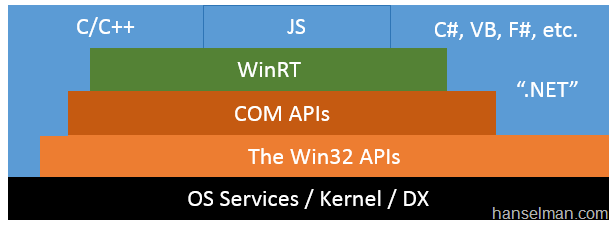
I figure it can't be as complicated as all these diagrams. I drew this to help myself understand.
Just like the C Language has the C Runtime that provides a bunch of supporting functions and defines a calling convention for them, so the Windows Runtime (WinRT) does for Windows and its languages. These APIs and runtime includes metadata about calling conventions that make WinRT APIs easier to call than COM.
See how in the diagram I can call any API from the .NET CLR? In the case of the Sensors APIs I want to call, while they are ultimately Win32 APIs or COM APIs, I would like to call them using the highest level calling convention available and that's the very friendly Windows RT ones.
Calling WinRT APIs from C# Desktop Applications
I like to test things using small Console Apps, but those aren't "Windows Store Applications," so am I allowed to call WinRT APIs from my Desktop or Console application?
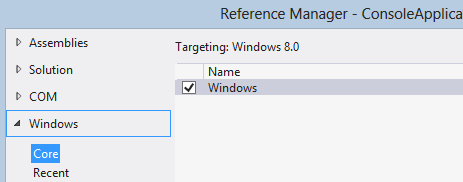
In the desktop projects, the Core tab doesn’t appear by default. The user can choose to code against the Windows Runtime by opening the shortcut menu for the project node, choosing Unload Project, adding the following snippet, opening the shortcut menu for the project node again, and then choosing Reload Project. Now, when the user invokes the Reference Manager dialog box from the project, the Core tab will appear.
I'll make a .NET 4.5 C# Console Application. I'll edit the .csproj and add the TargetPlatformVersion line. I'll select Add Reference from the context menu on the References node of Solution Explorer.
I'll add a little code to check the status of the Light Sensor on my laptop:
However, when I compile the app, I get an error on the line where I'm trying to hook up an event handler. The "+=" language sugar for adding a multicast delegate isn't working.
Error 1 Property, indexer, or event 'Windows.Devices.Sensors.LightSensor.ReadingChanged' is not supported by the language; try directly calling accessor methods 'Windows.Devices.Sensors.LightSensor.add_ReadingChanged (Windows.Foundation.TypedEventHandler Windows.Devices.Sensors.LightSensorReadingChangedEventArgs>)' or 'Windows.Devices.Sensors.LightSensor.remove_ReadingChanged (System.Runtime.InteropServices.WindowsRuntime.EventRegistrationToken)'
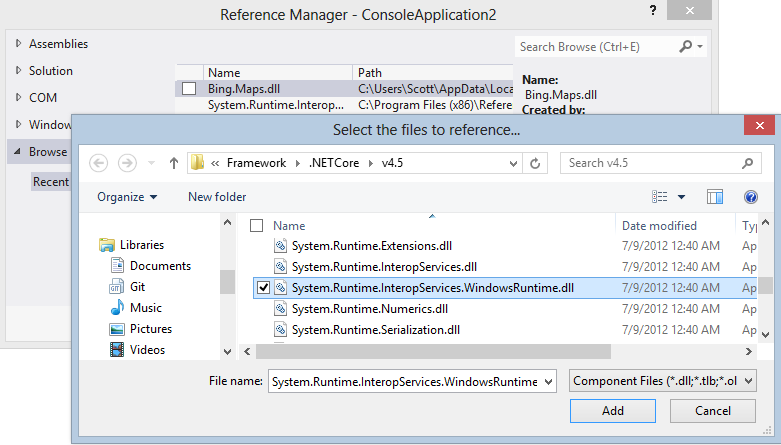
To fix this and get the appropriate assemblies loaded within my application support calling WinRT from my Desktop Application I need to add a reference to System.Runtime and System.Runtime.InteropServices.WindowsRuntime.dll. It's in C:\Program Files (x86)\Reference Assemblies\Microsoft\Framework\.NETCore\v4.5 on my system.
Now my app compiles. I'll even change out the delegate and make it a Anders lambda because that's fancy.
light.ReadingChanged += (s, a) => { Console.WriteLine(String.Format("There was light! {0}", a.Reading.IlluminanceInLux)); };
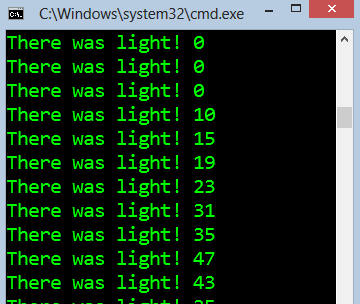
Now I can run my little console app, sense some light and check it out in action. Here's a screenshot showing the results of me shining a light at my laptop. You can see the Ambient LightSensor picks it up and outputs to the Console.
While the tooling to make non-Windows Store applications call Windows RT applications is a little manual within Visual Studio right now, the underlying ability and runtime have work very nicely for me. Hopefully these few manual setups will turn into a checkbox at some point.
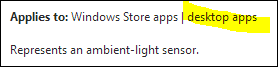
It's also nice to see the MSDN documentation includes the details about which APIs actually can be called from the Desktop and which can be called from Windows Store apps.
Scott Hanselman is a former professor, former Chief Architect in finance, now speaker, consultant, father, diabetic, and Microsoft employee. He is a failed stand-up comic, a cornrower, and a book author.
What better time to test the Sensors in this Intel Ultrabook prototype then while in the air? I'm on a flight right now from Krakow, Poland to Munich, Germany, and I realized this was the perfect time to bring out this little 3 pound wonder. Even better because I received an email just a few days before with updated Sensor Firmware for this device.
Since that time I've been using this Ultrabook almost exclusively as my main machine, even preferring it over my giant (but super powerful) Lenovo W520. I've always been one to prefer the heavier laptop over a lighter one as long as it's got the power I need. However the i7-3667 Ivy Bridge in this system has been just fine for everything I could throw at it - even running Windows 7 and Ubuntu in a Hyper-V virtual machine while running Visual Studio 2012 under Windows 8. My only real complain so far has been that this model I was provided for review purposes has only 4 gigs of RAM and not 8 or 12. I feel like 4gigs is a real minimum for the kinds of computing I'm doing. That said, the 160 gig Intel SSD has been so fast that I haven't really noticed the lack of memory except when pushing two VMs really hard.
Anyway, I wanted to focus on the sensors as this prototype has all the possible sensors an Ultrabook can have, the most initially interesting sensor to me being the GPS and Location Services.
You can get sensor data in a number of ways. I figured I'd try a few.
There's a Windows 8 Bing Maps Geolocation Sample you can get. It is C# and XAML and uses the Bing Map SDK. You have a little work to do in that you need to:
Make sure you have a version of Visual Studio that can make Windows 8 apps. There's a free Express version.
Take the resulting key and put it in the XAML markup under "Credentials" of the bm:Map control.
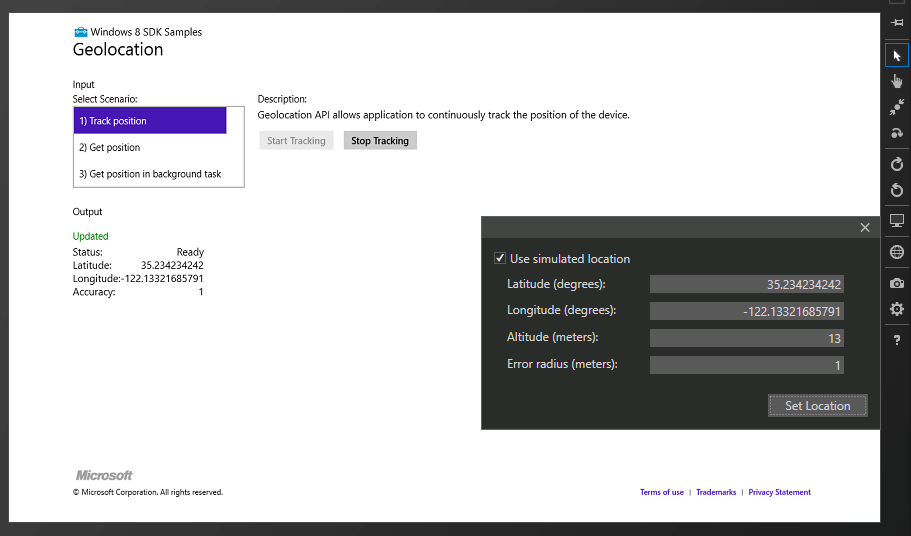
There's also a much simpler (no map) Geolocation Sample that you can just download and run. It includes three scenarios: ongoing tracking of your position, a one time "get" of your position, and a background task that gets your position even after your application has been shutdown. As with all Windows 8-type apps you'll automatically get a permission popup when an application asks for something sensitive like your location.
The code is pretty simple, in fact. There's a Windows.Devices.Geolocation namespace with a Geolocator class. It has both PositionChanged and StatusChanged events. Since you can't physically move your device every time (although I'm flying now) you can actually run your application inside the Windows "Simulator" and effectively LIE about the location.
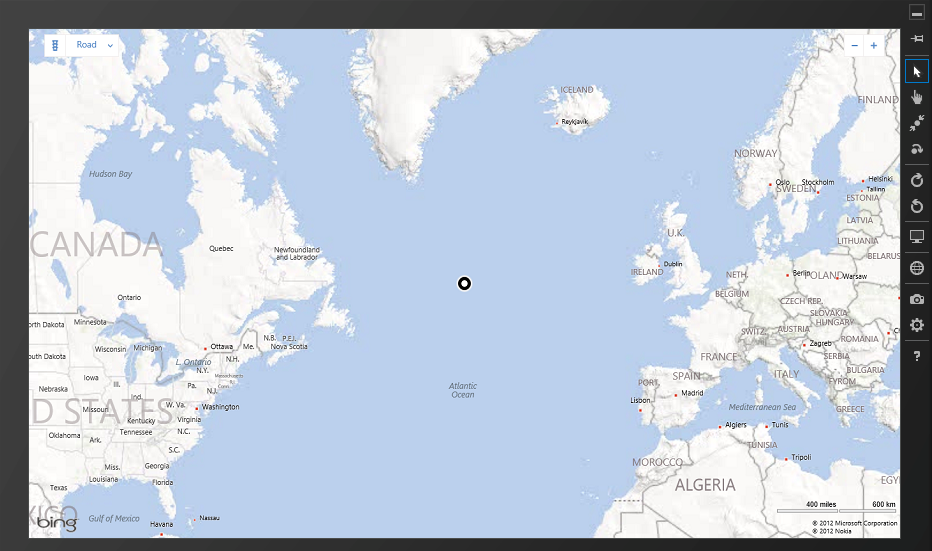
In the screenshot below I've taken my actual location that was reported by the physical GPS inside this Ultrabook and moved it a few thousand miles using the black menu popup from the Simulator and saw the underlying value reported change. Note the "use simulated location" checkbox. You can change between the sensor subsystem and the faked GPS values.
Here you can see me flying over the Atlantic Ocean while on my flight.
Accessing the Sensors are very easy from Windows 8 as there's now a unified Sensor and Location Platform. You don't have to sweat 3rd party drivers, just ask Windows if it knows things like brightness or location and it will tell you if it knows.
You can access at least Location Services via System.Device under .NET on Windows 7 as well. Here's a quick example Console app I did to prove it to myself:
GeoCoordinateWatcher foo = new GeoCoordinateWatcher(GeoPositionAccuracy.Default); foo.MovementThreshold = 10;
foo.Start(); Console.ReadLine(); foo.Stop(); //Say you're done to save batteries!
So that means Desktop apps can use System.Device.Location and Windows Store (sandboxed) apps use Microsoft.Devices.GeoLocation, as well as all the other sensors made available via WinRT. If you find WinRT confusing I'd encourage you to listen to my podcast on the topic. I had WinRT explained to me by a WinRT developer and I feel much better about it.
Also worth noting with GPS data you can get ahold of it even from inside a modern browser. Just a little bit of JavaScript:
Then your browser will warn you and ask permission, similar to this:
I'd like to see all possible sensors become available to the browser, similar to the way the Firefox OS proposes to allow access to hardware from JavaScript.
Of course, within Windows 8 applications I can access any Sensor data at all - regardless of language (JS, VB, C#, C++) - with similar APIs. You instantiate the Sensor class, hook up a few events and you're set, like this LightSensor example. I can even call these WinRT APIs from Desktop Applications.
//Then, whenever you need to, just... _lightsensor = LightSensor.GetDefault(); // Get the default light sensor object
// Assign an event handler for the ALS reading-changed event if (_lightsensor != null) { // Establish the report interval for all scenarios uint minReportInterval = _lightsensor.MinimumReportInterval; uint reportInterval = minReportInterval > 16 ? minReportInterval : 16; _lightsensor.ReportInterval = reportInterval;
// Establish the event handler _lightsensor.ReadingChanged += new TypedEventHandler<LightSensor, LightSensorReadingChangedEventArgs>(ReadingChanged); }
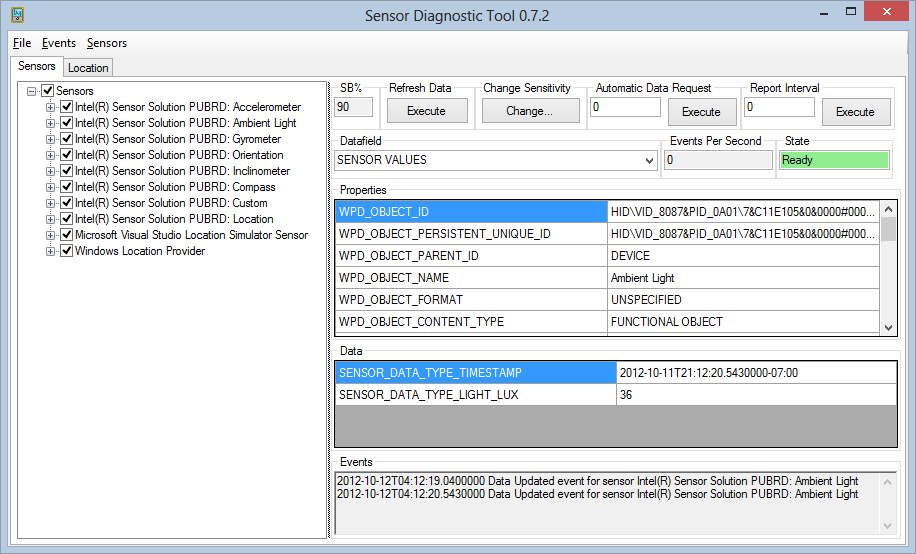
It's pretty straightforward. These Ultrabooks have a PILE of sensors, as you can see using the Sensor Diagnostic Tool below.
The really interesting question to me is: How can we use these for games? Sure, there's the obvious utilities for dimming the screen and what not, but what kinds of really creative stuff could be done? What would a Contre Jour look like with compasses and inclinometers feeding information to the game and affecting not just active animations but subtle background ones as well?
What do YOU think? Do we need need these sensor arrays in our portable computers? Have we just not come up with the really creative uses for them?
Scott Hanselman is a former professor, former Chief Architect in finance, now speaker, consultant, father, diabetic, and Microsoft employee. He is a failed stand-up comic, a cornrower, and a book author.
A few weeks back I ranted in Everything's broken and nobody's upset and it found its way around the web. Some called it a poorly organized straw man and others felt it was a decent jumping-off point for a larger discussion about software quality. It was likely both of these and more.
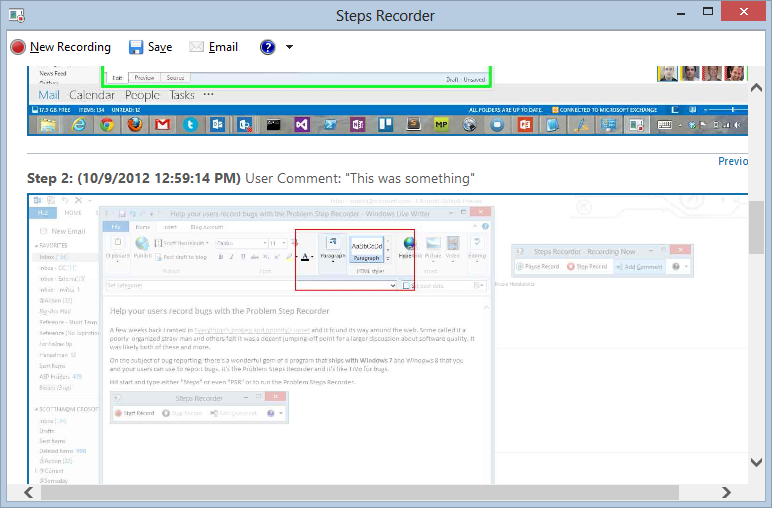
On the subject of bug reporting, there's a wonderful gem of a program that ships with Windows 7 and Windows 8 that you and your users can use to report and record bugs. It's the Problem Steps Recorder and it's like TiVo for bugs.
Hit the Start button and type either "Steps" or even "PSR" or to run the Problem Steps Recorder.
Click Start Record and reproduce your bug. You can even click "Add Comment" to highlight an area of the screen as a call-out.
It's kind of a poor-man's screencasting tool. Rather than a heavy full screen video, the Steps Recorder is taking a screenshot on each click or action.
The user can then save the whole thing as as ZIP or just click "Email." I plan on using this the next time my non-technical parents have an issue they want to report.
Since this little app ships with Windows, why not launch it directly from your product's interface or 'Send Feedback' link? Then you could automate the receipt of these recorded problems and directly inject the resulting files into your bug reporting system.
What do you think?
Related Posts in this Three Part series on Software Quality
Scott Hanselman is a former professor, former Chief Architect in finance, now speaker, consultant, father, diabetic, and Microsoft employee. He is a failed stand-up comic, a cornrower, and a book author.
Ok, let's just get this out of the way. Of all the gadgets I've purchased, I love my Kindle. I have, in fact, owned every Kindle at every step of the way. I've also owned every iPad, but there's been more Kindles.
It could be said that my love of e-reading started with my ill-fated purchase of an Apple Newton in 1993 and then my even more ill-fated second purchase of an Apple Newton MessagePad 2000 in 2007. Let's just say I'm a sucker for small devices with gray screens.
It's fine. OK, it's "fine." But let's be serious for a second. Every technology site is gushing about this device. They're saying this is the e-reader to end all e-readers. It's glorious, it's perfect. Friends, it's not. And this is from a Kindle Fan. A Kindle Stan, even. But I can't gush about this new device. If you want gushing, go read Gizvergmashgadget.
I regret my purchase of a Kindle Paperwhite and I will mourn the death (when it happens...has it happened?) of the superior Kindle 3G. There, I said it. I'm confused why others haven't said as much.
I miss my Kindle 3G. It's better device. It's larger, it's easier to hold, it has a physical keyboard, it has an audio jack for headphones, it has text-to-speech, it supports MP3s and audiobooks. It has physical buttons for turning pages.
I gave up all these features for a backlit screen. The thing is, there's lights everywhere. I have no problem reading under one. The whole reading-on-a-totally-dark-plane thing just doesn't do it for me. Same with reading in a bed. I have a small lamp and the wife isn't bothered by the nightstand's 7W LED light.
The Good
It's small, it's light, it's pretty, it's sturdy, it's got a good screen. They say that they've increased contrast. I don't really see it but I believe them. It's supposed to be 25% better but that's hard to see. It's a lovely e-ink screen.
The name Paperwhite kind of bothers me. For some reason I assumed (and it's my fault) that the screen was whiter, like paper. I wonder how I got that idea. Turns out, if you're in the dark and the backlight (actually a side-light) is on, then the screen looks whiter. Unfortunately it only looks whiter the darker the room is. In regular light it's the same newsprint gray that we've seen before.
UPDATE - Oct 18th: The Paperwhite Cover
I bought the Kindle Paperwhite Leather Cover in Black and I have to say that it changes my opinion of this whole experience in a significant way. It doesn't fix everything, but I like the Paperwhite a LOT more now and it's specifically the cover that improves it.
First, the grip. The Paperwhite is small and the bezels on the side are thin. The cover adds just the right amount of bulk to the device to make it feel more substantial while still being easy to hold in one hand. More importantly this specific cover adds width to the bezel which gives my thumbs a place to be.
The cover also has a magnet clasp. This is an improvement over the rubber band cover I used with the Kindle 3G. The magnet clasp also turns device on and off which is brilliant. Open it, it turns on and lights up. Close it and it's off. It feels more "book-like" with this small feature.
The Paperwhite has its sides, corners and black completely covered, protected and snug in this cover. It's not something you'll want to take off...it really becomes part of the device. I highly recommend this cover and if you get a Paperwhite you should absolutely pick up a cover as well.
The Light
Blame the name, perhaps. When you hear gushing about "Paperwhite" and "our best screen ever" your expectation is high. However, the light is uneven as you can see in the un-doctored photo below. I count four small white LEDs at the very bottom shining light up the face of the screen. You can see the dark shadows between the lights about 20% of the way up the screen. It's distracting, and it's even more distracting the darker the room gets.
You can adjust the light but I haven't found any use for this adjustment. I either have it completely on or completely off. Anything in between just makes the splotchy light intolerable.
Screen Speed and Clarity
They say improvements have been made in the speed of the device and how it refreshes the screen. Early versions of the Kindle would turn the whole screen black as the e-ink balls would flip over to black en masse then flip back individually to display a page. It's unclear to me if these "improvements" are actual hardware improvements or software ones. I suspect a little of both.
By default the Kindle Paperwhite will only do a full refresh of the e-ink every 3 or 4 page turns. You can change this setting if you want to force a full page refresh on each turn. Why would you want to do that? Well, take a look at these two pictures. The first is of a page turned to with the default setting. The second is the same page with a full page refresh. Look closely at the first picture. That's not a camera blur or visual aberration. That's the ghosted letters of the previous three pages. It almost looks like a poorly erased Etch-A-Sketch (which makes sense, since that's what e-ink is at it's most basic.)
Once you've seen this ghosting you can't easily unsee it. It's pretty disappointing and I've turned this setting off. I encourage you to make your own judgment. It's a tradeoff between fast page turns without the black "flash" and clear text.
I've also found the font choice to be very limited. I wish the Kindle folks had the attention to detail of a Marco Arment when it comes to choosing a typeface. There's only two serifs and a weird hybrid called Caecilia. Only the classic Palatino is even close to readable in my view.
X-Ray
There's a new feature called "X-Ray" that is enabled in some books. I've found it to be a cute gimmick but it's provided zero value in my reading over the last week. I don't see any reason for it so far. Perhaps new visualizations are coming. For now, meh is the unfortunate word.
One new feature I think I like is the "Time to read" where the Kindle keeps track of your reading speed and optionally estimates the number of hours or minutes until the end of the chapter or book. I've found this useful when deciding when to go to bed. ;) If it's just 15 more minutes to finish the book I'll just finish it!
What's missing?
Perhaps I have large hands, but the Kindle Paperwhite is SMALL. It's so small it's little hard to comfortably hold in one had. The bezel on the sides is small enough that I can't easily hold the thing with my thumb pressure as my thumb is wider than the side bezel. I end up holding it at the bottom. Perhaps this is another reason I like the Kindle 3G since it has a large keyboard at the bottom. That's more stuff to hold on to.
I really miss the physical buttons. You HAVE to touch the screen to turn the page on the Paperwhite. They've organized screen regions so you just tap the right 85% of the screen to go to the next page and the left 15% to go to the previous. The top 10% gets you the menu. But you have to touch the SCREEN. It feels papery but it can also get dirty. I never, ever touched the screen of my 3G with keyboard. I never needed to because it had physical buttons for turning the page. They were brilliant because they were just under your thumb and just required a twitch to move forward.
I am also a huge Audible audiobook fan but those days are over. The Kindle Paperwhite has no headphone jack or speaker. This MUST be a cost-cutting decision, likely based on some study or survey that showed a single digit percentage of folks using the Kindle for audiobooks. But I did, and I miss it more now that it's gone.
There's the same anemic web browser as before. It's enough to get the job done but it's also slow enough to remind you that they'd rather you buy a Kindle Fire HD. It's a book, not a tablet.
As I said, it's fine. It's a lovely miracle, even. I read more now than I did pre-Kindle, truly. I have purchased over a hundred books from Amazon since my first Kindle (139, in fact) and that was the goal. There's a single click between my Wallet and Jeff Bezo's Wallet. However, there's still work to be done on the Kindle. The Kindle Paperwhite isn't the ultimate e-reader. But it's fine.
About Scott
Scott Hanselman is a former professor, former Chief Architect in finance, now speaker, consultant, father, diabetic, and Microsoft employee. He is a failed stand-up comic, a cornrower, and a book author.
NOTE: The top part of this post is background and basics. If you are a diabetic who wants the advanced techniques, they are further down a bit.
Being a Type 1 diabetic sucks. But, if you know anyone who is diabetic then you likely already know that. Over the last twenty years I've tried many different drugs, diets, techniques, and hacks all meant to keep me alive as long as possible. Diabetes is the leading cause of blindness, liver failure, kidney failure and a bunch of other stuff that also sucks. It would be really awesome to die of regular old age rather than some complication of diabetes.
Every few months a diabetic should get a blood test call an hA1c that is a measure of long term blood sugar control. A normal person's A1C is between 4% and 6% which roughly corresponds to a 3 month average blood sugar of between 70 and 120mg/dl, which is great. My A1c has been around 6.0 to 6.7 which is under the American Diabetes Association's recommendation for Type 1 diabetics of 7.0, but not as low as I'd like it.
I recently redoubled my efforts and lost about 30lbs, started working out more and removed more carbohydrates by implementing a relaxed paleo diet. This, combined with some medical equipment changes that I discuss below have resulted in my latest A1c - just in last week - of 5.7%. That means for the first time in nearly 20 years I have maintained near-normal blood sugar for at least 3 months.
Basics
A Type 1 diabetic doesn't produce any insulin, and insulin is required to process sugar and deliver it to the cells. Without insulin, you'd die rather quickly. There's no diet, no amount of yoga, green tea or black, herbs or spices that will keep a Type 1 diabetic alive and healthy. Type 1 diabetes is NOT Type 2 diabetes, so I'm not interested in your juicers, raw food diets or possible cures. I've been doing this with some success for the last two decades and I plan to continue - also with success - for the next two.
If you blood sugar gets too high you'll die slowly and rather uncomfortably. If your blood sugar gets too low you'll die rather quickly (or at the very least lose consciousness). The number one goal for a Type 1 Diabetic is to effectively manage insulin and blood sugar levels by simulating a working pancreas where there isn't one. You eat food and your blood sugar rises. You take insulin and your blood sugar lowers. You can prick your finger and check your blood sugar directly then perform some calculations and inject yourself with insulin. If everything works out well then your blood sugar is stable just like a "normal" non-diabetic.
Unfortunately it's never that easy, and in the case of Type 1 diabetes there's a number of factors that complicate things. Sometimes blood sugar rises on its own, sometimes due to illness, hormones, or any of a dozen other factors. The most difficult issue to deal with is that of lag time. When you check your blood sugar you're actually looking at the past. You're seeing your blood sugar in the past, sometimes 15-20 minutes ago. When you take insulin it won't start working for at least 30 minutes, often as long as 60 to 90 minutes. I talk about this in my post Diabetes: The Airplane Analogy. Try flying a plane where your altimeter shows you the past and altitude adjustments are all delayed. I would imagine it's not unlike trying to pilot the Mars Lander. Sadly, there is no such thing as "real time" when it comes to diabetes management.
Basic Management
Basic blood sugar management typically comes down to carb counting and insulin dosage. You'll learn from a Diabetes Educator that your body (everyone is different) will react to insulin in a certain way. You'll learn that, for example, your insulin to carbohydrate ratio might be 1U (1 unit of insulin) to 15g (grams) of carbohydrate. You'll read food labels and if there's a cookie with 30g of carbohydrates or sugars that you'll need to "cover" it with 2U of insulin.
That's the basics. Things quickly get complicated because not all sugars are alike. A cookie with 30g of carbs will "hit you" - or cause a blood sugar rise - much faster than an apple with 30g of carbs or mixed nuts with 30g of carbs. The speed at which carbs hit you is known as the glycemic index of the food. Fruit juices, starches, candy, all have high glycemic indexes.
Why should a diabetic care about how fast food raises their blood sugar? Because the faster your blood sugar moves the hard it is it control. If a cookie can raise blood sugar in 15 minutes but insulin won't start lowering it for an hour you can see how a daily rollercoaster of blood sugar spikes can get out of control.
A reasonably low carb diet makes Type 1 diabetes much easier to handle and manage. I avoid bread, sugar and anything "white." That means no white rice, no white bread, no white sugar. If I'm going to have bread, it'll be whole grain or sprouted wheat.
Portion Size and Cutting Carbs
You should rarely be eating a meal that is larger than your own fist. Better you eat 6 fist-sized meals than 3 giant plates a day. Reasonable portions avoid high sugar spikes.
Cutting carbs is surprisingly easy. I've done personal experiments with hamburgers, for example. A hamburger might require me to take 6U of insulin but that same hamburger minus the top bun was only 3U. It was still satisfying and yummy but that top bun was just empty carbs. That leaves more room for salad (with dressing on the side) which is a diabetic's "free food." You can eat raw veggies until you're bloated and in some cases take no insulin at all, while a Small French Fry could literally set you on a miserable rollercoaster of a day.
Fries and starches are simply off limits. If you eat them, you will pay the price. Pizza, potatoes, tubers of any kind are all effectively raw sugar. Same with all fruit juices and any HFCS (High Fructose Corn Syrup.) In fact, any "-ose" is ill-advised, including Fructose, Glucose and Dextrose.
The Poor Man's Pump
Not that many years ago insulin came in many speed variations. Some were long acting and some short. In recent years we've standardized on two kinds, very long acting where one shot lasts for 24 hours, and fast acting where one shot starts in about an hour and is gone in about four.
We need some insulin running in the background all the time just to stay stable. This is all the basal rate or background insulin. Then when we eat we need a bolus of insulin to "cover" a meal. Long acting insulin can act as the basal and short acting as the bolus.
For those that don't have an insulin pump (more on that later) a pump can be simulated by a long acting shot of an insulin like Lantis/Glargene once a day to act as a basal and then short acting insulins like Humalog/Novalog/Apidra for means. You can simulate about 80% of a pump with this "poor man's pump."
Insulin Pumps
If you've got an insulin pump like I have then you actually have no long acting insulin in you. Instead you've literally got a pump and a tube dripping insulin into your body. I've worn one 24 hours a day, while asleep and awake for over a decade.
So where's the basal or background insulin coming from? The pump actually contains only short acting insulin but delivers it in extremely precise and tiny increments all the time. For example, I usually have my pump delivering 0.5U/hr all the time.
Note that none of this is automatic. Pumps are not automatic systems and will only do what you tell them, fortunately or unfortunately. If you're willing to put some thought and effort into it you can do some interesting things with pumps that you simply cannot do with MDI (Multiple Daily Injections.)
Square Wave Basal (Buffet Mode)
One of the things a pump can do that injections simply can't is basal adjustments. Once you've taken a long-acting insulin shot, it's in you and it's going to do its work for 24 hours. The only thing you can do with insulin in you already is add more food or more insulin.
With a pump, though, you can program a either a Square Wave Bolus or a temporary Basal. This can be useful when at an event where you'll be "grazing" and eating little bits over a long period, or in situations where you're eating foods that will take a long time to digest, like pizza.
Temporary basals are also useful for exercise and activity. You can temporarily lower your background insulin for a few hours while you're hiking, for example. Lowering your basal temporarily is your best way to avoid exercise-related lows.
Often Type 1's get into trouble exercising because they'll work out, burn a hundred calories, have a low blood sugar, then eat a few hundred calories thereby negating the original exercise. Lower your basal an hour or so before exercise and set a timer to keep it low for an hour or two. Better an exercise-induced high than an exercised-induced low.
The 3am to 8am boost there is to manage the blood sugar rise known as the "dawn phenomenon." It's your body trying to get you ready for the day. It's part of your circadian rhythm and it's great for you. It's lousy for me though as it means my blood sugar will just start rising unchecked starting at about 4am.
When travelling, though, what's dawn to me? ;) It takes about a day to adjust for every time zone crossed. So even though I was just in Europe for a week, my "dawn" was slowly moving from the west coast of the US over the Atlantic all week. I needed to be aware of this as I set my pump's clock.
If you change your pump's clock to the destination time zone on the first day, your basals won't reflect your physical reality. You'll get more insulin at 3am local time, for example, but you likely needed it 4 or 7 hour before.
I've found that for simplicity's sake I set my basals while travelling to two 12-hour values, night and day. For example, on this trip I set to 0.6U/hr during the day and 0.5U/hr during the night. This allowed me to see when the dawn rise was happening and deal with it using a bolus, rather than risking a nasty and unexpected low at a seemingly random time. Use temporary basals to smooth things out. I'll set 4 and 6 hour temporary basals as well to "tap it down" or "float up."
Super Bolus
One of the most advanced and most powerful techniques is the Super Bolus. I tend to be a little prejudiced against CDEs (Certified Diabetes Educators) (sorry, friends!) unless they are diabetic themselves. No amount of education can match 24 hours a day, 7 days a week for 20 years. The Super Bolus is one of those techniques that we find after hard work and 3am suffering.
Since even fast-acting insulin often isn't fast enough you'll sometimes want a way to give yourself more insulin now without an unexpected low in 2 to 4 hours.
What you can do is turn off your pump effectively by setting a temporary basal of 0U/hr, and then give yourself the saved amount on top of your planned bolus.
Here's an example. You want to have some ice cream. You take 5U of insulin, your basal is 0.5U/hr. You eat the ice cream and have a bad high sugar in an hour and then a nasty low 3 hours out. The insulin didn't move fast enough to cover the ice cream, and when it did finally start working it took you low because your basal was ongoing.
Instead, you could take 6.5U of insulin and set a 3 hour temporary basal of 0U/hr. You have taken the 1.5U that would have been spread out over 3 hours and instead stacked it on top of the big bolus. The net amount of insulin is the same! You're just clipping that big high and bypassing that nasty low.
You'll need to find numbers that work for you, but the Super Bolus is a powerful technique for avoiding highs and still being able to eat some carbs.
Off-Label Drugs
There are a number of interesting new drugs out for diabetics that aren't super common but if you're interested in hacking your diabetes and you have a willing endocrinologist they could help you.
Symlin is a brand name synthetic amylin and replaces another missing hormone in Type 1 diabetics. Symlin is another shot you would have to take in addition to insulin. We tend to digest food really quickly and that causes nasty post-prandial (after eating) blood sugar spikes. Symlin will slow your digested to that of a normal person and clip those high sugars and allow your insulin to work. Talk to your doctor because it's serious stuff and not to be trifled with. Symlin induced low blood sugars can be really challenging to pull up out of. If you can get past the first two to four weeks of nausea it can be a powerful tool. I took Symlin for a number of years but now I only use it for a few large meals a year like Thanksgiving and Christmas.
Victoza is a new drug for Type 2 diabetics and is explicitly not recommended for Type 1s. However, if your doctor feels it would help you as a Type 1 it can be given "off label." It is a GLP1 inhibitor that also slows absorption of food and its movement through the gut. Finding the right dose can be a challenge, but since Victoza is a daily injectable you can adjust the dose one day at a time.
UPDATE/Correction from Karmel: "Minor point, but Victoza and Bydureon are GLP1 (with a P for glucagon-like peptide) agonists (that is, analogs)-- they mimic the action of GLP1, not inhibit it. Some T2 drugs with similar effects like Januvia are DPP-4 inhibitors, where DPP-4 inhibits GLP1, making a DPP-4 inhibitor a positive regulator of GLP1. But GLP1 we want"
Bydureon has a similar effect to that of Victoza except you take it once a week. It's also a Type 2 drug that is off label for Type 1s. It takes about a month to build up in the system before you see its effects and it can also cause significant nausea.
Order of Food
What a silly heading, but yes, the order you eat can affect your blood sugar. If you drink juice and eat bread before eating a chicken breast your blood sugar will rise faster than if you eat the chicken breast first. If you have a meal with fat in it then eating the fatty part of the meal will slow down whatever comes next. While cheese isn't really good for you, you can slow down the food that comes after it by eating cheese before crackers and an apple, for example.
Lowering A1C by Sleeping
Here's another trick that was so fundamental to getting my A1c down. You're asleep for 6 to 10 hour a day. Nearly a third of your life you're asleep. This is the perfect time to have great blood sugar. There are few feelings worse as a diabetic than waking up after a long night only to discover that you've had high blood sugar all night long. You've been marinating in your own sugar and you didn't even know. What a horrible feeling.
I try not to eat after 8pm so that I have from 8pm until I go to sleep to even out my numbers. You want your numbers to be either normal or heading clearly towards normal as you go to sleep. Just as they say for a good marriage you should never go to bed angry. I say for good A1c results you should never go to bed with bad blood sugar. Even if your numbers are garbage all your waking hours at least try to get them smooth and low as you sleep. Avoid doing anything to move them around after dinner. Eat your dinner, get back to normal, then have a basal rate you can count on and set it for as long as you can.
Equipment
Always be on the lookout for equipment that might allow you to better manage your blood sugar. Sometimes this is covered by insurance, sometimes it's not. It never hurts to ask your insurance company or your doctor.
I've used a Medtronic insulin pump with an integrated CGM for years. It's a good integrated system but the CGM has as considerable lag time showing my blood sugar about 20 minutes in the past. I have also been unimpressed with my OneTouch Mini blood sugar meter. I grow tired of calibrating and coding the meters and I also feel they aren't nearly as accurate as one needs for tight control.
This year I moved from my Medtronic Paradigm Continuous Glucose Meter (CGM) to a Dexcom Seven CGM. I also switched from a OneTouch Mini to a OneTouch Verio.
The OneTouch Verio is a near codeless meter from OneTouch. That means I can just plug in a strip without entering any codes or calibrations. It is rechargeable with a standard mini-USB adapter and it even as a lighted sensor area so you can check your numbers at the movies. (This is a bigger deal than you might realize.)
The Verio, in my opinion, skews high in its readings. When compared to the OneTouch Mini the Verio values are consistently 20mg/dl higher. This is actually a good thing because when calibrated with the Dexcom CGM it nudges me towards an even lower blood sugar goal.
The Dexcom Seven CGM is the single greatest piece of new technology I've ever experience since I was diagnosed at age 20. It's so profoundly amazing and so utterly indispensible I truly can't imagine life without it. It reduced the lag time for my readings from 20 minutes to less than 5. It's far more accurate than the Medtronic and the sensors can stay in for a week or more. It doesn't provide as much historical data as the Medtronic but the accuracy of the Dexcom is a thing to behold. I'm looking forward to the new Animas Vibe with the Dexcom integrated and plan on switching the nanosecond it comes out. Even though the Dexco is yet another thing to carry and keep charged I credit this CGM with helping me get the best A1c test results of my diabetic life thus far.
As with all random blog posts your read on the internet, remember this. I'm not a doctor. I'm just a random dude you don't know. Try all this at your own risk and under your doctor's supervision.
Scott Hanselman is a former professor, former Chief Architect in finance, now speaker, consultant, father, diabetic, and Microsoft employee. He is a failed stand-up comic, a cornrower, and a book author.