Real World Apps in Days not Weeks
 I've given a number of presentations on ADO.NET Data Services (formerly codenamed: "Astoria") and I'm still convinced that if what it does fits your scenario, you can get a metric ass-load of work done in a short period of time.
Here's a real world example. A buddy of mine gives me a call and says he's been asked to do an application for a large clothing manufacturer. It'll run on the client machine and need to retrieve Apparel details over the web. He tells me he was thinking of using Web Services, maybe ASMX Web Services.
I asked him if it was primarily going to be CRUD (Create, Read, Update, Delete) type operations, nothing too fancy. He said yes, there'd be some sorting and filtering, but that'd be it. Should I write an HttpHandler and just return an Xml document? Some format I'll make up? he says. (Sound familiar? Kind of 2004, eh?)
Does it need an administrative console?, I ask. He says that'd be nice, but it wasn't spec'ed out. He figured this would be pretty low rent. The client even suggested (gasp) that they could just maintain a local XML file. After I threw up in my mouth a little, I made a few suggestions. ;)
Remembering that the goal here is for the solution to be simple, clean, and robust. It's also to under-promise to the client, but over-deliver. It's also worth noting my friend did a fixed bid for the work, so he just wanted to get it done.
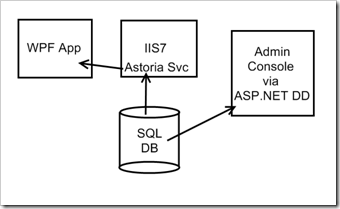
We busted out the napkins and pens over lunch and scribbled some ideas, lovingly reproduced above in Paint.NET.
In about an hour, he described the Domain Model and we created a database using LINQ to SQL. We filled it with temp data and created a new Visual Studio Solution. We added a WPF app and an ASP.NET Website.
To the website we put in our LINQ to SQL .dbml so we had our Data Context. We added a new ADO.NET Data Service and hooked it up to the Data Context. I then showed him how he could query the entity model with HTTP calls. Then we moved based the browser-based examples and added a Service Reference to our WPF app and I showed him "LINQ to REST."
Next, we created a ASP.NET Dynamic Data website, but ended up combining it with our previous site, so we had a single ASP.NET website that was both a Dynamic Data site that also included an ADO.NET Data Service. The out of the box ASP.NET DD experience gave him a complete admin site that he'll wrap in either Windows Auth or ASP.NET Forms Auth - both things he already knows how to do as an ASP.NET developer.
We were able to get a nice working skeleton for his application in an hour. He used the ObjectDataProvider in WPF to bind the entities returned from ADO.NET Data Service to lists and combos in his client app. He got a free admin site that he can skin with CSS or change the markup to taste.
He's spent the last few weeks, on and off, going back and forth with the designer who wants the WPF app to look this way or that way, and he's changed the data model a few times, but the work in that first hour over lunch set the tone for his whole project.
Hopefully I'll get his client to agree to let me use the app as a case study or something and I'll be able to give you, Dear Reader, a LOT more detail about that first hour.
A reminder, also. All this stuff, everything we used ships today in .NET 3.5 SP1. We didn't use anything beta.
For now, though, here's some links:
- Consuming Ado.Net Data Services from WPF
- Pablo Castro: Astoria Data Services
- LINQ to REST example
- ADO.NET Data Services Futures blog post
- ADO.NET Data Services "Offline" Futures
- Beth Massi on ADO.NET Data Services
About Scott
Scott Hanselman is a former professor, former Chief Architect in finance, now speaker, consultant, father, diabetic, and Microsoft employee. He is a failed stand-up comic, a cornrower, and a book author.


About Newsletter


 Microsoft Outlook
 Apple iCal
 Google Calendar
 My
My