Scott Hanselman

What's the difference between a console, a terminal, and a shell?

September 19, 2019 Comment on this post [14] Posted in Linux | Open Source | Win10
Sponsored By

I see a lot of questions that are close but the questions themselves show an underlying misunderstanding of some important terms.

  • Why would I use Windows Terminal over PowerShell?
  • I don't need WSL for bash, I use Cygwin.
  • Can I use conemu with PowerShell Core or do I need to use Windows Terminal?

Let's start with a glossary and clarify some words first.

Terminal

The word Terminal comes from terminate, indicating that it's the terminating end or "terminal" end of a communications process. You'll often hear "dumb terminal" when referring to a text-based environment where the computer you are sitting next to is just taking input and showing text while the real work happens at the other end in a mainframe or large computer.

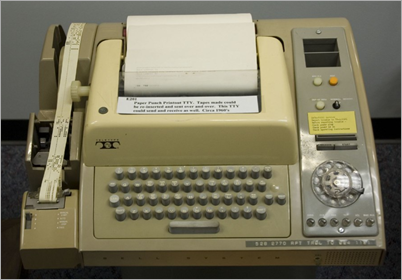
TTY or "teletypewriter" was the first kind of terminal. Rather than a screen you'd have a literal typewriter in front of you. When you type on it, you're seeing the text on a piece of paper AND inputing that text into a computer. When that computer replies, you'll see the typewriter automatically type on the same paper.

Photo by Texas.713 used under CC

When we refer to a Terminal in the software sense, we're referring to a literal software version of a TTY or Terminal. The Windows Terminal is that. It's really good at displaying textual output. It can take input and pass it on. But the Terminal isn't smart. It doesn't actually process your input, it doesn't look at your files or think.

Console

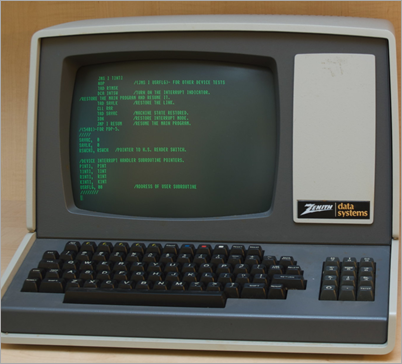
Folks in the mid 20th century would have a piece of furniture in their living room called a console or console cabinet. A Console in the context of computers is a console or cabinet with a screen and keyboard combined inside it. But, it's effectively a Terminal. Technically the Console is the device and the Terminal is now the software program inside the Console.

image

In the software world a Terminal and a Console are, for all intents, synonymous.

Shell

A shell is the program that the terminal sends user input to. The shell generates output and passes it back to the terminal for display. Here's some examples of Shells:

  • bash, fish, zsh, ksh, sh, tsch
  • PowerShell, pwsh
  • cmd, yori, 4dos, command.com

Here's an important point that should make more sense now that you have these terminals - Your choice of shell doesn't and shouldn't dictate your choice of terminal application.

Aside: WSL and WSL2 (the Windows Subsystem for Linux) are a complete local Linux (or many Linuxes) that run on Windows 10. They are full and real. WSL2 ships a real Linux kernel and runs in on Windows. Cygwin is NOT a Linux. Cygwin is a large collection of GNU and Open Source tools which provide functionality similar to Linux on Windows - but it is not Linux. It's a simulacrum. It's GNU utils compiled against Win32. It's great, but it's important for you to know what the difference is. Cygwin may let you run your bash shell scripts but it will NOT run Apache, Docker, or other real ELF-binaries and Linux apps.

Your Choice of Windows Consoles?

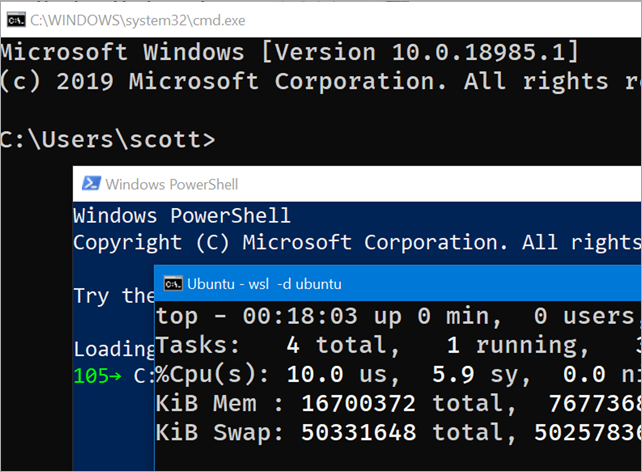
There are a number of shells that ship with Windows. Here's a few I'm running now. Note the "chrome" or the border and title around them? Those shells are all hosted by a the legacy Windows console you have never heard of called conhost.exe. You can go to the command prompt, type powershell, cmd, or ubuntu and any number of shells will run. Conhost does the work of input and output.

Now, forget that conhost exists, because it sucks - it's super old.

Shells that come with Windows

Pseudo Console, Pseudo Terminal, PTY, Pseudo TTY (ConPTY)

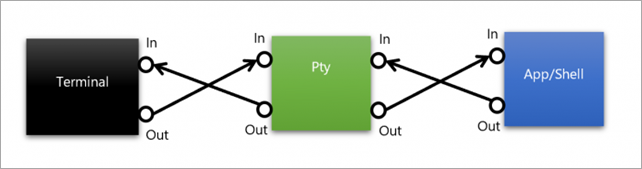
Pseudo Terminals are terminal emulators or software interfaces that emulate terminals. They pretend to be terminals like the ones above. *Nix systems have long had a pseudo-terminal (PTY) infrastructure and now Windows as a pseudoconsole (ConPTY) as well.

Window's new ConPTY interface is the future of consoles and terminals on Windows. If you choose a 3rd party (non-built-in) console applications for Windows, make sure it supports ConPTY and it'll be a better experience than some of the older consoles that use screen scraping or other hacks.

image

Back to your choice of Windows Consoles

Remembering there's a lot of shells you can use in Windows, there's a lot of 3rd party consoles you can use if you don't like conhost.exe (and you shouldn't).

All of these Terminals support ALL the shells above and any shells I've missed. Because a shell isn't a terminal. Pick the one that makes you happy. I use PowerShell Core and Ubuntu in WSL2 in the Windows Terminal.

Windows Terminal

Hope this helps clear things up.


Sponsor: Suffering from a lack of clarity around software bugs? Give your customers the experience they deserve and expect with error monitoring from Raygun.com. Installs in minutes, try it today!

About Scott

Scott Hanselman is a former professor, former Chief Architect in finance, now speaker, consultant, father, diabetic, and Microsoft employee. He is a failed stand-up comic, a cornrower, and a book author.

facebook bluesky subscribe
About   Newsletter
Hosting By
Hosted on Linux using .NET in an Azure App Service

Patching the new Cascadia Code to include Powerline Glyphs and other Nerd Fonts for the Windows Terminal

September 17, 2019 Comment on this post [6] Posted in Linux | Win10
Sponsored By

Microsoft released a nice new ligature-friendly open source font this week called Cascadia Code. It'll eventually be shipped with the open source Windows Terminal (you can get it from the store fee) but for now you can just download and install the TTF.

I've blogged about Fira Code and Monospaced Programming Fonts with Ligatures before. Just like keyboards, mice, monitors, text editors, and all the other things that we as developers put in our toolkits, Fonts are a very personal thing. Lots of folks have tweeted me, "why is this better than <font I use>." I dunno. Try it. Coke vs. Pepsi. If it makes you happy, use it.

I use Cascadia Code for my Terminals and I use Fira Code for my code editor. ¯\_(ツ)_/¯

That said, one important thing that you may want to know about is that you have FULL control of your fonts! Lots of folks want certain glyphs, or a fancy bash prompt, or they use posh-git, or PowerLine, or all of the above.

Right now Cascadia Code doesn't include every glyph in the world, but don't let that hold you back. Fix it.

For example, if I go install "Oh my Posh" and spice up my PowerShell Core prompt, it might look like this with Cascadia Code today.

Cascadia Code with no Nerd Fonts

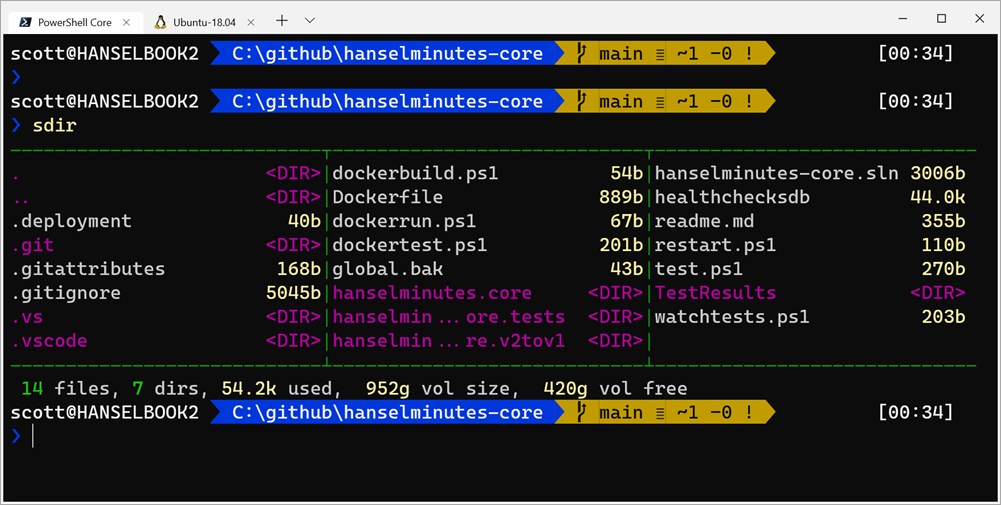
But if I patch Cascadia Code on my own machine to include Nerd Fonts and other glyphs, I'll get this lovely prompt in Windows Terminal:

Cascadia Code with Nerd Fonts and PowerLine

So you have the power to do a lot of things. Don't be satisfied. Nest, and make your prompt your own! There are lots of Nerd Fonts but I want to patch Cascadia Code today (I'm sure they'll do it themselves one day, but I'm impatient) and make it look the way I want. You can to!

Starting with FontForge in Ubuntu under WSL

Using WSL2 and Ubuntu, I installed the Nerd Fonts Patcher and ran it on my downloaded version of Cascadia code like this:

scott@IRONHEART:/mnt/d/github/nerd-fonts$ fontforge -script font-patcher /mnt/c/Users/scott/Downloads/Cascadia.ttf
Copyright (c) 2000-2014 by George Williams. See AUTHORS for Contributors.
License GPLv3+: GNU GPL version 3 or later <http://gnu.org/licenses/gpl.html>
with many parts BSD <http://fontforge.org/license.html>. Please read LICENSE.
Based on sources from 11:21 UTC 24-Sep-2017-ML-D.
Based on source from git with hash:
The following table(s) in the font have been ignored by FontForge
Ignoring 'DSIG' digital signature table
Warning: Mac string is a subset of the Windows string in the 'name' table
for the License string in the English (US) language.
Adding 53 Glyphs from Seti-UI + Custom Set
╢████████████████████████████████████████╟ 100%
Adding 198 Glyphs from Devicons Set
╢████████████████████████████████████████╟ 100%

Done with Patch Sets, generating font...

Generated: Cascadia Code Nerd Font

Cool! I could even go nuts and add -c and add thousands of glyphs. It just depends on what I need. I could just go --powerline and --fontawesome and call it a day. It's up to you! Salt your Fonts to taste!

Now I can install my local modified TTF like any other, then go into my profile.json in Windows Terminal and set the font face to my new personal custom "CascadiaCode Nerd Font!" Boom. All set.

UPDATE:  Alistair has created a forked version with the added glyphs. You may (or may not) be able to download his forked and renamed version from this Github comment. Slick!

Please also check out my YouTube video on blinging out your PowerShell prompt in the Windows Terminal!

Check out my YouTubes


Sponsor: Suffering from a lack of clarity around software bugs? Give your customers the experience they deserve and expect with error monitoring from Raygun.com. Installs in minutes, try it today!

About Scott

Scott Hanselman is a former professor, former Chief Architect in finance, now speaker, consultant, father, diabetic, and Microsoft employee. He is a failed stand-up comic, a cornrower, and a book author.

facebook bluesky subscribe
About   Newsletter
Hosting By
Hosted on Linux using .NET in an Azure App Service

Emulating a PlayStation 1 (PSX) entirely with C# and .NET

September 12, 2019 Comment on this post [15] Posted in Gaming | Open Source
Sponsored By

I was reading an older post in an emulator forum where someone was asking for a Playstation 1 (PSX) emulator written in C#, and the replies went on and on about how C# and .NET are not suited for emulation, C# is far too slow, negativity, blah blah.

Of course, that's silly. Good C# can run at near-native speed given all the work happening in the runtime/JITter, etc.

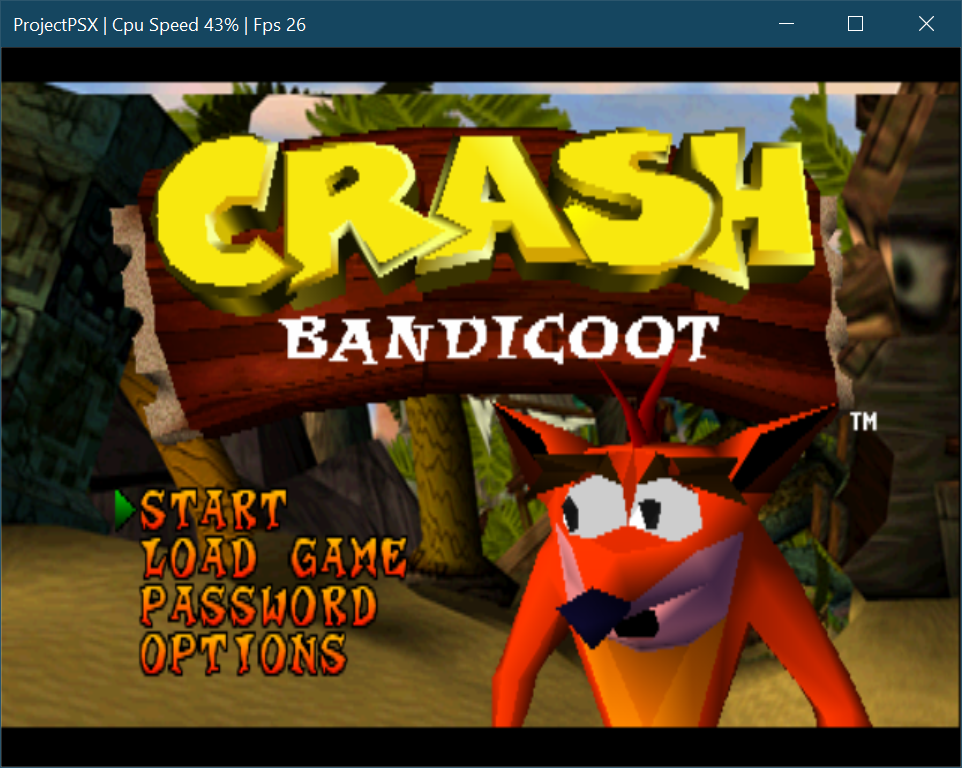
I then stumbled on this very early version of a PSX Emulator in C#. Now, if you were to theoretically have a Playtation SCPH1001.BIN BIOS and then physically owned a Playstation (as I do) and then created a BIN file from your physical copy of Crash Bandicoot, you could happily run it as you can see in the screenshot below.

Crash Bandicoot on a C#-based PSX Emulator

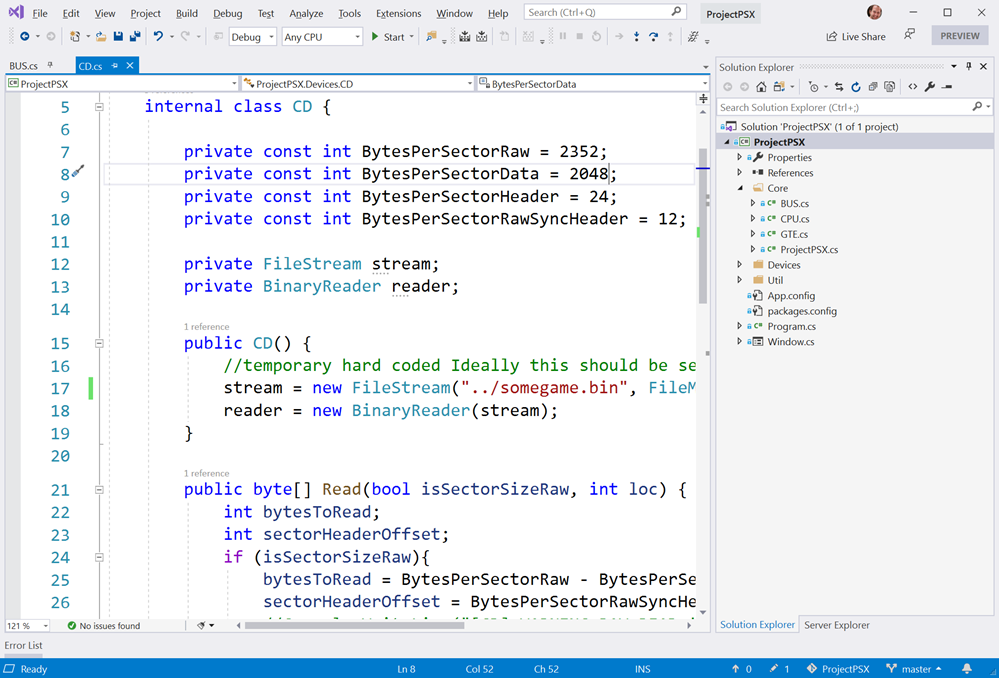
This project is very early days, as the author points out, but I was able to Git Clone and directly open the code in Visual Studio 2019 Community (which is free) and run it immediately. Note that as of the time of this blog post, the BIOS location *and* BIN files are hardcoded in the CD.cs and BUS.cs files. I named the BIN file "somegame.bin."

PSX Emualtor in C# inside Visual Studio

A funny note, since the code is unbounded as it currently sits, while I get about 30fps in Debug mode, in Release mode the ProjectPSX Emulator runs at over 120fps on my system, emulating a PlayStation 1 at over 220% of the usual CPU speed!

Just to make sure there's no confusion, and to support the author I want to repeat this question and answer here:

Can i use this emulator to play?

"Yes you can, but you shouldn't. There are a lot of other more capable emulators out there. This is a work in progress personal project with the aim to learn about emulators and hardware implementation. It can and will break during emulation as there are a lot of unimplemented hardware features."

This is a great codebase to learn from and read - maybe even support with your own Issues and PRs if the author is willing, but as they point out, it's neither complete nor ready for consumption.

Again, from the author who has other interesting emulators you can read:

I started doing a Java Chip8 and a C# Intel 8080 CPU (used on the classic arcade Space Invaders). Some later i did Nintendo Gameboy. I wanted to keep forward to do some 3D so i ended with the PSX as it had a good library of games...

Very cool stuff! Reading emulator code is a great way to not only learn about a specific language but also to learn 'the full stack.' We often hear Full Stack in the context of a complete distributed web application, but for many the stack goes down to the metal. This emulator literally boots up from the real BIOS of a Playstation and emulates the MIPS R3000A, a BUS to connect components, the CPU, the CD-ROM, and display.

An emulator has to lie at every step so that when an instruction is reached it can make everyone involved truly believe they are really running on a Playstation. If it does its job, no one suspects! That's why it's so interesting.

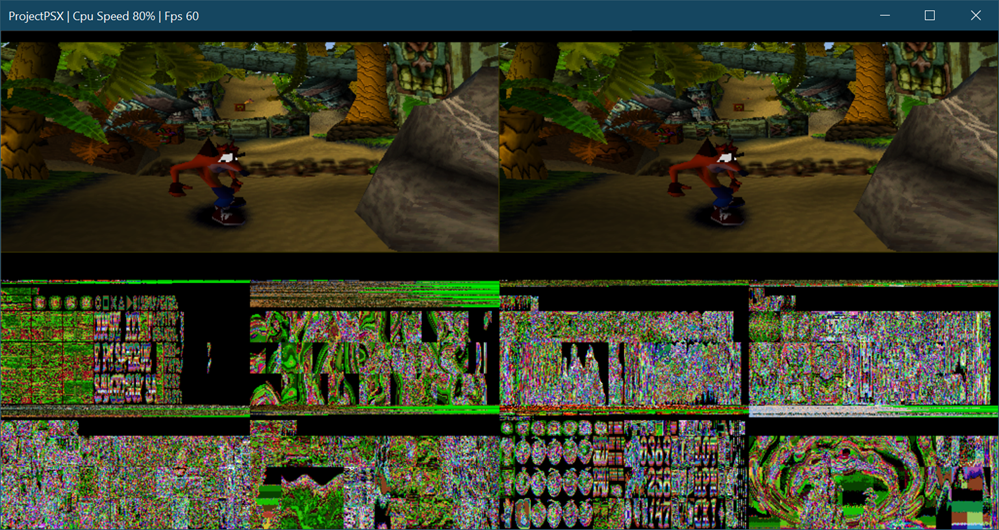
You can also press TAB to see the VRAM visualized as well as textures and color lookup tables which is super interesting!

Visualizing VRAM

One day, some day, there will be no physical hardware in existence for some of these old/classic consoles. Even today, lots of people play games for NES and SNES on a Nintendo Switch and may never see or touch the original hardware. It's important to support emulation development and sites like archive.org with Donations to make sure that history is preserved!

NOTE: It's also worth pointing out that it took me about 15 minutes to port this from .NET Framework 4.7.2 to .NET Core 3.0. More on this, perhaps, in another post. I'll also do a benchmark and see if it's faster.

I encourage you to go give a Github Star to ProjectPSX and enjoy reading this interesting bit of code. You can also read about the PSX Hardware written by Martin Korth for a trove of knowledge.


Sponsor: Develop Xamarin applications without difficulty with the latest JetBrains Rider: Xcode integration, JetBrains Xamarin SDK, and manage the required SDKs for Android development, all right from the IDE. Get it today

About Scott

Scott Hanselman is a former professor, former Chief Architect in finance, now speaker, consultant, father, diabetic, and Microsoft employee. He is a failed stand-up comic, a cornrower, and a book author.

facebook bluesky subscribe
About   Newsletter
Hosting By
Hosted on Linux using .NET in an Azure App Service

How to fix dfu-util, STM, WinUSB, Zadig, Bootloaders and other Firmware Flashing issues on Windows

September 10, 2019 Comment on this post [2] Posted in Hardware | Open Source
Sponsored By

Flashing devices wtih dfu-utilI'm pretty happy with Windows 10 as my primary development box. It can do most anything I want, run a half-dozen Linuxes, and has a shiny new open source Terminal, and has great support for Docker now.

However.

For years - YEARS I SAY - Windows has been a huge hassle when you want to flash the firmware of various devices over USB.

The term "dfu" means Device Firmware Update and dfu-util is the Device Firmware Update Utility, natch.

Very often I'll find myself with a device like a Particle Photon, Wilderness Labs Meadow, or some STM32 device that uses the ST Bootloader.

The Mac and Linux instructions usually say something like "plug it in and party on" but folks like myself with Windows have to set up a WinUSB Driver (libusb-win32 or libusbK) as dfu-util uses those libraries to speak to USB devices.

If you plug in a device, the vast majority of Windows users want the device to 'just work.' My non-technical parent doesn't want Generic USB drivers so they can flash the firmware on their mouse. I, however, as an aristocrat, sometimes want to do low-level stuff and flash an OS on a Microcontroller.

Today, the easiest way to swap the "inbox" driver with WinUSB is using a utility called Zadig. Per their docs:

Zadig is a Windows application that installs generic USB drivers,
such as WinUSB, libusb-win32/libusb0.sys or libusbK, to help you access USB devices.

It can be especially useful for cases where:

  • you want to access a device using a libusb-based application
  • you want to upgrade a generic USB driver
  • you want to access a device using WinUSB

If you follow the instructions when flashing a device and don't have the right USB driver installed you'll likely get an error like this:

Cannot open DFU device 0483:df11

That's not a lot to go on. The issue is that the default "inbox" driver that Windows uses for devices like this isn't set up for Generic USB access with libraries like "libusb."

Install a generic USB driver for your device - WinUSB using Zadig

Run Zadig and click Options | List All Devices.

Here you can see me finding the ST device within Zadig and replacing the driver with WinUSB. In my case the device was listened under STM32 Bootloader. Be aware that you can mess up your system if you select something like your WebCam instead of the hardware device you mean to select.

In Zadig, select the STM32 Bootloader

In this state, you can see in the Device Manager that there's an "STM Device in DFU Mode."

STM Device in DFU Mode

Now I run Zadig and replace the driver with WinUSB. Here's the result. Note the SUCCESS and the changed Driver on the left.

Replace it with WinUSB

Here the STM32 Bootloader device now exists in Universal Serial Bus Devices in Device Manager.

STM32 Bootloader

Now I can run dfu-util --list again. Note the before and after in the screenshot below. I run dfu-util --list and it finds nothing. I replace the bootloader with the generic WinUSB driver and run dfu-util again and it finds the devices.

Flashing devices with dfu-util

At this point I can follow along and flash my devices per whatever instructions my manufacturer/project/boardmaker intends.

NOTE: When using dfu-util on Windows, I recommend you either be smart about your PATH and add dfu-util, or better yet, make sure the dfu-util.exe and libusb.dlls are local to your firmware so there's no confusion about what libraries are being used.
Keep dfu-util and libusb together

I'd love to see this extra step in Windows removed, but for now, I hope this write up makes it clearer and helps the lone Googler who finds this post.


Sponsor: Develop Xamarin applications without difficulty with the latest JetBrains Rider: Xcode integration, JetBrains Xamarin SDK, and manage the required SDKs for Android development, all right from the IDE. Get it today

About Scott

Scott Hanselman is a former professor, former Chief Architect in finance, now speaker, consultant, father, diabetic, and Microsoft employee. He is a failed stand-up comic, a cornrower, and a book author.

facebook bluesky subscribe
About   Newsletter
Hosting By
Hosted on Linux using .NET in an Azure App Service

Visual Studio now includes an integrated Terminal

September 05, 2019 Comment on this post [9] Posted in VS2019
Sponsored By

It's early days (preview) but there's now a Terminal integrated into Visual Studio! Taking a nod from the 2017 plugin, the Terminal is now build in as an experimental feature using features from the NEW open source Windows Terminal.

Rather than build everything from scratch, the Visual Studio terminal shares most of its core with the Windows Terminal!

assuming you have Visual Studio 2019 16.3 Preview 3 or above, you’ll want to enable it by visiting the Preview Features page. Go to Tools > Options > Preview Features, enable the Experimental VS Terminal option and restart Visual Studio.

Tools > Options > Preview Features, enable the Experimental VS Terminal option and restart Visual Studio.

Make sure you restart after changing this option.

It's super early days and there's lots of things coming.

You can set up Profiles but you can't use them yet as the default is the only one used. In the future the Integrated Terminal will add a dropdown and + button like the Windows Terminal.

Multiple Profiles for the VS Integrated Terminal

Also note that if you want to integrate WSL (bash) you'll want to select c:\windows\sysnative\wsl.exe and pass in your preferred Distribution. Here you can see me running Ubuntu inside of VS2019. Sweet.

A terminal inside VS!

Grab the Preview of 16.3p3 now or wait a bit and you'll see more and more updates to the new VS Integrated Terminal in the coming months!


Sponsor: Uno Platform is the Open Source platform for building single codebase, native mobile, desktop and web apps using only C# and XAML. Built on top of Xamarin and WebAssembly! Check out the Uno Platform tutorial!

About Scott

Scott Hanselman is a former professor, former Chief Architect in finance, now speaker, consultant, father, diabetic, and Microsoft employee. He is a failed stand-up comic, a cornrower, and a book author.

facebook bluesky subscribe
About   Newsletter
Hosting By
Hosted on Linux using .NET in an Azure App Service

Disclaimer: The opinions expressed herein are my own personal opinions and do not represent my employer's view in any way.