I'm continuing to upgrade my podcast site https://www.hanselminutes.com to .NET Core 2.1 running ASP.NET Core 2.1. I'm using Razor Pages having converted my old Web Matrix Site (like 8 years old) and it's gone very smoothly. I've got a ton of blog posts queued up as I'm learning a ton. I've added Unit Testing for the Razor Pages as well as more complete Integration Testing for checking things "from the outside" like URL redirects.
HttpClient Factory lets you preconfigure named HttpClients with base addresses and default headers so you can just ask for them later by name.
public void ConfigureServices(IServiceCollection services) { services.AddHttpClient("SomeCustomAPI", client => { client.BaseAddress = new Uri("https://someapiurl/"); client.DefaultRequestHeaders.Add("Accept", "application/json"); client.DefaultRequestHeaders.Add("User-Agent", "MyCustomUserAgent"); }); services.AddMvc(); }
Then later you ask for it and you've got less to worry about.
using System.Threading.Tasks; using Microsoft.AspNetCore.Mvc;
namespace MyApp.Controllers { public class HomeController : Controller { private readonly IHttpClientFactory _httpClientFactory;
public HomeController(IHttpClientFactory httpClientFactory) { _httpClientFactory = httpClientFactory; }
public Task<IActionResult> Index() { var client = _httpClientFactory.CreateClient("SomeCustomAPI"); return Ok(await client.GetStringAsync("/api")); } } }
I prefer a TypedClient and I just add it by type in Startup.cs...just like above except:
services.AddHttpClient<SimpleCastClient>();
Note that I could put the BaseAddress in multiple places depending on if I'm calling my own API, a 3rd party, or some dev/test/staging version. I could also pull it from config:
services.AddHttpClient<SimpleCastClient>(client => client.BaseAddress = new Uri(Configuration["SimpleCastServiceUri"]));
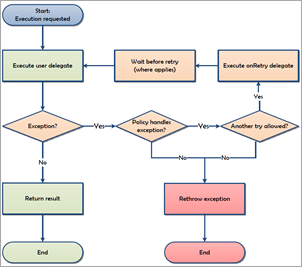
Again, I'll look at ways to make this even simpler AND more robust (it has no retries, etc) with Polly soon.
public class SimpleCastClient { private HttpClient _client; private ILogger<SimpleCastClient> _logger; private readonly string _apiKey;
public SimpleCastClient(HttpClient client, ILogger<SimpleCastClient> logger, IConfiguration config) { _client = client; _client.BaseAddress = new Uri($"https://api.simplecast.com"); //Could also be set in Startup.cs _logger = logger; _apiKey = config["SimpleCastAPIKey"]; }
public async Task<List<Show>> GetShows() { try { var episodesUrl = new Uri($"/v1/podcasts/shownum/episodes.json?api_key={_apiKey}", UriKind.Relative); _logger.LogWarning($"HttpClient: Loading {episodesUrl}"); var res = await _client.GetAsync(episodesUrl); res.EnsureSuccessStatusCode(); return await res.Content.ReadAsAsync<List<Show>>(); } catch (HttpRequestException ex) { _logger.LogError($"An error occurred connecting to SimpleCast API {ex.ToString()}"); throw; } } }
Once I have the client I can use it from another layer, or just inject it with [FromServices] whenever I have a method that needs one:
public class IndexModel : PageModel { public async Task OnGetAsync([FromServices]SimpleCastClient client) { var shows = await client.GetShows(); } }
Or in the constructor:
public class IndexModel : PageModel { private SimpleCastClient _client;
public IndexModel(SimpleCastClient Client) { _client = Client; } public async Task OnGetAsync() { var shows = await _client.GetShows(); } }
Another nice side effect is that HttpClients that are created from the HttpClientFactory give me free logging:
info: System.Net.Http.ShowsClient.LogicalHandler[100] Start processing HTTP request GET https://api.simplecast.com/v1/podcasts/shownum/episodes.json?api_key= System.Net.Http.ShowsClient.LogicalHandler:Information: Start processing HTTP request GET https://api.simplecast.com/v1/podcasts/shownum/episodes.json?api_key= info: System.Net.Http.ShowsClient.ClientHandler[100] Sending HTTP request GET https://api.simplecast.com/v1/podcasts/shownum/episodes.json?api_key= System.Net.Http.ShowsClient.ClientHandler:Information: Sending HTTP request GET https://api.simplecast.com/v1/podcasts/shownum/episodes.json?api_key= info: System.Net.Http.ShowsClient.ClientHandler[101] Received HTTP response after 882.8487ms - OK System.Net.Http.ShowsClient.ClientHandler:Information: Received HTTP response after 882.8487ms - OK info: System.Net.Http.ShowsClient.LogicalHandler[101] End processing HTTP request after 895.3685ms - OK System.Net.Http.ShowsClient.LogicalHandler:Information: End processing HTTP request after 895.3685ms - OK
It was super easy to move my existing code over to this model, and I'll keep simplifying AND adding other features as I learn more.
Sponsor: Check out JetBrains Rider: a cross-platform .NET IDE. Edit, refactor, test and debug ASP.NET, .NET Framework, .NET Core, Xamarin or Unity applications. Learn more and download a 30-day trial!
About Scott
Scott Hanselman is a former professor, former Chief Architect in finance, now speaker, consultant, father, diabetic, and Microsoft employee. He is a failed stand-up comic, a cornrower, and a book author.
This week in obscure blog titles, I bring you the nightmare that is setting up Signed Git Commits with a YubiKey NEO and GPG and Keybase on Windows. This is one of those "it's good for you" things like diet and exercise and setting up 2 Factor Authentication. I just want to be able to sign my code commits to GitHub so I might avoid people impersonating my Git Commits (happens more than you'd think and has happened recently.) However, I also was hoping to make it more secure by using a YubiKey 4 or Yubikey NEO security key. They're happy to tell you that it supports a BUNCH of stuff that you have never heard of like Yubico OTP, OATH-TOTP, OATH-HOTP, FIDO U2F, OpenPGP, Challenge-Response. I am most concerned with it acting like a Smart Card that holds a PGP (Pretty Good Privacy) key since the YubiKey can look like a "PIV (Personal Identity Verification) Smart Card."
NOTE: I am not a security expert. Let me know if something here is wrong (be nice) and I'll update it. Note also that there are a LOT of guides out there. Some are complete and encyclopedic, some include recommendations and details that are "too much," but this one was my experience. This isn't The Bible On The Topic but rather what happened with me and what I ran into and how I got past it. Until this is Super Easy (TM) on Windows, there's gonna be guides like this.
As with all things security, there is a balance between Capital-S Secure with offline air-gapped what-nots, and Ease Of Use with tools like Keybase. It depends on your tolerance, patience, technical ability, and if you trust any online services. I like Keybase and trust them so I'm starting there with a Private Key. You can feel free to get/generate your key from wherever makes you happy and secure.
I use Windows and I like it, so if you want to use a Mac or Linux this blog post likely isn't for you. I love and support you and your choice though. ;)
Make sure you have a private PGP key that has your Git Commit Email Address associated with it
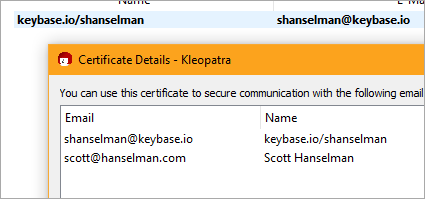
Take your private key - either the one you got from Keybase or one you generated locally - and make sure that your UID (your email address that you use on GitHub) is a part of it. Here you can see mine is not, yet. That could be the main email or might be an alias or "uid" that you'll add.
If not - as in my case since I'm using a key from keybase - you'll need to add a new uid to your private key. You will know you got it right when you run this command and see your email address inside it.
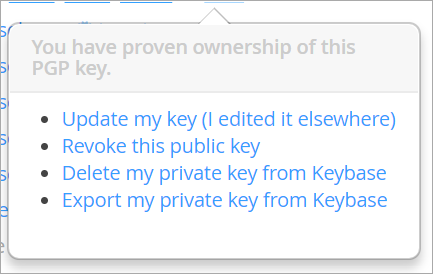
When you make changes like this, you can export your public key and update it in Keybase.io (again, if you're using Keybase).
Plugin your YubiKey
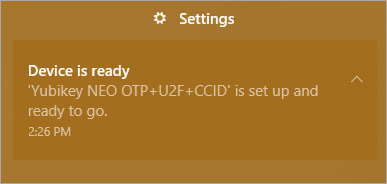
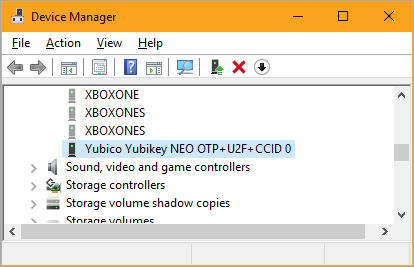
When you plug your YubiKey in (assuming it's newer than 2015) it should get auto-detected and show up like this "Yubikey NEO OTP+U2F+CCID." You want it so show up as this kind of "combo" or composite device. If it's older or not in this combo mode, you may need to download the YubiKey NEO Manager and switch modes.
Test that your YubiKey can be seen as a Smart Card
Go to the command line and run this to confirm that your Yubikey can be see as a smart card by the GPG command line.
IMPORTANT: Sometimes Windows machines and Corporate Laptops have multiple smart card readers, especially if they have Windows Hello installed like my SurfaceBook2! If you hit this, you'll want to create a text file at %appdata%\gnupg\scdaemon.conf and include a reader-port that points to your YubiKey. Mine is a NEO, yours might be a 4, etc, so be aware. You may need to reboot or at least restart/kill the GPG services/background apps for it to notice you made a change. If you want to know what string should go in that file, go to Device Manager, then View | Show Hidden Devices and look under Software Devices. THAT is the string you want. Put this in scdaemon.conf:
reader-port "Yubico Yubikey NEO OTP+U2F+CCID 0"
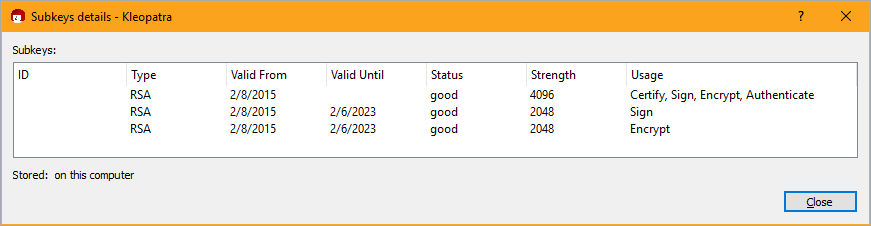
Yubikey NEO can hold keys up to 2048 bits and the Yubikey 4 can hold up to 4096 bits - that's MOAR bits! However, you might find yourself with a 4096 bit key that is too big for the Yubikey NEO. Lots of folks believe this is a limitation of the NEO that sucks and is unacceptable. Since I'm using Keybase and starting with a 4096 bit key, one solution is to make separate 2048 bit subkeys for Authentication and Signing, etc.
From the command line, edit your keys then "addkey"
> gpg --edit-key <scott@hanselman.com>
You'll make a 2048 bit Signing key and you'll want to decide if it ever expires. If it never does, also make a revocation certificate so you can revoke it at some future point.
gpg> addkey Please select what kind of key you want: (3) DSA (sign only) (4) RSA (sign only) (5) Elgamal (encrypt only) (6) RSA (encrypt only) Your selection? 4 RSA keys may be between 1024 and 4096 bits long. What keysize do you want? (2048) Requested keysize is 2048 bits Please specify how long the key should be valid. 0 = key does not expire <n> = key expires in n days <n>w = key expires in n weeks <n>m = key expires in n months <n>y = key expires in n years Key is valid for? (0) Key does not expire at all
Save your changes, and then export the keys. You can do that with Kleopatra or with the command line:
--export-secret-keys --armor KEYID
Here's a GUI view. I have my main 4096 bit key and some 2048 bit subkeys for Signing or Encryption, etc. Make as many as you like
LEVEL SET - It will be the public version of the 2048 bit Signing Key that we'll tell GitHub about and we'll put the private part on the YubiKey, acting as a Smart Card.
Move the signing subkey over to the YubiKey
Now I'm going to take my keychain here, select the signing one (note the ASTERISK after I type "key 1" then "keytocard" to move/store it on the YubyKey's SmartCard Signature slot. I'm using my email as a way to get to my key, but if your email is used in multiple keys you'll want to use the unique Key Id/Signature. BACK UP YOUR KEYS.
gpg (GnuPG) 2.2.6; Copyright (C) 2018 Free Software Foundation, Inc. This is free software: you are free to change and redistribute it. There is NO WARRANTY, to the extent permitted by law.
sec rsa4096/MAINKEY created: 2015-02-09 expires: never usage: SCEA trust: ultimate validity: ultimate ssb* rsa2048/THEKEYIDFORTHE2048BITSIGNINGKEY created: 2015-02-09 expires: 2023-02-07 usage: S card-no: 0006 ssb rsa2048/KEY2 created: 2015-02-09 expires: 2023-02-07 usage: E [ultimate] (1). keybase.io/shanselman <shanselman@keybase.io> [ultimate] (2) Scott Hanselman <scott@hanselman.com>
gpg> keytocard Please select where to store the key: (1) Signature key (3) Authentication key Your selection? 1 gpg> save
If you're storing thing on your Smart Card, it should have a pin to protect it. Also, make sure you have a backup of your primary key (if you like) because keytocard is a destructive action.
Have you set up PIN numbers for your Smart Card?
There's a PIN and an Admin PIN. The Admin PIN is the longer one. The default admin PIN is usually ‘12345678’ and the default PIN is usually ‘123456’. You'll want to set these up with either the Kleopatra GUI "Tools | Manage Smart Cards" or the gpg command line:
>gpg --card-edit gpg/card> admin Admin commands are allowed gpg/card> passwd *FOLLOW THE PROMPTS TO SET PINS, BOTH ADMIN AND STANDARD*
Tell Git about your Signing Key Globally
Be sure to tell Git on your machine some important configuration info like your signing key, but also WHERE the gpg.exe is. This is important because git ships its own older local copy of gpg.exe and you installed a newer one!
If you don't want to set ALL commits to signed, you can skip the commit.gpgsign=true and just include -S as you commit your code:
git commit -S -m your commit message
Test that you can sign things
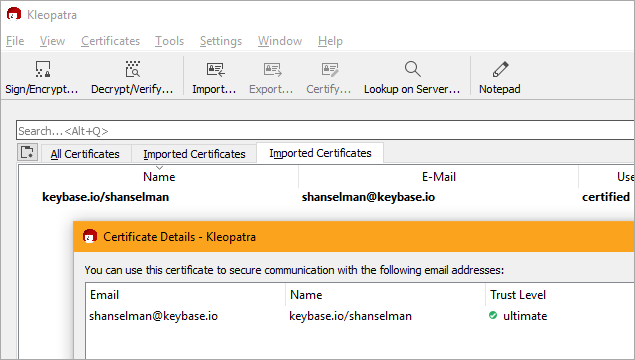
if you are running Kleopatra (the noob Windows GUI) when you run gpg --card-status you'll notice the cert will turn boldface and get marked as certified.
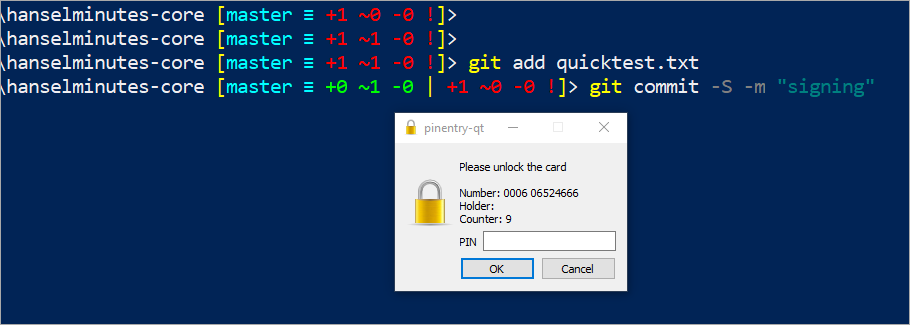
The goal here is for you to make sure GPG for Windows knows that there's a private key on the smart card, and associates a signing Key ID with that private key so when Git wants to sign a commit, you'll get a Smart Card PIN Prompt.
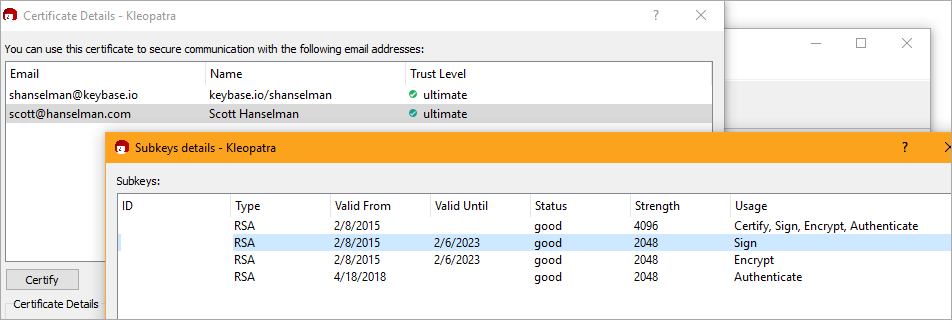
Advanced: If you make SubKeys for individual things so that they might also be later revoked without torching your main private key. Using the Kleopatra tool from GPG for Windows you can explore the keys and get their IDs. You'll use those Subkey IDs in your git config to remove to your signingkey.
At this point things should look kinda like this in the Kleopatra GUI:
Make sure to prove you can sign something by making a text file and signing it. If you get a Smart Card prompt (assuming a YubiKey) and a larger .gpg file appears, you're cool.
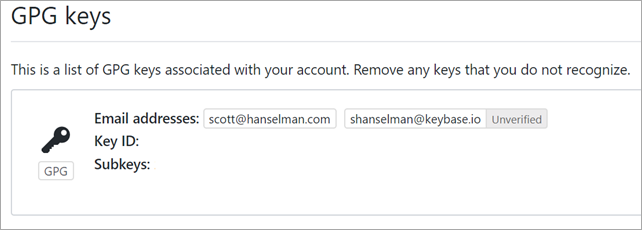
Now, go up into GitHub to https://github.com/settings/keys at the bottom. Remember that's GPG Keys, not SSH Keys. Make a new one and paste in your public signing key or subkey.
Note the KeyID (or the SubKey ID) and remember that one of them (either the signing one or the primary one) should be the ID you used when you set up user.signingkey in git above.
The most important thing is that:
the email address associated with the GPG Key
is the same as the email address GitHub has verified for you
If not, double check your email addresses and make sure they are the same everywhere.
Try a signed commit
If pressing enter pops a PIN Dialog then you're getting somewhere!
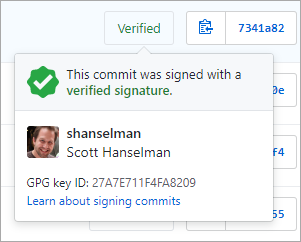
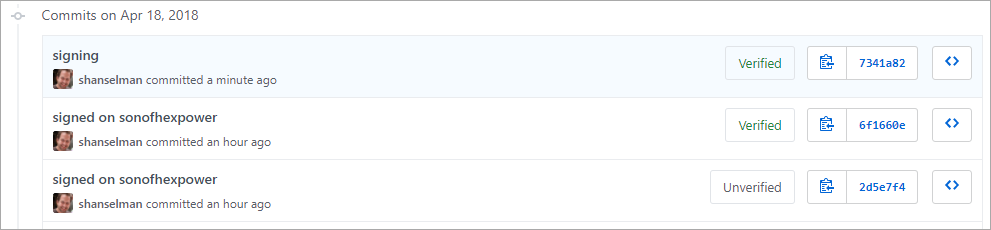
Commit and push and go over to GitHub and see if your commit is Verified or Unverified. Unverified means that the commit was signed but either had an email GitHub had never seen OR that you forgot to tell GitHub about your signing public key.
Yay!
Setting up to a second (or third) machine
Once you've told Git about your signing key and you've got your signing key stored in your YubiKey, you'll likely want to set up on another machine.
Import your public key. If I'm setting up signing on another machine, I'll can import my PUBLIC certificates like this or graphically in Kleopatra.
>gpg --import "keybase public key.asc" gpg: key *KEYID*: "keybase.io/shanselman <shanselman@keybase.io>" not changed gpg: Total number processed: 1 gpg: unchanged: 1
You may also want to run gpg --expert --edit-key *KEYID* and type "trust" to certify your key as someone (yourself) that you trust.
Install Git (I assume you did this) and configure GPG
Finally, feel superior for 8 minutes, then realize you're really just lucky because you just followed the blog post of someone who ALSO has no clue, then go help a co-worker because this is TOO HARD.
Sponsor: Check out JetBrains Rider: a cross-platform .NET IDE. Edit, refactor, test and debug ASP.NET, .NET Framework, .NET Core, Xamarin or Unity applications. Learn more and download a 30-day trial!
About Scott
Scott Hanselman is a former professor, former Chief Architect in finance, now speaker, consultant, father, diabetic, and Microsoft employee. He is a failed stand-up comic, a cornrower, and a book author.
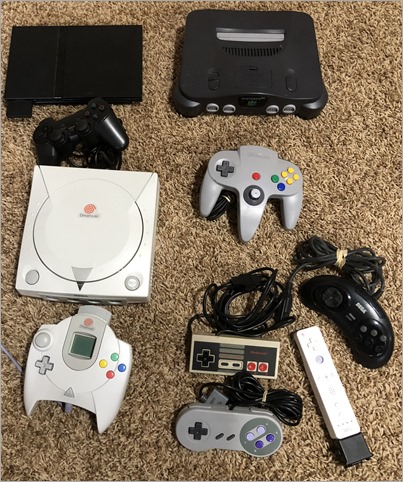
My sons (10 and 12) and I have been enjoying Retrogaming as a hobby of late. Sure there's a lot of talk of 4k 60fps this and that, but there's amazing stories in classing video games. From The Legend of Zelda (all of them) to Ico and Shadow of the Colossus, we are enjoying playing games across every platform. Over the years we've assembled quite the collection of consoles, most purchased at thrift stores.
Initially I started out as a purist, wanting to play each game on the original console unmodified. I'm not a fan of emulators for a number of reasons. I don't particularly like the idea of illegal ROM come up and I'd like to support the original game creators. Additionally, if I can support a small business by purchasing original game cartridges or CDs, I prefer to do that as well. However, the kids and I have come up with somewhat of a balance in our console selection.
For example, we enjoy the Hyperkin Retron 5 in that it lets us play NES, Famicom, SNES, Super Famicom, Genesis, Mega Drive, Game Boy, Game Boy Color, & Game Boy over 5 category ports. with one additional adapter, it adds Game Gear, Master System, and Master System Cards. It uses emulators at its heart, but it requires the use of the original game cartridges. However, the Hyperkin supports all the original controllers - many of which we've found at our local thrift store - which strikes a nice balance between the old and the new. Best of all, it uses HDMI as its output plug which makes it super easy to hook up to our TV.
The prevalence of HDMI as THE standard for getting stuff onto our Living Room TV has caused me to dig into finding HDMI solutions for as many of my systems as possible. Certainly you CAN use a Composite Video Adapter to HDMI to go from the classic Yellow/White/Red connectors to HDMI but prepare for disappointment. By the time it gets to your 4k flat panel it's gonna be muddy and gross. These aren't upscalers. They can't clean an analog signal. More on that in a moment because there are LAYERS to these solutions.
Some are simple, and I recommend these (cheap products, but they work great) adapters:
Wii to HDMI Adapter - The Wii is a very under-respected console and has a TON of great games. In the US you can find a Wii at a thrift store for $20 and there's tens of millions of them out there. This simple little adapter will get you very clean 480i or 480p HDMI with audio. Combine that with the Wii's easily soft-modded operating system and you've got the potential for a multi-system emulator as well.
PS2 to HDMI Adapter - This little (cheap) adapter will get you HTMI output as well, although it's converted off the component Y Cb/Pb Cr/Pr signal coming out. It also needs USB Power so you may end up leaching that off the PS2 itself. One note - even though every PS2 can also play PS1 games, those games output 240p and this adapter won't pick it up, so be prepared to downgrade depend on the game. But, if you use a Progressive Scan 16:9 Widescreen game like God of War you'll be very pleased with the result.
The cheapest and easiest thing you can and should do with an N64 is get a Composite & C-Video converter box. This box will also do basic up-scaling as well, but remember, this isn't going to create pixels that aren't already there.
Dreamcast - There is an adapter from Akura that will get you all the way to HDMI but it's $85 and it's just for Dreamcast. I chose instead to use a Dreamcast to VGA cable, as the Dreamcast can do VGA natively, then a powered VGA to HDMI box. It doesn't upscale, but rather passes the original video resolution to your panel for upscaling. In my experience this is a solid budget compromise.
If you're ever in or around Portland/Beaverton, Oregon, I highly recommend you stop by Retro Game Trader. Their selection and quality is truly unmatched. One of THE great retro game stores on the west coast of the US.
For legal retrogames on a budget, I also enjoy the new "mini consoles" you've likely heard a lot about, all of which support HDMI output natively!
Super NES Classic (USA or Europe have different styles) - 21 classic games, works with HDMI, includes controllers
NES Classic - Harder to find but they are out there. 30 classic games, plus controllers. Tiny!
C64 Mini - Includes Joystick and 64 games AND supports a USB Keyboard so you can program in C64 Basic
In the vein of retrogaming, but not directly related, I wanted to give a shootout to EVERYTHING that the 8BitDo company does. I have three of their controllers and they are amazing. They get constant firmware updates, and particularly the 8Bitdo SF30 Pro Controller is amazing as it works on Windows, Mac, Android, and Nintendo Switch. It pairs perfectly with the Switch, I use it on the road with my laptop as an "Xbox" style controller and it always Just Works. Amazing product.
If you want the inverse - the ability to use your favorite controllers with your Windows, Mac, or Raspberry Pi, check out their Wireless Adapter. You'll be able to pair all your controllers and use them on your PC - Xbox One S/X Bluetooth controller, PS4, PS3, Wii Mote, Wii U Pro wirelessly on Nintendo Switch with DS4 Motion and Rumble features! NOTE: I am NOT affiliated with 8BitDo at all, I just love their products.
We are having a ton of fun doing this. You'll always be on the lookout for old and classic games at swap meets, garage sales, and friends' houses. There's RetroGaming conventions and Arcades (like Ground Kontrol in Portland) and an ever-growing group of new friends and enthusiasts.
Sponsor: Announcing Raygun APM! Now you can monitor your entire application stack, with your whole team, all in one place. Learn more!
About Scott
Scott Hanselman is a former professor, former Chief Architect in finance, now speaker, consultant, father, diabetic, and Microsoft employee. He is a failed stand-up comic, a cornrower, and a book author.
Five years ago I implemented "lazy loading" of the 600+ images on my podcast's archives page (I don't like paging, as a rule) over here https://www.hanselminutes.com/episodes. I did it with jQuery and a jQuery Plugin. It was kind of messy and gross from a purist's perspective, but it totally worked and has easily saved me (and you) hundreds of dollars in bandwidth over the years. The page is like 9 or 10 megs if you load 600 images, not to mention you're loading 600 freaking images.
Fast-forward to 2018, and there's the "Intersection Observer API" that's supported everywhere but Safari and IE, well, because, Safari and IE, sigh. We will return to that issue in a moment.
Following Dean Hume's blog post on the topic, I start with my images like this. I don't populate src="", but instead hold the Image URL in the HTML5 data- bucket of data-src. For src, I can use the nothing grey.gif or just style and color the image grey.
<a href="/626/christine-spangs-open-source-journey-from-teen-oss-contributor-to-cto-of-nylas" class="showCard">
<img data-src="https://images.hanselminutes.com/images/626.jpg"
class="lazy" src="/images/grey.gif" width="212" height="212" alt="Christine Spang's Open Source Journey from Teen OSS Contributor to CTO of Nylas" />
<span class="shownumber">626</span>
<div class="overlay title">Christine Spang's Open Source Journey from Teen OSS Contributor to CTO of Nylas</div>
</a>
<a href="/625/a-new-sega-megadrivegenesis-game-in-2018-with-1995-tools-with-tanglewoods-matt-phillips" class="showCard">
<img data-src="https://images.hanselminutes.com/images/625.jpg"
class="lazy" src="/images/grey.gif" width="212" height="212" alt="A new Sega Megadrive/Genesis Game in 2018 with 1995 Tools with Tanglewood's Matt Phillips" />
<span class="shownumber">625</span>
<div class="overlay title">A new Sega Megadrive/Genesis Game in 2018 with 1995 Tools with Tanglewood's Matt Phillips</div>
</a>
Then, if the images get within 50px intersecting the viewPort (I'm scrolling down) then I load them:
// Get images of class lazy
const images = document.querySelectorAll('.lazy');
const config = {
// If image gets within 50px go get it
rootMargin: '50px 0px',
threshold: 0.01
};
let observer = new IntersectionObserver(onIntersection, config);
images.forEach(image => {
observer.observe(image);
});
Now that we are watching it, we need to do something when it's observed.
function onIntersection(entries) {
// Loop through the entries
entries.forEach(entry => {
// Are we in viewport?
if (entry.intersectionRatio > 0) {
// Stop watching and load the image
observer.unobserve(entry.target);
preloadImage(entry.target);
}
});
}
If the browser (IE, Safari, Mobile Safari) doesn't support IntersectionObserver, we can do a few things. I *could* fall back to my old jQuery technique, although it would involve loading a bunch of extra scripts for those browsers, or I could just load all the images in a loop, regardless, like:
if (!('IntersectionObserver' in window)) {
loadImagesImmediately(images);
} else {...}
Dean's examples are all "Vanilla JS" and require no jQuery, no plugins, no polyfills WITH browser support. There are also some IntersectionObserver helper libraries out there like Cory Dowdy's IOLazy. Cory's is a nice simple wrapper and is super easy to implement. Given I want to support iOS Safari as well, I am using a polyfill to get the support I want from browsers that don't have it natively.
Polyfill.io is a lovely site that gives you just the fills you need (or those you need AND request) tailored to your browser. Try GETting the URL above in Chrome. You'll see it's basically empty as you don't need it. Then hit it in IE, and you'll get the polyfill. The official IntersectionObserver polyfill is at the w3c.
At this point I've removed jQuery entirely from my site and I'm just using an optional polyfill plus browser support that didn't exist when I started my podcast site. Fewer moving parts means a cleaner, leaner, simpler site!
Sponsor: Announcing Raygun APM! Now you can monitor your entire application stack, with your whole team, all in one place. Learn more!
About Scott
Scott Hanselman is a former professor, former Chief Architect in finance, now speaker, consultant, father, diabetic, and Microsoft employee. He is a failed stand-up comic, a cornrower, and a book author.
I'm continuing to update my podcast site. I've upgraded it from ASP.NET "Web Pages" (10 year old code written in WebMatrix) to ASP.NET Core 2.1 developed with VS Code. Here's some recent posts:
I was talking with Ire Aderinokun today for an upcoming podcast episode and she mentioned I should use Lighthouse (It's built into Chrome, can be run as an extension, or run from the command line) to optimize my podcast site. I, frankly, had not looked at that part of Chrome in a long time and was shocked and how powerful it was!
Lighthouse also told me that I was using an old version of jQuery (I know that) that had known security issues (I didn't know that!)
It told me about Accessibility issues as well, pointing out that some of my links were not discernable to a screen reader.
Some of these issues were/are easily fixed in minutes. I think I spent about 20 minutes fixing up some links, compressing a few images, and generally "tidying up" in ways that I knew wouldn't/shouldn't break my site. Those few minutes took my Accessibility and Best Practices score up measurably, but I clearly have some work to do around Performance. I never even considered my Podcast Site as a potential Progressive Web App (PWA) but now that I have a new podcast host and a nice embedded player, that may be a possibility for the future!
My largest issue is with my (aging) CSS. I'd like to convert the site to use FlexBox or a CSS Grid as well as fixed up my Time to First Meaningful Paint.
I went and updated my Archives page a while back with Lazy Image loading, but it was using jQuery and some older (4+ year old) techniques. I'll revisit those with modern techniques AND apply them to the grid of 16 shows on the site's home page as well.
I have only just begun but I'll report back as I speed things up!
What tools do YOU use to audit your websites?
Sponsor: Get the latest JetBrains Rider for debugging third-party .NET code, Smart Step Into, more debugger improvements, C# Interactive, new project wizard, and formatting code in columns.
About Scott
Scott Hanselman is a former professor, former Chief Architect in finance, now speaker, consultant, father, diabetic, and Microsoft employee. He is a failed stand-up comic, a cornrower, and a book author.