Scott Hanselman

Microsoft - Surviving First Three Weeks as a Remote Employee

September 28, 2007 Comment on this post [25] Posted in Microsoft | Remote Work
Sponsored By

HanselmanCardToday the business cards arrived, making me (in my own mind, and likely that of my extended family, as well as strangers on a plane) officially a real Microsoft Employee.

Now that I have a whole three weeks experience as a FTE (Full Time Employee) which gives me more time on the job than several hundred other folks that have come after me - n00bs! Ha! ;)

Here's what I've learned in my massive 3 weeks on the job.

  • TLAs - There are more acronyms and codenames than you could have though possible. "What? You don't know about Fizzbin? It's going to rock." There's a whole Microsoftlingo that one has to learn. Red bits, green bits, tell mode, ask mode, Zero Bug Bounce. It's all very disorienting, and the worst part is that the folks who've been there > 2 years don't even notice the lingo. You can also tell who has been there a long time because they'll do things like refer to the Registry as "the hive."
  • Email - So far, life and work is in Outlook more than in IM. I assumed we'd all be video conferencing and IM'ing out brains out and sharing information dynamically with Groove. Nope, it's Outlook and Sharepoint so far. Which is fine, it's just not the Jet Set Radio Future I hoped for. Exchange mailboxes are small, for now, and the world is all about Reply To All, +1. I'd expected more internal blogs. We'll see if this changes.
  • HR - I had a really rough "on-boarding" because of a few things. Some admin in HR quit during my hire and some paperwork was missed so my start date was delayed, then delayed again, then put back. IT recycled an old "v dash" account I had from MANY years ago, so I was setup for FTE (Full Time Employee) access but without Remote, which wasn't discovered until I got home, which made week one rough. Then my email display said "Scott Hanselman (CORILLIAN)" - the name of my old employer - for a while, and still does in places. Then there's all the direct deposit, 401k, etc stuff that takes 7-10 days to propagate.  However one all this stuff is worked out, which I hear is very typical and takes about 2 weeks, they are so organized. You don't get a paystub, you visit http://paystub. Want your 401k? Visit http://401k. Even my W4 (American Tax Form) was at http://w4. I think it's really amazing. But, with 80,000 people it'd have to be.
  • Your Machine - I like this aspect of things at Microsoft. You're pretty much on your own. They have Network Boot setup when you're inside corporate so you can get a machine up and running with Vista+Office in 20 min. You can pretty much do what you want with your machine, assuming you're not installing evil software (BitTorrent, P2P) or doing evil things. The expected level of personal responsibility is great. IT is there to get me online, not to get me a computer all setup. I like it.
  • Hardware - I got a desktop and a laptop, then two "reclaimed" laptops for a tele-presence thing that Chris Sells are working on, as well as a Mac. I'm running Vista 64 on the laptop, and Windows 2008 RC0 on the desktop. Not to mention QUADPOWER, my existing machine.
  • Security - They don't screw around. Your cardkey/smartkey is your immortal soul and works for everything from door locks to RAS (Remote Access) to buying food when you're on campus, which I'm not. They are so secure it took me a week and a half to get remote access setup. Of course, now that it works, I've got Smart Card readers all over the house and it's working great.
  • Insiders - Holy crap. I spent 10+ years wondering around the Microsoft Campus a few times a year as a supposed "insider" with a visitors badge. I knew I didn't know all the ins and outs, but I figured I had a decent idea about the new stuff, the code names, the plans, etc. I didn't know a thing. Seriously. The stuff going on here is SO MUCH more interesting and forward looking than I thought it would be. Of course, if I told you, I'd have to kill you.
  • Blogging - There's a lot of angst about Blogging. Everyone wants to talk and listen and be heard and spread the word about whatever their thing is, but they're also paranoid about stepping on Marketing, or PR, or leaking something, or making someone angry. There's nothing sinister going on, but sometimes someone working on a thing might "blog too much" and get a talking-to. The problem being, of course, that then they are paranoid and might blog less. Also, no one wants to sound like a marketer. I'm not running posts by anyone ahead of time, but we'll see if I get into trouble, too. Rule #1 of Blogging: Never delete a blog post during a scandal. Better to just never delete.
  • Admin - Know your admin, because they control all things. ScottGu's admin Christi is amazing and got me out of a half-dozen jams while I was there, helped me find robot parts, smart card readers, got me maps, set up a hotel reservation on a moment's notice, and bought me lunch. And, I'm pretty sure she doesn't need to do any of that because she works for Scott. Still, befriend an admin, and you'll be off to a good start. Good advice at any company, really. Kate at Corillian is the Queen Bee. She holds the printer ink and the batteries, so you'd better be her friend if you want to get anything done.
  • Working Remote - Working from home is very lonely. I've setup lunches at least 2-3 times a week to stay connected and sane, so if you want to have (or buy, nudge nudge) lunch with me, just let me know. I need the war stories. I'm also setting up regular visits with local development shops to chat and trade ideas. Having 3 monitors, and a half dozen computers, interestingly helps, because I have lots of chats and things going at once so I still feel somewhat social.
  • Remote Education - Microsoft films darn near everything and it's WONDERFUL for a Remote Employee. There was an internal security event called "BlueHat" this week that I couldn't be on campus for, but I had video running of even the lighting talks running full screen on one of my monitors. I've dug around and there's thousands of hours of talks, presentations and content for me to gorge on. Very cool.
  • Working from Home - The Wife has been very cool and we've started using language like "I'm going to work" and "Daddy's at work" in order to emphasis that work is a different place all together. That's helping, but it's hard to hear her and Z playing outside when I'm hunched over a machine. I suppose I could hunch over a laptop outside, but that's blurring the lines a bit and Z still works in Black and White. Daddy's either at work, or at home. I haven't gotten to the "hey, let's go to the park on a random Tues at 3pm" place that folks who work from home always talk about. Mostly it's been 8a-8p and that's not cool. But, we both figure that'll change as I get more focused and set hard stops.
  • Work/Life Balance - There's a crush of work to be done and you're basically emptying the ocean with a teaspoon. My wife has already commenting that I'm working way more than I did at my last job, which is telling. This pace isn't sustainable. Gotta get serious about boundaries.

Here's to the next three weeks.

About Scott

Scott Hanselman is a former professor, former Chief Architect in finance, now speaker, consultant, father, diabetic, and Microsoft employee. He is a failed stand-up comic, a cornrower, and a book author.

facebook bluesky subscribe
About   Newsletter
Hosting By
Hosted on Linux using .NET in an Azure App Service

Raising Money for Diabetes with Halo 3 on Oct 11

September 28, 2007 Comment on this post [8] Posted in Diabetes | Gaming | Microsoft
Sponsored By

iammasterchief.com - Windows Internet Explorer (2) Here's the big announcement. Strap on.

WHAT

Wanna play Halo 3? You might.

Wanna play it in High Def? Possibly.

How about playing Halo 3 in a 50 foot screen in Super Hi-Def (2048p[1])?

Wanna get powned bigger than life? Join us.

WHERE

It's at Cinetopia, of course. It's in Vancouver, WA, just north of Portland, OR. This is the NW's most awesome theater. Actual waiters with actual food. Leather seats. Top of the line video and audio. Super HD in every theater. Seriously, this is the only theater Mo and I go to because once you've experienced it you're ruined for other theaters. It's a little pricey, but it's great for date night.

It's 18 or older unless you have a parent escorting you - note that Halo is an "M" rated game. We'll have one Large Theater with a 88 seat capacity and a Living Room Theater with 63 seats. The Living Room Theater is 21 and older. We'll also have a number of Xboxes and Plasmas setup. It'll be a social mingling, eating, fun event. We might have some Guitar Hero also.

WHY

We're doing this because Halo is fun and Diabetes sucks. We're hoping to cancel them out. The event is being organized by Rich Claussen and fellow MSFTie Jason Mauer and myself.

HOW AND HOW MUCH

one of the three living room theatersOk, this is important. We're trying to raise money for the Fight Against Diabetes and get folks to join us for the Diabetes Walk on October 20th. The fee is $25 (or more, and more is encouraged) at the door, with all proceeds going to the American Diabetes Association.

We're throttled to 120 people. We might raise this if some folks can't make it, but if you register for this event, DO SHOW UP because you're taking an actual human-sized slot that someone else could use. We'll have sponsors there with tables (if you'd like to sponsor a table, let me know) with their various geek wares.

Register for this event at http://iammasterchief.com/ with the RSVP code "FIGHTDIABETES". The event is Thursday, October 11th from 7pm to Midnight.

Note that the banner in the upper left of the reservation site does mention the “PRELAUNCH PARTY 09 24 07” even though the center box shows “10/11/07 – Cinetopia”. Just make sure to use the right RSVP code.

If you don't make it, don't worry, we're going to video/photo/save for posterity as much as we can and get it up on Flickr. It's going to be awesome.

Hope to see you there.

[1] Interpolated by a commercial line-doubler.

About Scott

Scott Hanselman is a former professor, former Chief Architect in finance, now speaker, consultant, father, diabetic, and Microsoft employee. He is a failed stand-up comic, a cornrower, and a book author.

facebook bluesky subscribe
About   Newsletter
Hosting By
Hosted on Linux using .NET in an Azure App Service

TODO: Update your DVD-ROM's Firmware

September 27, 2007 Comment on this post [3] Posted in Musings | Tools
Sponsored By

Wow, ONE more device to flash with new Firmware. I'd completely forgotten that DVD-ROM players have firmware too (what doesn't?) and I'd gotten used to devices that got auto-flashed a driver, like some wireless cards.

Seems to me that firmware flashing is not only something that my Mom and Dad wouldn't know how to do - they shouldn't have to.

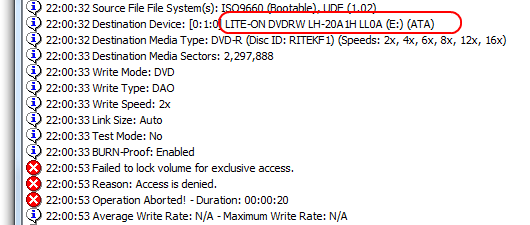
Regardless, I started getting a weird error when burning DVDs, and I noticed this string in IMGBurn:

image

I figured that was a model and version string so I google'ed...

  • The Firmware Page - A portal full of every firmware for every kind of optical drive. Man, there's a forum for everything in the world.
  • CDRinfo's Firmware Page - A list of updates to drive firmware.

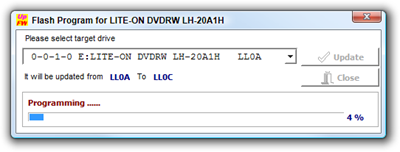
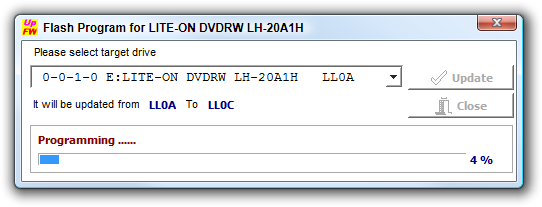
I ended up at the Lite-On Firmware Download page, got their little program. It worked on 64-bit also. It would have SUCKED if it hadn't. Flash, and I'm all set, updated to LLOC.

Flash Program for LITE-ON DVDRW LH-20A1H

Of course, firmware wasn't my problem, although it's nice to be up to date.

If you get "Failed to lock volume for exclusive access" while burning a disk, use ProcessExplorer and go to the Find menu item and search for "CDROM" to see the processes that have it open.

About Scott

Scott Hanselman is a former professor, former Chief Architect in finance, now speaker, consultant, father, diabetic, and Microsoft employee. He is a failed stand-up comic, a cornrower, and a book author.

facebook bluesky subscribe
About   Newsletter
Hosting By
Hosted on Linux using .NET in an Azure App Service

WS-AtomicTransaction Configuration on Windows Server 2008 RC0

September 27, 2007 Comment on this post [0] Posted in Longhorn | Microsoft | Programming
Sponsored By

If you get a message like this in your Roles Summary "RollUp" after installing WCF as part of the Application Server Role in Windows Server 2008RC0:

To configure WS-Atomic Transactions, run the wsatconfig.exe utility in C:\Windows\Microsoft.Net\Framework64\v3.0\Windows Communication Foundation using the following certificate thumbprint for the SSL certificate: 53B7DAAA12C8D60FD10908328A45A707C299AAB5

It's saying to go run:

WsatConfig.exe -network:enable -endpointCert:53B7DAAA12C8D60FD10908328A45A707C299AAB5  etc...

Thanks to Jesse for his help.

About Scott

Scott Hanselman is a former professor, former Chief Architect in finance, now speaker, consultant, father, diabetic, and Microsoft employee. He is a failed stand-up comic, a cornrower, and a book author.

facebook bluesky subscribe
About   Newsletter
Hosting By
Hosted on Linux using .NET in an Azure App Service

How-To: Installing Windows Virtualization Services (Hypervisor) on Windows Server 2008 RC0

September 27, 2007 Comment on this post [3] Posted in ASP.NET | Microsoft | Musings | Programming
Sponsored By

Windows Server 2008 RC0 is out and available to download, peeps. Burn it to a DVD, find a spare machine and have at it.

It was a little confusing for me to find my way around, download, get a product key, etc, so here's what worked for me.

Note that I'm not involved with that group, so this is GEEK TO GEEK. For official stuff, visit the Virtualization Team's blog. My stuff may be wrong and isn't meant to replace the docs. No warranty, your mileage may vary, no complaints taken. ;)

Download Windows Server RC0

  1. Go to the Download: Windows Server 2008 RC Site to get your Product Key.
    • You'll be sent to a Shopping Cart looking dealie, but everything is $0. Proceed to "buy" the $0 copy and make note of your Product Key. I recommend the "Enterprise" version. I got the 64-bit one.
  2. You can download the ISOs directly from the bottom of this page. You can skip entering the Product Key, but you'll need it within a month if you keep going, so regardless of what order you do things, hang on to your key. Make sure you notice if you're getting the x86 version or the 64bit version.
    • Downloading slow or unreliable? Try GetRight. Works great for slow connections, downloads in parallel and generally kicks. They don't know me, and they don't pay me, but they are awesome.
  3. Burn to a DVD. I use ImgBurn now exclusively and it's wonderful. Works on 64-bit also. More on DVD Burning in another post.

imageOne of the big cool things in WS2008R0 is Virtualization Stuff built in to the OS as a "Server Role." You can add the role to an WS2008 Installation or to a "Server Core" (read: uber-minimal) installation for maximum CPU going to the VMs.

When the product is released, you'll probably be able to go "Check for Roles" and get a list of other roles for your server to download and install. However, not in this RC0 that I can see, so it can be a little roundabout.

Initially if you click Add-Roles, there will be a bunch of Roles but not Virtualization. As an aside, I really like the whole "Roles" metaphor. It really works for me and my workflow. I want this machine to be a print server, that one a file server and virtualization server, etc.

It's cool because you say "I want this machine to host Applications" and you'll get a dialog like this. It shows a description, and "What are these features required." It really sets the bar high when it comes to integrated documentation. I think that more and more apps (certainly ones I write) will have features like these "what the heck is going on" hints at every step of the way.

image

And, since you're in a wizard, as you add Roles, you'll see the new Wizard Steps added dynamically to the list on the left. It's a great UI metaphor, IMHO.

image

Anyway, I digress...here's how to get the Virtualization Role.

Do note that the Virtualization Role is a Preview Release and a separate install (as we saw) from the RC0 of Windows Server 2008 itself.

Enabling Virtualization for Windows Server 2008 RC0

Details about the "Virtualization Role" are here. Make sure you have the prerequisites:

  • x64 base Processor with Hardware-Assisted Virtualization (VT) technology. Most newer CoreDuos and AMDs and Xeons have this.
    • For my installation, I'm using a Dell Precision Desktop Xeon 5150 with 4GBs of RAM running 64-but 2008 Enterprise.
  • DEP (Data Execution Protection) turned on by default (it is in this RC)
  • Buttloads of RAM
  • Optionally Recommended: Two network cards, one for the Virtual Machines, and one for Remote Administration.

After you've installed Windows, go to C:\windows\wsv and install the two files you'll find there.

image

Next, go to the Server Manager and Add Roles and you'll see "Windows Server Virtualization" has been added to the list. Note the pre-release warning so you're on your own, OK?

image

Some wizard steps and a reboot later, you should have Windows Server Virtualization in the Roles Tree to the left of the Server Manager. Note that there are still a few steps and you need to drill into the Tree into Virtualization Services to setup your VHDs.

GOTCHA NOTE: You might get an error saying "The virtual machine could not be started because the hypervisor is not running." That can be a little confusing, but the dialog has three things you can confirm in order to get things going.

In my case, I had forgotten that most machines ship with the VMM (Virtualization) hardware bit turned OFF by default. You'll have to go into the BIOS and turn it on. Note also that you'll often need to CUT POWER COMPLETEY after you've flipped the bit...a soft reboot doesn't always work.

So, into the BIOS, cut power, reboot, loading back up, and...

BETA GOTCHA NOTE #2: After you load up the Virtualization Services MMC Console and start up a machine you might get an error when you try to "Connect" to the machine. The machine is running, you just can't see it and the message is "Your credentials did not work: [snip]...does not allow the user of default credentials to log on to the remote computer...".

This can be fixed in one of two ways (I'm sure it's already fixed in newer builds, so for now it's just an obscure edge case for me):

1. Try running vmconnect out of c:\program files\windows virtualization as an elevated command prompt.
or
2. run "net stop vmms" then "ipconfig /release" then "net start vmms" then "ipconfig /renew" and run vmconnect. Some certificates or something aren't lining up, probably because I'm on a Workgroup, not a Domain.

That's pretty much it.

virtual - Remote Desktop (12)

A couple gotchas (this always happens to me...it's karma) but otherwise very smooth and easy. It'll be even easier when you can just pull the Virtualization Role out of the Cloud and double click. All in all, a good clean install so far. I'll start working with my VMs off this machine and report my findings back to you Dear Reader.

About Scott

Scott Hanselman is a former professor, former Chief Architect in finance, now speaker, consultant, father, diabetic, and Microsoft employee. He is a failed stand-up comic, a cornrower, and a book author.

facebook bluesky subscribe
About   Newsletter
Hosting By
Hosted on Linux using .NET in an Azure App Service

Disclaimer: The opinions expressed herein are my own personal opinions and do not represent my employer's view in any way.