Scott Hanselman

Video Interview: Between Two Nerds - Building Careers with Empathy

October 08, 2019 Comment on this post [6] Posted in Musings
Sponsored By

I was fortunate to be a guest on Steve Carroll's talk show "Careers Behind the Code," but Amanda Silver calls it "Between Two Nerds," so I'm going with that superior title. We also snuck a fern into the shot so that's cool.

In the interview I talk about Empathy and why I think it's an essential skill for developers, designers, and program managers to develop - deeply.

Steve also asked me about how I got my start in tech, and I tell the story about the day I showed up at home and the family van was gone.

I wasn't sure how this interview would turn out, and I don't usually like talking about myself (I'm much more comfortable talking to YOU on my podcast) but folks seem to think the show turned out well.

I also speak a little about "Living your Life by Default" and the importance of mindfulness, which is a partner to Empathy. Please do check out the interview and let me know what you think!


Sponsor: Like C#? We do too! That’s why we've developed a fast, smart, cross-platform .NET IDE which gives you even more coding power. Clever code analysis, rich code completion, instant search and navigation, an advanced debugger...With JetBrains Rider, everything you need is at your fingertips. Code C# at the speed of thought on Linux, Mac, or Windows. Try JetBrains Rider today!

About Scott

Scott Hanselman is a former professor, former Chief Architect in finance, now speaker, consultant, father, diabetic, and Microsoft employee. He is a failed stand-up comic, a cornrower, and a book author.

facebook bluesky subscribe
About   Newsletter
Hosting By
Hosted on Linux using .NET in an Azure App Service

Now is the time to make a fresh new Windows Terminal profiles.json

October 03, 2019 Comment on this post [14] Posted in Open Source | Win10
Sponsored By

I've been talking about it for months, but in case you haven't heard, there's a new Windows Terminal in town. You can download it and start using it now from the Windows Store. It's free and open source.

At the time of this writing, Windows Terminal is around version 0.5. It's not officially released as a 1.0 so things are changing all the time.

Here's your todo - Have you installed the Windows Terminal before? Have you customize your profile.json file? If so, I want you to DELETE your profiles.json!

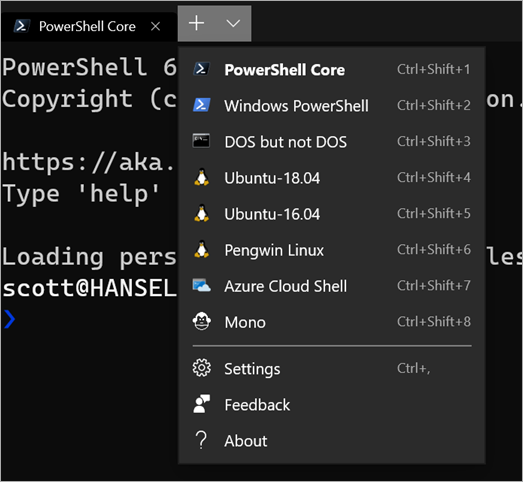
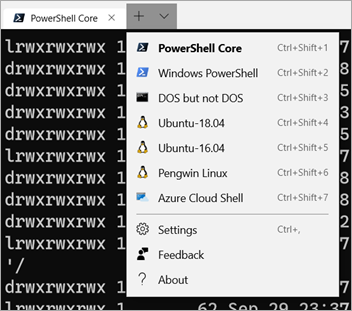
Your profiles.json is somewhere like C:\Users\USERNAME\AppData\Local\Packages\Microsoft.WindowsTerminal_8wekyb3d8bbwe\LocalState but you can get to it from the drop down in the Windows Terminal like this:

Windows Terminal dropdown

When you hit Settings, Windows Terminal will launch whatever app is registered to handle JSON files. In my case, I'm using Visual Studio Code.

I have done a lot of customization on my profiles.json, so before I delete or "zero out" my profiles.json I will save a copy somewhere. You should to!

You can just "ctrl-a" and delete all of your profiles.json when it's open and Windows Terminal 0.5 or greater will recreate it from scratch by detecting the shells you have. Remember, a Console or Terminal isn't a Shell!

Note the new profiles.json also includes another tip! You can hold ALT- and click settings to see the default settings! This new profiles.json is simpler to read and understand because there's an inherited default.


// To view the default settings, hold "alt" while clicking on the "Settings" button.
// For documentation on these settings, see: https://aka.ms/terminal-documentation

{
"$schema": "https://aka.ms/terminal-profiles-schema",

"defaultProfile": "{61c54bbd-c2c6-5271-96e7-009a87ff44bf}",

"profiles":
[
{
// Make changes here to the powershell.exe profile
"guid": "{61c54bbd-c2c6-5271-96e7-009a87ff44bf}",
"name": "Windows PowerShell",
"commandline": "powershell.exe",
"hidden": false
},
{
// Make changes here to the cmd.exe profile
"guid": "{0caa0dad-35be-5f56-a8ff-afceeeaa6101}",
"name": "cmd",
"commandline": "cmd.exe",
"hidden": false
},
{
"guid": "{574e775e-4f2a-5b96-ac1e-a2962a402336}",
"hidden": false,
"name": "PowerShell Core",
"source": "Windows.Terminal.PowershellCore"
},
...

You'll notice there's a new $schema that gives you dropdown Intellisense so you can autocomplete properties and their values now! Check out the Windows Terminal Documentation here https://aka.ms/terminal-documentation and the complete list of things you can do in your profiles.json is here.

I've made these changes to my Profile.json.

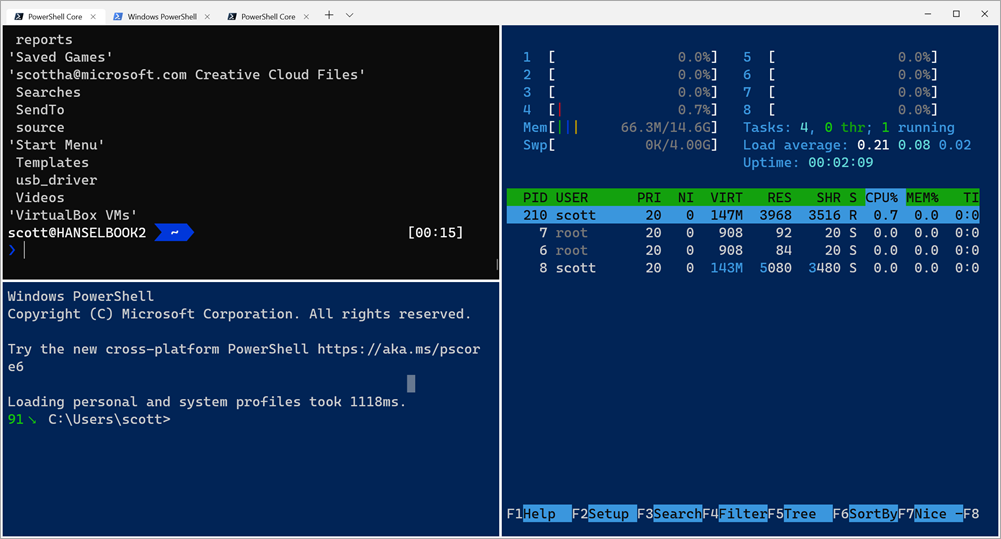
Split panes

I've added "requestedTheme" and changed it to dark, to get a black titleBar with tabs.

requestedTheme = dark

I also wanted to test the new (not even close to done) splitscreen features, that give you a simplistic tmux style of window panes, without any other software.

// Add any keybinding overrides to this array.
// To unbind a default keybinding, set the command to "unbound"
"keybindings": [
{ "command": "closeWindow", "keys": ["alt+f4"] },
{ "command": "splitHorizontal", "keys": ["ctrl+-"]},
{ "command": "splitVertical", "keys": ["ctrl+\\"]}
]

Then I added an Ubuntu specific color scheme, named UbuntuLegit.

// Add custom color schemes to this array
"schemes": [
{
"background" : "#2C001E",
"black" : "#4E9A06",
"blue" : "#3465A4",
"brightBlack" : "#555753",
"brightBlue" : "#729FCF",
"brightCyan" : "#34E2E2",
"brightGreen" : "#8AE234",
"brightPurple" : "#AD7FA8",
"brightRed" : "#EF2929",
"brightWhite" : "#EEEEEE",
"brightYellow" : "#FCE94F",
"cyan" : "#06989A",
"foreground" : "#EEEEEE",
"green" : "#300A24",
"name" : "UbuntuLegit",
"purple" : "#75507B",
"red" : "#CC0000",
"white" : "#D3D7CF",
"yellow" : "#C4A000"
}
],

And finally, I added a custom command prompt that runs Mono's x86 developer prompt.

{
"guid": "{b463ae62-4e3d-5e58-b989-0a998ec441b8}",
"hidden": false,
"name": "Mono",
"fontFace": "DelugiaCode NF",
"fontSize": 16,
"commandline": "C://Windows//SysWOW64//cmd.exe /k \"C://Program Files (x86)//Mono//bin//setmonopath.bat\"",
"icon": "c://Users//scott//Dropbox//mono.png"
}

Note I'm using forward slashes an double escaping them, as well as backslash escaping quotes.

Save your profiles.json away somewhere, make sure your Terminal is updated, then delete it or empty it and you'll likely get some new "free" shells that the Terminal will detect, then you can copy in just the few customizations you want.


Sponsor: Like C#? We do too! That’s why we've developed a fast, smart, cross-platform .NET IDE which gives you even more coding power. Clever code analysis, rich code completion, instant search and navigation, an advanced debugger... With JetBrains Rider, everything you need is at your fingertips. Code C# at the speed of thought on Linux, Mac, or Windows. Try JetBrains Rider today!

About Scott

Scott Hanselman is a former professor, former Chief Architect in finance, now speaker, consultant, father, diabetic, and Microsoft employee. He is a failed stand-up comic, a cornrower, and a book author.

facebook bluesky subscribe
About   Newsletter
Hosting By
Hosted on Linux using .NET in an Azure App Service

A wonderfully unholy alliance - Real Linux commands for PowerShell with WSL function wrappers

October 01, 2019 Comment on this post [10] Posted in Linux | PowerShell
Sponsored By

Dropdown filled with shells in the Windows TerminalI posted recently about What's the difference between a console, a terminal, and a shell? The world of Windows is interesting - and a little weird and unfamiliar to non-Windows people. You might use Ubuntu or Mac and you've picked your shell like zsh or bash or pwsh, but then you come to Windows and we're hopping between shells (and now operating systems with WSL!) on a tab by tab basis.

If you're using a Windows shell like PowerShell because you like it's .NET Core based engine and powerful scripting language, you might still miss common *nix shell commands like ls, grep, sed and more.

No matter what shell you're using in Windows (powershell, yori, cmd, whatever) you can always call into your default Ubuntu instance with "wsl command" so "wsl ls" or "wsl grep" but it'd be nice to make those more naturally and comfortably integrated.

Now there's a new series of "function wrappers" that make Linux commands available directly in PowerShell so you can easily transition between multiple environments.

This might seem weird but it allows us to create amazing piped commands that move in and out of Windows and Linux, PowerShell and bash. It's actually pretty amazing and very natural if you, like me, are non-denominational in your choice of operating system and preferred shell.

These function wrappers are very neatly designed and even expose TAB completion across operating systems! That means I can type Linux commands in PowerShell and TAB completion comes along!

It's super easy to set up. From Mike Battista's Github

  • Install PowerShell Core
  • Install the Windows Subsystem for Linux (WSL)
  • Install the WslInterop module with Install-Module WslInterop
  • Import commands with Import-WslCommand either from your profile for persistent access or on demand when you need a command (e.g. Import-WslCommand "awk", "emacs", "grep", "head", "less", "ls", "man", "sed", "seq", "ssh", "tail", "vim")

You'll do your Install-Module just one, and then run notepad $profile and add just a that single last line. Make sure you change it to expose the WSL/Linux commands that you want. Once you're done, you can just open PowerShell Core and mix and match your commands!

From the blog, "With these function wrappers in place, we can now call our favorite Linux commands in a more natural way without having to prefix them with wsl or worry about how Windows paths are translated to WSL paths:"

  • man bash
  • less -i $profile.CurrentUserAllHosts
  • ls -Al C:\Windows\ | less
  • grep -Ein error *.log
  • tail -f *.log

It's a really genius thing and kudos to Mike for sharing it with us! Go try it now. https://github.com/mikebattista/PowerShell-WSL-Interop


Sponsor: Like C#? We do too! That’s why we've developed a fast, smart, cross-platform .NET IDE which gives you even more coding power. Clever code analysis, rich code completion, instant search and navigation, an advanced debugger... With JetBrains Rider, everything you need is at your fingertips. Code C# at the speed of thought on Linux, Mac, or Windows. Try JetBrains Rider today!

About Scott

Scott Hanselman is a former professor, former Chief Architect in finance, now speaker, consultant, father, diabetic, and Microsoft employee. He is a failed stand-up comic, a cornrower, and a book author.

facebook bluesky subscribe
About   Newsletter
Hosting By
Hosted on Linux using .NET in an Azure App Service

How to download over 80 free 101-level C#, .NET, and ASP.NET for beginners videos for offline viewing

September 26, 2019 Comment on this post [5] Posted in DotNetCore | Learning .NET
Sponsored By

Earlier this week I announced over 80 new free videos in our .NET Core 3.0 launch video series - Announcing free C#, .NET, and ASP.NET for beginners video courses and tutorials

Three questions came up consistently:

  • My work or country blocks YouTube! What about me?
  • How can I download these and watch them offline?
  • I have very low bandwidth. Can I get smaller versions I can download over 3G/4G?

Here's some answers for you!

My work or country blocks YouTube! What about me?

First, we have updated http://dot.net/videos to include links to BOTH YouTube *and* to the same videos hosted on Microsoft's Channel 9, which shouldn't be blocked by you country or company!

How can I download these and watch them offline?

Good question! Here's how to download a whole series with PowerShell! Let's say I want to download "C# 101."

First, head over to https://dot.net/videos.

C# 101 videos

Second, click "Watch on Channel 9" there at the bottom of the series you want, in my case, C# 101.

Note that there's a link there in the corner that says "RSS" - that's Really Simple Syndication!

RSS Videos for Channel 9 Videos

Right click on the one you want, for example MP4 Low for people on low bandwidth connections! (Question #3 gets answered too, two for one!), and say "Copy Link Address." Now that link is in your clipboard!

Next, I made a little PowerShell script and put it here in a Gist. If you want, you can right click on this link here and Save Link As and name it something like DownloadVideos.ps1. Maybe save it in C:\temp or c:\users\YOURNAME\Desktop\DotNetVideos. Whatever makes you happy. Make sure you saved it with a *.ps1 extension.

Finally, open up the PS1 file in a text editor and check lines 2 and 3. Put in a path that's correct for YOUR computer, again, like C:\temp, or your downloads folder.

#CHECK THE PATH ON LINE 2 and the FEED on LINE 3
cd "C:\users\scott\Downloads"
$a = ([xml](new-object net.webclient).downloadstring("https://channel9.msdn.com/Series/CSharp-101/feed/mp4"))
$a.rss.channel.item | foreach{
$url = New-Object System.Uri($_.enclosure.url)
$file = $url.Segments[-1]
$file
if (!(test-path $file)) {
(New-Object System.Net.WebClient).DownloadFile($url, $file)
}
}

Make sure the RSS link that you copied earlier above is correct on line 3. We need a Local Folder and we need our Remote RSS Link.

NOTE: If you're an expert you might think this PowerShell script isn't fancy enough or doesn't do x or y, but it'll do pretty nicely for this project. You're welcome to fork it or improve it here.

And finally, open up PowerShell on your machine from the Start Menu and run your downloadvideos.ps1 script like in this screenshot.

What about getting Low Bandwidth videos I can download on a slow connection!

The low bandwidth videos are super small, some smaller than a JPEG! The largest is just 20 megs, so the full C# course is under 200 megs total.

You can download ALL the videos for EACH playlist by visiting http://dot.net/videos, getting the RSS URL for the video playlist you want, and running the PS1 script again with the changed URL on line 3.

Hope this helps!


Sponsor: Like C#? We do too! That’s why we've developed a fast, smart, cross-platform .NET IDE which gives you even more coding power. Clever code analysis, rich code completion, instant search and navigation, an advanced debugger... With JetBrains Rider, everything you need is at your fingertips. Code C# at the speed of thought on Linux, Mac, or Windows. Try JetBrains Rider today!

About Scott

Scott Hanselman is a former professor, former Chief Architect in finance, now speaker, consultant, father, diabetic, and Microsoft employee. He is a failed stand-up comic, a cornrower, and a book author.

facebook bluesky subscribe
About   Newsletter
Hosting By
Hosted on Linux using .NET in an Azure App Service

Announcing free C#, .NET, and ASP.NET for beginners video courses and tutorials

September 23, 2019 Comment on this post [14] Posted in DotNetCore | Learning .NET | Open Source
Sponsored By

If you've been thinking about learning C#, now is the time to jump in! I've been working on this project for months and I'm happy to announce http://dot.net/videos 

There's nearly a hundred short videos (with more to come!) that will teach you topics like C# 101, .NET, making desktop apps, making ASP.NET web apps, learning containers and Dockers, or even starting with Machine Learning. There's a ton of great, slow-paced beginner videos. Most are less than 10 minutes long and all are organized into Playlists on YouTube!

If you are getting started, I'd recommend starting with these three series in this order - C#, .NET, then ASP.NET. After that, pick the topics that make you the happiest.

Lots of .NET learning videos and tutorials up on YouTube, free!

If you don't have access to YouTube where you are, all these videos are also on Channel 9 *and* can be downloaded locally via RSS feed! https://channel9.msdn.com/Browse/Series

Lots of .NET learning videos and tutorials up on YouTube, free!

If you like these, let me know what other topics you'd like us to cover! We are just getting started and already have intermediate and advanced C# classes in the works!


Sponsor: Like C#? We do too! That’s why we've developed a fast, smart, cross-platform .NET IDE which gives you even more coding power. Clever code analysis, rich code completion, instant search and navigation, an advanced debugger... With JetBrains Rider, everything you need is at your fingertips. Code C# at the speed of thought on Linux, Mac, or Windows. Try JetBrains Rider today!

About Scott

Scott Hanselman is a former professor, former Chief Architect in finance, now speaker, consultant, father, diabetic, and Microsoft employee. He is a failed stand-up comic, a cornrower, and a book author.

facebook bluesky subscribe
About   Newsletter
Hosting By
Hosted on Linux using .NET in an Azure App Service

Disclaimer: The opinions expressed herein are my own personal opinions and do not represent my employer's view in any way.